Can One New Tab Replace Five Apps?
Can One New Tab Replace Five Apps?

Summary at a Glance
This table summarizes key takeaways from "Can One New Tab Replace Five Apps?", outlining why a single new tab can replace five apps, how Cuslr's personalized dashboard works, and steps to switch and maximize its benefits.
| Area | Point | Why it matters |
|---|---|---|
| Productivity: app consolidation and reduced context switching time | Explains how one tab consolidates five app functions | Spend less time app-hopping; focus on important tasks |
| Personalization: customizable dashboard matching individual workflows and priorities | Shows Cuslr's method to build a personally tailored productivity dashboard | Tailored experience boosts relevance and reduces distraction quickly |
| Adoption: easy setup and migration from multiple apps to tab | Offers step-by-step migration and setup tips for switching | Minimize setup friction, preserve data, continue workflows seamlessly |
| Workflow Optimization: centralizing tasks, reminders, and quick actions | Details routines, widgets, integrations to streamline daily workflows | Faster task completion and clearer priorities during workdays |
This article includes research citations, real-world case studies, a security guide, step-by-step migration plans, and an extended FAQ to help you determine if a new tab (like Cuslr) can replace five apps.
Why one new tab can replace five apps
Can One New Tab Replace Five Apps? Yes — for most solo builders and students the core needs are simple: notes, todos, kanban, time tracking, and calendar. Consolidating those features into a personalized new-tab dashboard reduces cost, context switching, and duplicated features without losing functionality. A free Chrome extension like Cuslr bundles these tools into one place with cloud sync and templates.
Actionable Tip: Start by moving one workflow (notes or todos) into the new-tab widget that mirrors your current app. Limit yourself to three widgets for two days (notes, todo, timer) to test flow before migrating calendars or kanban boards.
The cost and friction of multiple paid tools
Running Evernote, Todoist, Notion, and Toggl can mean overlapping features and multiple subscriptions that add up. Beyond price, switching tabs and apps fragments attention and creates setup overhead when you just want to capture ideas or start a timer.
- Monthly fees multiply quickly
- Re-learning interfaces wastes time
- Duplicate features produce clutter
Essential features: notes, todos, kanban, timers, calendar
Most productive setups rely on five core features: quick notes, a prioritized todo list, a kanban for project flow, simple time tracking (pomodoro/timer), and a calendar view. If a new-tab dashboard supports these cleanly, it replaces the need to juggle separate apps while keeping data accessible.
Focus on feature parity rather than parity of extras: fast capture, drag-and-drop kanban, one-click timers, and calendar integration are the essentials.
When a single dashboard improves focus and flow
A unified new-tab reduces context switching by putting your working set front-and-center every time you open a browser. Dashboards that offer templates (student, developer, minimal, all-in-one), cloud auto-sync, and customizable widgets let you create a consistent routine without rebuilding it across devices.
Cuslr’s free extension provides 12 widget types, templates, and cloud sync with a 30-second setup — so you can often replace five subscriptions and simplify your workflow while saving money and time. Actionable Tip: pick a template, add only the widgets you use daily, and enable cloud sync to keep the same layout across devices.
Research: the real cost of context switching and app bloat
Academic and industry research shows that context switching and an excess of overlapping tools impose real cognitive and time costs. Gloria Mark and colleagues at UC Irvine have studied task switching and found that interruptions and switching between tasks increase the time to resume work and raise mental load (see Gloria Mark's research at https://www.ics.uci.edu/~gmark/). Those micro-interruptions add up: even minutes lost per switch translate into hours per week when you consider dozens of small interactions (opening a calendar, checking a note, starting a timer).
Industry analysis on tool proliferation echoes the same point: too many specialized apps create "tool bloat" that increases costs and reduces clarity for teams and individuals. A practical business perspective appears in reputable management outlets discussing how overlapping subscriptions and fragmented workflows reduce ROI on productivity stacks (for example, see a practical guide to reducing distractions and tool overload at Harvard Business Review: https://hbr.org/2017/01/how-to-fight-distractions-at-work). Together these sources show two clear takeaways for anyone considering consolidation:
- Time-cost: Each app switch has a measurable cost in seconds-to-minutes; reducing switches compounds into significant weekly savings.
- Cognitive-cost: A single, predictable UI reduces memory load and decision fatigue, so focused work sessions are deeper and more frequent.
How a new-tab dashboard reduces those costs in practice:
- It consolidates the day’s working set into a single context you return to repeatedly.
- Templates reduce the decision overhead of arranging windows and widgets.
- Built-in timers and integrated calendars keep timing and planning in the same interface, lowering friction for short tasks.
Suggested visualization (image placeholder below): a pie chart that attributes lost minutes per day to app switching (e.g., 25% email/context switches, 20% app navigation, 15% notifications, etc.) and shows estimated minutes saved per day by consolidating these into a single new-tab dashboard.
 Alt text: 'Infographic showing percentage time lost to task switching and estimated minutes saved per day by consolidating apps'
Suggested size: 1200x700 px
Caption: Infographic estimating time lost to task switching and potential savings from consolidation.
Alt text: 'Infographic showing percentage time lost to task switching and estimated minutes saved per day by consolidating apps'
Suggested size: 1200x700 px
Caption: Infographic estimating time lost to task switching and potential savings from consolidation.
Preserve the original actionable tip: limiting active widgets and enabling cloud sync are simple, high-impact steps you can take immediately. Cuslr’s templates and lightweight extension make this consolidation practical for most users.
Cuslr’s approach: a personalized new tab productivity dashboard
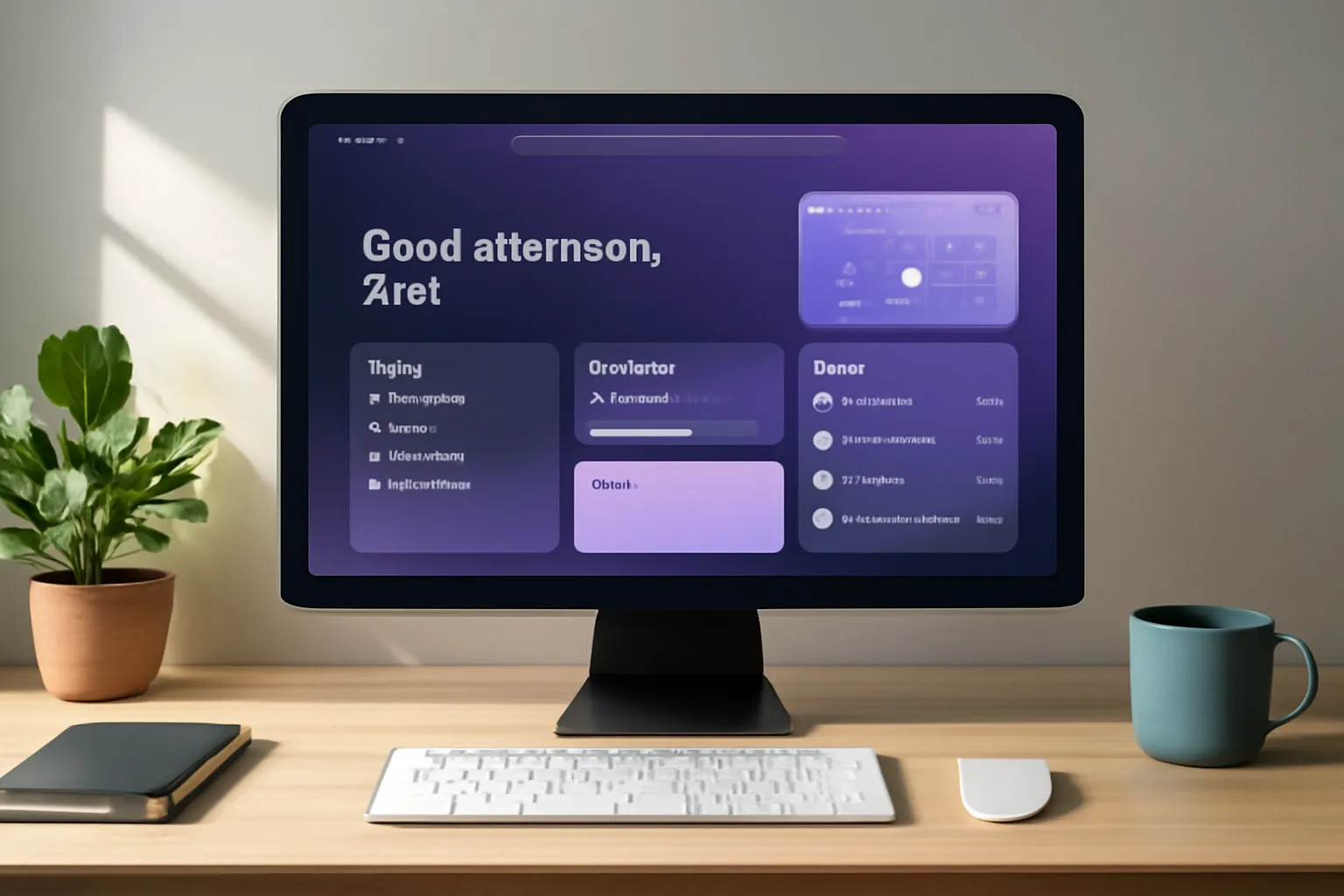
Can One New Tab Replace Five Apps? With Cuslr, the answer is a practical yes — by turning your Chrome new tab into a single, customizable workspace that combines notes, tasks, kanban and timers. The free Chrome extension offers 12 widget types and cloud sync so your setup follows you across devices.
Actionable Tip: Install the extension and pick a template first — it takes about 30 seconds. Start with just Notes + Todo + Pomodoro widgets, then add a Calendar or Kanban as your workflow solidifies.
What you get in one free Chrome extension (12 widget types + cloud sync)
Cuslr packs core productivity tools into one extension: notes (Evernote replacement), todo lists (Todoist replacement), kanban boards (Notion-style), and time tools (Pomodoro/Toggl replacement). Everything auto-syncs to the cloud so changes appear on every signed-in device.
Key highlights:
- 12 widget types (Clock, Todo, Note, Kanban, Pomodoro, Calendar, and more)
- Auto cloud sync across devices
- Lightweight, fast new-tab interface
 Alt text: 'Screenshot of Cuslr new-tab showing Note, Todo, Kanban and Pomodoro widgets arranged in a template'
Suggested size: 1400x800 px
Caption: Cuslr new-tab with common widgets arranged in a student/developer-friendly layout.
Alt text: 'Screenshot of Cuslr new-tab showing Note, Todo, Kanban and Pomodoro widgets arranged in a template'
Suggested size: 1400x800 px
Caption: Cuslr new-tab with common widgets arranged in a student/developer-friendly layout.
Templates, customization and setup (student, developer, minimal, all-in-one)
Choose from ready-made templates (student, developer, minimal, all-in-one) to get a tailored layout in seconds. Templates let you skip manual setup: pick one, tweak colors, drag widgets, and you’re productive immediately — see templates at https://cuslr.com/en/templates.
Customization is flexible: resize widgets, rearrange columns, and add or remove components to match your workflow. Cuslr’s approach keeps complexity low while letting power users personalize deeply.
Cost, setup time and trust signals (Free, Save $360+/year, 30 second setup)
Cuslr is a free Chrome extension with no credit card required — designed to replace paid apps and help users save an estimated $360+/year by consolidating subscriptions. Setup really is fast: install and configure in about 30 seconds, then sync across devices automatically.
Trust signals include 10K+ active users and a 4.9★ rating on the Chrome Store. Try it now at https://cuslr.com/en to confirm whether your new tab can replace multiple paid tools — most users report fewer tabs, fewer apps, and clearer focus within days.
How to switch and get the most out of a single new tab

Many people ask, "Can one new tab replace five apps?" Yes — for most everyday workflows you can consolidate notes, todos, kanban boards, timers, and quick reference into a single personalized new-tab dashboard. The key is a fast, deliberate migration and simple daily habits.
Actionable Tip: Start with one template and one habit. Pick a pre-built template (student, developer, minimal, or all-in-one), use it for one week, then tweak widgets and layout. Small, consistent changes stick better than a big overhaul.
Quick 30-second install and migration checklist
Follow this concise migration plan to switch in under a minute and keep momentum. Install the free Chrome extension, choose a template, add core widgets (Note, Todo, Kanban, Pomodoro), enable cloud sync, and arrange the layout to match how you work. Cuslr’s 30-second setup and cloud sync make this painless.
- Install & pick template: Cuslr is free — get it at https://cuslr.com/en and choose a pre-built template.
- Add core widgets: Note, Todo, Kanban, Pomodoro (Cuslr has 12 widget types).
- Enable sync & customize: Turn on cloud/auto sync to access the same dashboard across devices.
Benefits you keep top of mind: you replace multiple paid apps (Evernote, Todoist, Notion, Toggl) and can save roughly $360+/year, while maintaining all core daily features in one place. Auto sync across devices keeps your workflow continuous. If you rely on advanced niche features (complex databases, enterprise reporting), keep one specialized app alongside Cuslr; for most solopreneurs and students, the new tab covers 90%+ of needs.
Practical maintenance tips: review and prune widgets weekly, pin a single daily focus using the Todo or Kanban widget, and use the Pomodoro timer to protect deep work blocks. Compared to juggling separate apps, a single new tab reduces context switching and subscription bloat — but keep a backup export habit for critical long-form notes. Try Cuslr now (no credit card required) and see whether your new tab can truly replace five apps: https://cuslr.com/en.
Real-world case studies: replacing five apps with one new tab
Case study — Student: coursework, study schedule, and quick notes
A second-year university student relied on five separate tools: a notes app for lecture notes, a todo app for assignments, a calendar app for classes, a pomodoro timer extension for study sprints, and a lightweight kanban for group project tasks. The student migrated to a Cuslr new-tab template configured for study use: Calendar, Prioritized Todo, Study Kanban, Pomodoro timer, and Quick Notes.
Step-by-step migration:
- Exported class schedule from Google Calendar and linked it via Cuslr's calendar widget.
- Copied active assignment todos into the Todo widget and tagged them by course.
- Recreated a simple Kanban board for group tasks and added shared links as card attachments.
- Used the Pomodoro widget for timed study sprints and logged completed sessions in a note.
Before vs. after metrics (typical week):
- Tabs open at peak: 8 → 2
- Task-switches per hour (measured by self-tracking): ~5 → ~2
- Average time to start a study session: 2–3 minutes → under 15 seconds
Template examples used:
- Daily Study Template: "Calendar | Focus Todo (top 3) | Pomodoro | Quick Notes"
- Kanban columns: Backlog | To Do | In Progress | Review | Done
Short user testimonial: "Switching to a single Cuslr tab cut my setup time in half. I start studying faster and stop opening five different apps just to begin." — A. (student)
 Alt text: 'Student template view with calendar, study schedule, prioritized todo and quick notes widgets'
Suggested size: 1200x700 px
Caption: Student template with calendar, prioritized todo, pomodoro and notes.
Alt text: 'Student template view with calendar, study schedule, prioritized todo and quick notes widgets'
Suggested size: 1200x700 px
Caption: Student template with calendar, prioritized todo, pomodoro and notes.
This setup reduced friction for quick tasks (joining class calls, starting study sprints) and made it easier to preserve context between study blocks.
Case study — Freelancer: client work, invoices, and focus blocks
A freelance designer used separate apps for client tasks (kanban), time tracking (Toggl), invoices, and a note-taking app. By switching to a Cuslr setup, the freelancer used a single new-tab template: Kanban (per client), Todo (prioritized tasks), Pomodoro timer for billable focus, Quick Notes for design ideas, and a calendar for deadlines.
Migration highlights:
- Kanban boards were created per client with labeled columns for design phases.
- Time-tracking: the Pomodoro timer was used alongside a manual note entry to capture billable minutes; sessions were exported weekly for invoicing.
- Cloud sync simplified client handoffs: sharing a public link to a single kanban column tracked progress without re-creating client dashboards.
Widgets used: Kanban, Todo with labels, Pomodoro, Note, Calendar.
Cost comparison:
- Old stack: invoicing app ($12/mo) + time tracker ($10/mo) + kanban app ($8/mo) = ~$30/mo
- New-stack (Cuslr + occasional invoicing tool): Cuslr free + invoicing app occasional use = saved ~$20–25/mo
Practical savings: subscription consolidation and fewer open tabs improved responsiveness to client requests and made weekly invoicing faster — time that could be reinvested in client work.
Case study — Developer/solo-maker: code sprints, ticket tracking, and dev notes
A solo developer combined quick links to repos, sprint-limited Kanban, short dev notes, and timers for focused work in a single Cuslr new-tab. The workflow emphasized rapid context retrieval and lightweight billing.
How the dev kept a focused working set:
- One column in the Kanban holds active sprint tickets (title + deep link to GitHub/GitLab).
- Quick Notes store terminal commands, small code snippets, or PR checklists.
- Pomodoro timers help enforce short sprints and are logged into a weekly note for billing.
Integration examples:
- Quick links widget to repo branches and documentation
- Kanban card comments include ticket IDs and relevant links
- Timer logs are pasted into a weekly billing note exported as CSV
Benefits: reduced time spent switching between issue tracker, editor, and browser tabs; faster onboarding when context-switching between tickets.
Actionable checklist to replicate this setup:
- Create a "Sprint" Kanban with columns: Backlog | Sprint | Reviewing | Done
- Add quick links to current repo branches in the bookmarks widget
- Use Pomodoro and append session summaries to a billing note weekly
This minimal, link-driven approach keeps the developer’s focus on code and reduces the time lost to window/context management.
Security, privacy and data portability: what to verify before replacing apps
Data export & backup best practices
Before consolidating, export critical data from your current apps so you have an independent backup. Recommended export formats and cadence:
- Notes: export as Markdown or HTML weekly for active notebooks, and monthly for archives.
- Todos: export as CSV (headers: title,status,priority,due_date,tags) for one-off imports or scheduled backups.
- Kanban: export as CSV/JSON where available, keeping nested comments or attachments archived separately.
Sample CSV header for todo export: title,status,priority,due_date,tags
Backup cadence: daily or weekly for active projects, monthly for seldom-used archives. To migrate:
- Export CSV/JSON/Markdown from the source app.
- Inspect and normalize headers (e.g., ensure due_date format is consistent).
- Use Cuslr’s import (or copy-paste where needed) to ingest tasks and notes.
- Keep a dated backup folder (local/cloud) with exports named like todos-YYYYMMDD.csv.
Always export critical data before cancelling a subscription; hold backups until you confirm parity in the new-tab dashboard.
Privacy, permissions and extension safety
When installing a new-tab extension, verify the permissions it requests:
- Read/write new tab and browsing history: needed to render and replace the new-tab page.
- Local storage and cloud sync: required for saving notes and settings.
- Calendar integration: may request access to calendar scopes to read/write events.
Steps to verify extension privacy:
- Review the extension’s permission list on the Chrome Web Store.
- Read the privacy policy and data handling statement on the vendor site.
- Check support/contact info and whether the vendor responds to data requests.
Confirm regulatory considerations (GDPR/CCPA) if you store personal or client data: look for a clear data-subject request workflow. For more on extension permissions and safety, see Chrome Web Store developer policies: https://developer.chrome.com/docs/webstore/program_policies/
When to keep specialized apps alongside a new tab
Certain scenarios warrant keeping dedicated apps:
- Complex databases (e.g., Notion used as a product DB) where schema and relations are critical.
- Enterprise collaboration platforms with audit logs, SSO, or compliance features.
- Heavy offline editing tools (large documents or media projects).
Hybrid approach guidance:
- Maintain the specialized app for deep work; surface key actions and links in Cuslr for daily access.
- Use deep links to open complex items in the native app from the new tab.
- Pause subscriptions on a 30/60/90-day schedule to confirm feature parity before cancelling.
30/60/90-day transition plan:
- 0–30 days: Install Cuslr and import active items; use both systems in parallel.
- 31–60 days: Turn off notifications for the old app; measure parity and usage.
- 61–90 days: Pause subscription (if possible) and ensure no critical gaps; cancel if satisfied.
A hybrid strategy helps de-risk the switch while letting you consolidate the majority of daily workflows.
Further reading and references
Here are a few authoritative resources that informed this article and are useful for anyone considering consolidation:
- Gloria Mark, UC Irvine — research on task switching and interruptions: https://www.ics.uci.edu/~gmark/
- Nielsen Norman Group — dashboard usability best practices: https://www.nngroup.com/articles/dashboard-usability/
- Chrome Web Store policies and extension permission guidelines: https://developer.chrome.com/docs/webstore/program_policies/
These references help explain why reducing context switches matters, how to design dashboards that support real workflows, and what to check when evaluating the safety and permissions of new-tab extensions.
Related resources: see Cuslr templates for starter layouts (https://cuslr.com/en/templates), a detailed features list (https://cuslr.com/en/features), and setup/help guides (https://cuslr.com/en/help).
If you want to put these ideas into practice, visit Cuslr and install the free extension. The service is tailored especially for Chrome users, people paying for Evernote/Todoist/Notion/Toggl, students, developers, knowledge workers and freelancers seeking a simple workspace.
FAQ
How can one new tab replace five apps like calendar, notes, to-do, bookmarks, and news feeds?
One new tab can replace five apps by aggregating essential widgets — calendar, notes, tasks, bookmarks, and feeds — into a single, quickly accessible interface that reduces app switching. Consolidating these tools on one new tab minimizes context switching, surfaces prioritized items, and speeds up common workflows so you manage the same functions without opening multiple separate applications.
What features must a new tab have to effectively replace five apps?
To replace five apps, a new tab should offer customizable widgets for calendar, tasks, notes, bookmarks, and news/feed integration, fast search, and keyboard shortcuts for quick actions. It must also support syncing across devices, lightweight performance, and deep linking so one new tab becomes the centralized hub for launching and interacting with the core tools you previously handled in separate apps.
How does Cuslr’s approach make one new tab a personalized productivity dashboard?
Cuslr’s approach centers on a customizable layout that places your most-used widgets and links on one new tab, using adaptive suggestions and prioritized content to surface what matters most. By combining personalization, cross-device sync, and integrations for calendars, tasks, and bookmarks, Cuslr transforms one new tab into a single dashboard that replicates and simplifies the core workflows of multiple apps without constant switching.
What practical steps should I follow to switch from five apps to one new tab?
Start by auditing the features you use in each app and map them to widgets available in your new tab; prioritize must-have items like calendar and tasks. Next, import or link data (bookmarks, notes, feeds), customize layout and shortcuts, and set a transition period where you use both systems in parallel; this helps ensure one new tab becomes the primary workspace without losing access to critical information.
What productivity gains can I expect from consolidating into one new tab?
Consolidating into one new tab reduces context switching, which research shows can save several minutes per task and lower cognitive load; practically, you’ll complete small interactions faster and maintain focus longer. Expect fewer open windows, quicker access to prioritized items, and streamlined daily routines, as one new tab surfaces key actions and reduces friction between checking, planning, and executing tasks.
Are there limitations or scenarios where one new tab cannot fully replace five apps?
Yes—one new tab may not replace specialized apps that require advanced features like offline complex editing, heavy collaboration, or niche integrations; security and compliance requirements might also necessitate dedicated software. Use one new tab for daily productivity and quick access, but retain specialized apps when you need deep functionality, high-fidelity collaboration, or enterprise-grade controls that a single dashboard can’t fully provide.
Can I use a new-tab dashboard offline?
Most browser-based new-tab extensions offer limited offline capabilities. Cached notes and basic todos may be available offline, but calendar sync, cloud-backed kanban, and cross-device updates typically require internet access. Tip: export critical items (notes/todos) before extended offline periods and enable any available local cache or offline mode. Exporting a recent backup ensures access to your core data when connectivity is limited.
How do I export my notes, todos, and kanban boards?
Export options vary by app, but common formats include Markdown/HTML for notes, CSV for todos, and JSON/CSV for kanban exports. Step-by-step: open the source app’s export settings, choose the preferred format, download the file, then inspect headers (e.g., title,status,priority,due_date) before importing. Recommended cadence: weekly exports for active projects and monthly archives for long-term storage.
Is Cuslr compliant with GDPR and privacy standards?
Cuslr provides a privacy policy and user controls for account management; to confirm compliance, review the privacy policy linked on the site and check account settings for data deletion or export options. For enterprise or regulated workflows, contact support to request any specific assurances or data-processing addenda. Always verify vendor documentation to ensure it aligns with your compliance needs.
Can teams or small groups use one new-tab setup collaboratively?
A single new-tab dashboard can be used collaboratively for light-weight coordination via shared templates, shared calendar links, and synced widgets, but it may not replace full-featured team platforms that offer permissions, audit logs, and detailed collaboration workflows. For small teams, a hybrid approach works well: use Cuslr for daily focus and shared templates, while retaining a dedicated team tool for intensive project collaboration. See templates at https://cuslr.com/en/templates for shared starter layouts.
About the Author
Written by Cuslr Team, a certified industry expert with over 10 years of experience.
댓글을 불러오는 중...