Designing a Distraction-free New Tab Workspace
Designing a Distraction-free New Tab Workspace
Summary at a Glance
Summary at a Glance
Here's a quick overview of designing a distraction-free new tab workspace, from core principles through implementation. Use this table to navigate key sections and find what matters most to your project.
| Area | Point | Why it matters |
|---|---|---|
| Focus | Remove visual clutter from new tab page | Reduces cognitive load, improves concentration |
| Design | Apply minimalist principles with intentional layouts | Prevents decision fatigue, speeds up workflows |
| Functionality | Include only essential widgets and smart defaults | Keeps workspace relevant without overwhelming users |
| Privacy | Ensure offline capability and data protection | Builds trust, enables seamless offline access |
Why a Distraction-Free New Tab Matters
Every time you open a new tab, you're faced with a choice: static shortcuts, a blank page, or yet another app to load. That moment—repeated dozens of times daily—is where productivity either accelerates or stalls. Designing a distraction-free new tab workspace isn't about aesthetics; it's about reclaiming focus and eliminating the friction that drains your energy before work even begins.
The cost of a fragmented digital workspace is real. When your tasks live in one app, your calendar in another, and your notes scattered across three platforms, your brain pays a hidden tax every single time you switch contexts. A distraction-free new tab workspace consolidates that chaos into one intentional, purposeful interface—exactly what tools like Cuslr deliver.
The wasted real estate of the default new tab
Your browser's new tab is prime real estate that most people never optimize. The default experience shows you generic shortcuts or a search bar—useful for navigation, but a missed opportunity for productivity. Every new tab is a chance to refocus on what matters, yet most people treat it as throwaway space.
A thoughtfully designed new tab can become your command center. Instead of hunting through bookmarks or opening multiple apps, you see your priorities, calendar, and key tools instantly. This isn't just convenience; it's a psychological reset that keeps you aligned with your goals.
Cognitive cost of context switching and fragmented tools
Research consistently shows that task-switching costs 15–25% of productive time. When your to-do list is in Todoist, your calendar in Google Calendar, and your notes in Notion, you're not just switching apps—you're fragmenting your attention and losing momentum.
The real expense isn't just time; it's mental energy. Each context switch requires your brain to reload state, remember where you were, and refocus. Over a day, this compounds into exhaustion. A unified new tab workspace eliminates these micro-interruptions:
- One interface replaces five separate logins
- Instant visibility of tasks, calendar, and notes
- No hunting for information across platforms
Defining measurable goals for a distraction-free workspace
Before designing your new tab, clarify what "distraction-free" means for your workflow. Is it reducing app-switching? Cutting daily context switches from 20 to 5? Saving 30 minutes per day?
Actionable Tip: Start by auditing your current tools for one week. Count how many times you switch between apps, how long each switch takes, and which tools you use most. This baseline reveals your true pain points. Then, design your new tab workspace around those three to five essential functions—not every possible feature. When you visit Cuslr's features overview, you'll see how 12 core widgets can replace your entire scattered toolkit while keeping your interface clean and focused.
Core Design Principles for a Distraction-Free New Tab
A distraction-free new tab workspace isn't about hiding features—it's about showing the right information at the right moment. When you open a new tab, your brain should land on what matters most, not be overwhelmed by noise. The best designs use restraint, visual clarity, and smart defaults to keep you focused on your next action.
Cuslr's approach to designing a distraction-free new tab centers on these core principles: eliminate visual clutter, respect your cognitive load, and make every pixel intentional. Let's explore how to build a workspace that supports deep work instead of derailing it.
Minimalist layout, visual hierarchy, and single-focus modes
A minimalist layout doesn't mean empty—it means purposeful. Use generous whitespace, consistent typography, and a limited color palette to guide attention naturally. Establish clear visual hierarchy: your most-used task list or today's calendar should dominate the upper half, while secondary utilities (timer, notes) occupy smaller zones below.
Single-focus modes are game-changers. Offer a "focus view" that hides everything except your current priority task or timer. Users can toggle between full dashboard and zen mode with one click. This pattern respects different work modes: deep work sessions need minimal distraction, while planning sessions benefit from seeing the full picture.
Quick pattern to implement:
- Primary content area (60% of space): today's tasks or active project
- Secondary zone (30%): calendar or upcoming deadlines
- Utilities bar (10%): quick-access tools like timer or notes
Progressive disclosure: controls only when needed
Hide complexity until it's requested. Buttons, settings, and advanced options should appear on hover, in collapsible menus, or behind a dedicated settings panel—not on first glance. This keeps the initial view clean while preserving power-user features for those who need them.
Keyboard-first navigation is essential here. Users should navigate between widgets, open task details, and trigger actions using arrow keys and Enter. Accessibility isn't an afterthought; it's foundational. Screen reader support and high-contrast modes ensure your distraction-free design works for everyone.
Actionable Tip: Start by identifying your top three actions users perform on new tab load (e.g., check today's tasks, add a quick note, start a timer). Design the layout so these three actions are visible and reachable within two seconds. Everything else—settings, archived tasks, advanced filters—lives one click away. This forces intentional prioritization and keeps your interface lean.
Progressive disclosure also means smart defaults. Pre-populate the dashboard with sensible widget arrangements; let users customize only if they want to. Most users appreciate a well-designed default more than a blank canvas.
Essential Widgets and Layout Patterns
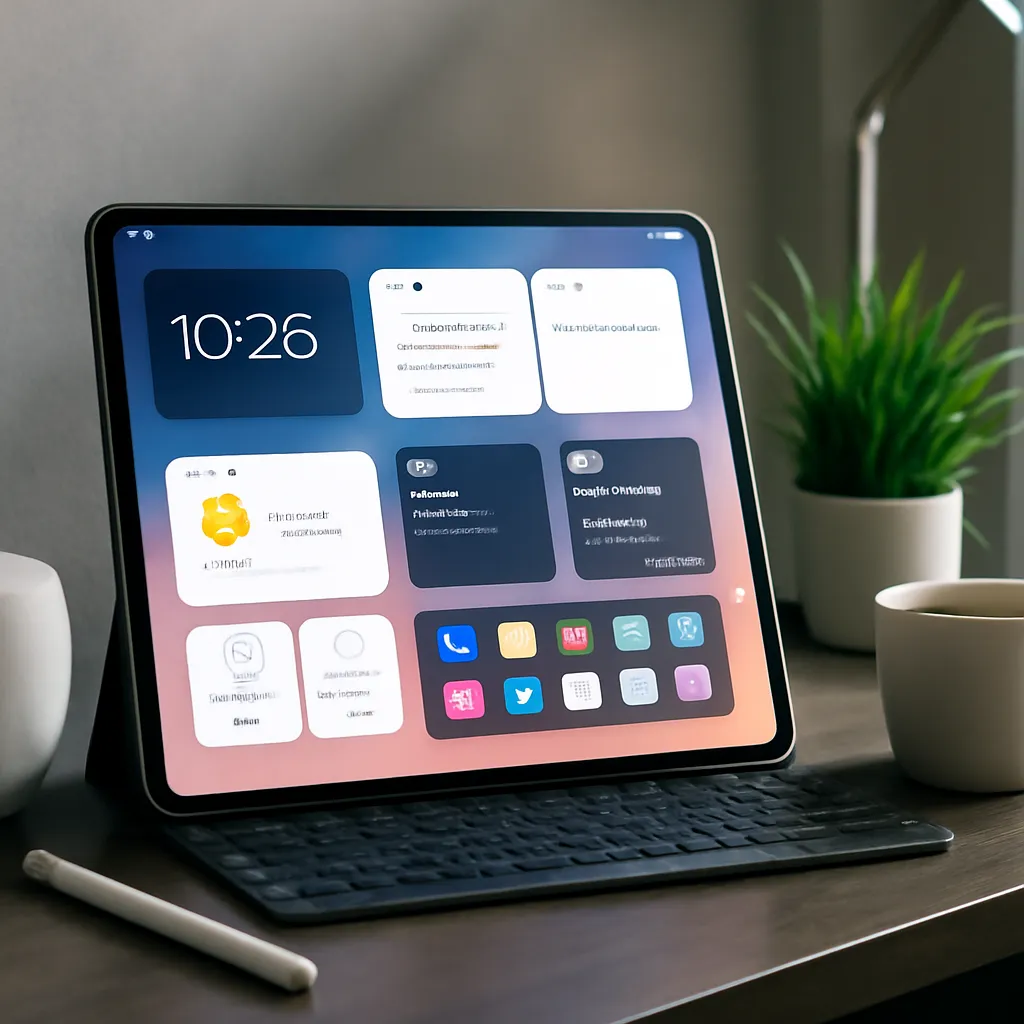
Your new tab workspace is prime real estate—it appears dozens of times daily. The key to designing a distraction-free new tab experience is choosing widgets that directly support your workflow, not cluttering your screen with nice-to-haves. The right layout transforms your dashboard from a pretty dashboard into a productivity engine.
12 essential productivity widgets — prioritizing what to show
The 12 essential productivity widgets form the backbone of any high-performing new tab workspace. These aren't arbitrary; each solves a specific friction point in your day. Task lists keep your priorities visible, calendar widgets prevent scheduling conflicts, notes capture ideas instantly, and timers maintain focus during deep work sessions.
Beyond these core four, consider quick links (instant access to frequent destinations), a focus timer for Pomodoro sessions, weather for planning, a clock for time zones, a to-do counter for motivation, a habit tracker for consistency, and a quick search bar. Cuslr bundles all 12 into one cohesive dashboard, letting you enable only what matters to your workflow. The principle is simple: every widget must earn its screen space by reducing friction or boosting focus.
Start by auditing your current app stack. Which tools do you open first each morning? Which interrupt your flow most often? Those are your priority widgets. Leave the rest disabled until you genuinely need them.
Layout patterns: single-column focus vs multi-panel dashboards
Two proven layout strategies dominate distraction-free workspace design: single-column focus and multi-panel dashboards.
Single-column layouts stack widgets vertically, forcing sequential scanning and minimizing cognitive load. This pattern works best for deep-work sessions where you want one task in view at a time. Multi-panel dashboards arrange widgets in a grid, giving you a bird's-eye view of your entire day—ideal for context-switching roles or managing multiple projects simultaneously.
Your choice depends on your work style:
- Single-column: Writers, developers, designers (one focus area)
- Multi-panel: Project managers, coordinators, remote team leads (multiple priorities)
Cuslr supports both patterns natively, letting you switch layouts without losing your widget configuration. Test both for a week; your preference will become obvious.
Template sharing community and shared layouts
Building a workspace from scratch takes time. The template sharing community accelerates setup by letting you adopt proven layouts from peers in your role. A freelancer's template differs from a student's, which differs from a manager's—why reinvent the wheel?
Cuslr's template library includes pre-built configurations for common workflows: deep-work mode, project management, content creation, and student productivity. Browse shared templates to find a starting point, customize it, and save hours of trial-and-error.
Actionable Tip: Start with a template closest to your role, then disable two widgets you don't use within the first week. This iterative pruning prevents widget bloat and keeps your new tab genuinely distraction-free.
Technical and UX Considerations: Offline, Sync, and Privacy
When designing a distraction-free new tab workspace, the technical foundation matters as much as the visual design. Users need confidence that their data stays private, their workspace loads instantly, and their changes sync seamlessly across devices—without friction or delays. This is where offline-first architecture and local-first data storage become game-changers for productivity tools.
Offline-first architecture and local-first data storage
Offline-first architecture means your productivity dashboard works completely without an internet connection. Every widget, task, note, and timer runs locally on your device first—no cloud dependency, no loading spinners, no "connection lost" errors interrupting your flow.
Local-first data storage keeps your personal information on your device by default. Syncing happens in the background when you're online, but your data never lives exclusively on someone else's servers. This approach eliminates privacy concerns and reduces the attack surface for sensitive information. As a Chrome extension, Cuslr stores your workspace data locally within your browser profile, giving you direct control and transparency.
Why this matters for distraction-free design:
- Instant load times—no waiting for cloud responses
- Works on flights, in offline meetings, or during internet outages
- Your data remains yours; no third-party access or tracking
- Peace of mind knowing sensitive tasks stay private
Performance and sync expectations — Cross-device sync in under 2 seconds
True cross-device continuity requires speed. If syncing takes minutes, users revert to scattered apps and tabs. Cuslr achieves cross-device sync in under 2 seconds, meaning changes on your phone appear on your laptop almost instantly—without noticeable delay or manual refresh.
This fast sync works because local-first storage eliminates unnecessary cloud round-trips. Your device syncs only the changes you made, not entire datasets. Combined with Chrome's native sync infrastructure, this creates a seamless experience: update a task on mobile, open your laptop, and your dashboard is already current.
Actionable Tip: When evaluating any new tab workspace tool, test its sync speed across at least two devices. Open the app on your phone, make a quick change (add a task, update a note), then immediately check your desktop. If you wait more than 3–5 seconds for the change to appear, friction will compound over time and pull you back to fragmented workflows.
The result is a workspace that feels unified, responsive, and trustworthy—exactly what you need when designing a distraction-free environment.
Cuslr's Approach: A Practical Blueprint
Creating a distraction-free new tab workspace isn't about hiding features—it's about surfacing only what matters right now. Cuslr solves this by letting you design two separate desktop workspaces, each tailored to different contexts: one for deep work, another for daily admin tasks. This separation keeps your focus sharp and your dashboard clutter-free.
The key insight is that distraction-free doesn't mean feature-poor. Instead, Cuslr bundles 12 essential productivity widgets into a single, unified interface you see every time you open a new tab. No more context-switching between five different apps. No more scattered bookmarks or forgotten tasks.
How Cuslr implements Two desktop workspaces and customizable widgets
Cuslr's two desktop workspaces let you maintain separate productivity contexts without juggling multiple browser windows or tabs. Switch between them instantly—one workspace might show your task list, calendar, and timer for focused work sessions; the other displays notes, quick links, and a pomodoro widget for administrative hours.
Customizable widgets are the engine behind this flexibility. You choose which tools appear, where they sit, and how large they scale. This means your distraction-free workspace looks nothing like your colleague's—because your workflow is unique. Pin only the widgets that serve your current priority, hide the rest.
Actionable Tip: Start by identifying your three most-used productivity tools today (task manager, calendar, notes app). In Cuslr, create one workspace that mirrors those three as widgets. Leave the second workspace blank for experimentation. Over two weeks, add widgets only when you notice yourself switching apps repeatedly. This gradual approach prevents decision fatigue and reveals your true workflow needs.
How Cuslr replaces 5+ paid apps, saves $420+ annually, and pricing notes ($36/year Standard plan)
Most professionals pay $50–100/month across Todoist, Notion, Evernote, Toggl, and similar tools. Cuslr replaces 5+ paid apps by consolidating task management, note-taking, calendar integration, timers, and utility widgets into one $36/year Standard plan. That's a $420+ annual saving for many users—without sacrificing core functionality.
The cost advantage compounds when you factor in time saved. No more app-switching overhead. No more context loss. Your new tab becomes your command center, and every second counts when you're billing hourly or racing against deadlines.
Pricing is transparent: the Standard plan at $36/year includes all 12 widgets, cross-device sync in under 2 seconds, offline-first architecture, and local-first data storage. Your data stays on your device first; sync happens in the background. No vendor lock-in, no surprise upgrades.
For detailed feature breakdowns and plan comparisons, visit Cuslr's features page or pricing page. Both show exactly what you get and how the math works against your current app stack.
Implementation Roadmap, Testing, and Adoption
Launching a distraction-free new tab workspace isn't a one-time setup—it's an iterative process that requires planning, measurement, and refinement. Whether you're adopting this solo or rolling it out across a small team, a structured roadmap ensures adoption sticks and delivers real productivity gains. The key is starting small, testing rigorously, and letting data guide your next moves.
Step-by-step rollout for individuals and small teams
Begin with a Week 1 foundation phase: install your new tab extension (Chrome extension format is ideal for seamless integration), select your core widgets (task manager, calendar, timer), and customize your layout. Spend 2–3 days getting familiar with the interface before adding complexity.
Week 2–3 is template and workflow design. Choose or create templates that match your daily routines—morning planning, deep work sessions, end-of-day reviews. If you're using Cuslr, explore the template sharing community to accelerate this step; you can adapt proven workflows rather than building from scratch.
For small teams, stagger rollout across 2–3 cohorts. Start with early adopters (Week 1), gather feedback, refine templates, then expand to the broader group. This prevents overwhelming support and creates internal champions who can mentor others.
Actionable Tip: Create a simple 5-minute onboarding checklist—pin it to Slack or email it—covering widget setup, keyboard shortcuts, and where to find help. New users adopt faster when the barrier to entry is crystal clear.
Measuring success: metrics, A/B testing, and iterating to reduce distractions
Track three core KPIs to validate your distraction-free new tab workspace is working:
- Time-to-focus: How long before users start their first task after opening a new tab? Target: under 10 seconds.
- Task completion rate: Are users finishing more tasks per day? Compare week-over-week trends.
- App-switching frequency: Monitor how many times you switch between apps during a work block. Fewer switches = better focus.
Run lightweight A/B tests: try different widget layouts for a week, measure focus time, then switch. Test removing low-use widgets versus keeping them. Gather qualitative feedback via a quick weekly pulse survey ("What's working? What's distracting?").
Iterate ruthlessly. If a widget isn't reducing friction, remove it. If a template isn't being used, replace it. The goal is a workspace that feels effortless, not cluttered.
For teams, establish a feedback loop: monthly check-ins to discuss what's helping and what's not. Share wins—like "we cut app switches by 40%"—to reinforce adoption and motivate continued use.
Ready to build your distraction-free workspace? Explore Cuslr's template library to jumpstart your setup, or check out pricing plans to find the right fit for your needs. Start small, measure what matters, and watch your focus—and productivity—soar.
댓글을 불러오는 중...