How to Build a No-Code Dashboard Inside Chrome (In 5 Minutes)
How to Build a No-Code Dashboard Inside Chrome (In 5 Minutes)

Summary at a Glance
In this article, we'll guide you through the process of building a no-code dashboard inside Chrome, a game-changing tool for data visualization and productivity. Below is a quick summary of the key steps involved in creating and customizing your own no-code dashboard.
| Area | Point | Why it matters |
|---|---|---|
| Introduction | Learn no-code dashboard basics | Understand the power of no-code tools |
| Tool Selection | Choose the right Chrome extension | Select the best tool for the task |
| Building | Create a dashboard in 5 minutes | Quick and easy setup process |
| Customization | Personalize your dashboard layout | Tailor to your specific needs |
Introduction to No-Code Dashboards
No-code dashboards have revolutionized the way businesses create and deploy data visualizations without requiring extensive coding knowledge. This approach empowers non-technical users to build and customize dashboards, saving time and resources. Cuslr's platform is a prime example of a no-code solution that streamlines data analysis and visualization.
No-code dashboards offer numerous benefits, including increased productivity, reduced costs, and faster time-to-market. They also enable collaboration and scalability, making them an attractive option for businesses of all sizes. By leveraging no-code tools, users can focus on data analysis and decision-making rather than getting bogged down in technical complexities.
What are No-Code Dashboards?
No-code dashboards are web-based interfaces that allow users to create and customize data visualizations without writing code. They typically utilize drag-and-drop interfaces, pre-built templates, and intuitive workflows to simplify the process. This approach enables users to create interactive and dynamic dashboards that can be shared with stakeholders and decision-makers.
Some common features of no-code dashboards include:
- Drag-and-drop functionality for easy component placement
- Pre-built templates and themes for quick setup
- Real-time data updates and refresh capabilities
Benefits of No-Code Dashboards
No-code dashboards offer several benefits, including:
- Increased productivity: No-code dashboards enable users to create and deploy dashboards quickly, without requiring extensive coding knowledge.
- Reduced costs: By eliminating the need for custom coding, businesses can save on development and maintenance costs.
- Faster time-to-market: No-code dashboards enable businesses to deploy dashboards faster, allowing for quicker decision-making and action.
Why Build a No-Code Dashboard Inside Chrome?
Building a no-code dashboard inside Chrome offers several advantages, including:
- Convenience: Chrome's vast user base and cross-platform compatibility make it an ideal platform for deploying no-code dashboards.
- Customization: Chrome extensions can be easily customized to meet specific business needs and requirements.
- Scalability: No-code dashboards can be easily scaled to meet growing business demands, making them an attractive option for companies of all sizes.
Actionable Tip: When building a no-code dashboard inside Chrome, consider using a platform like Cuslr that offers seamless integration with Chrome extensions and a user-friendly interface. This will enable you to create a customized dashboard that meets your specific needs and requirements.
Choosing the Right Tools for the Job

When it comes to building a no-code dashboard inside Chrome, the right tools can make all the difference. You'll want to choose a tool that's user-friendly, customizable, and integrates well with your existing workflow. Let's take a look at some popular options.
In the world of no-code dashboards, you'll find a variety of tools that cater to different needs and skill levels. Some tools are more geared towards beginners, while others offer advanced features for power users.
Popular No-Code Dashboard Tools for Chrome
Some popular no-code dashboard tools for Chrome include:
- Google Data Studio: A free tool that lets you create interactive, web-based dashboards using Google Sheets data.
- Tableau Public: A free tool that allows you to create interactive visualizations and share them with others.
- Microsoft Power BI: A powerful tool that offers a range of features, including data modeling, visualization, and collaboration.
These tools are well-established and widely used, but may require some technical expertise to set up and customize. If you're new to no-code dashboards, you may want to start with a more beginner-friendly option.
Cuslr's Recommended No-Code Dashboard Tools
At Cuslr, we recommend using Cuslr for building no-code dashboards inside Chrome. Our tool offers a user-friendly interface, a wide range of customization options, and seamless integration with popular data sources. With Cuslr, you can create a custom dashboard in just a few minutes, without any coding knowledge required.
Cuslr's drag-and-drop interface makes it easy to add widgets, customize layouts, and connect to your data sources. Plus, our tool is constantly updated with new features and improvements, ensuring you have the latest tools to stay ahead.
Comparison of No-Code Dashboard Tools
When comparing no-code dashboard tools, consider the following factors:
- Ease of use: How easy is the tool to learn and use, even for beginners?
- Customization options: Can you tailor the dashboard to your specific needs and branding?
- Integration: Does the tool integrate well with your existing data sources and workflow?
Ultimately, the best tool for you will depend on your specific needs and preferences. We recommend trying out a few options to see which one works best for you.
Building a No-Code Dashboard Inside Chrome
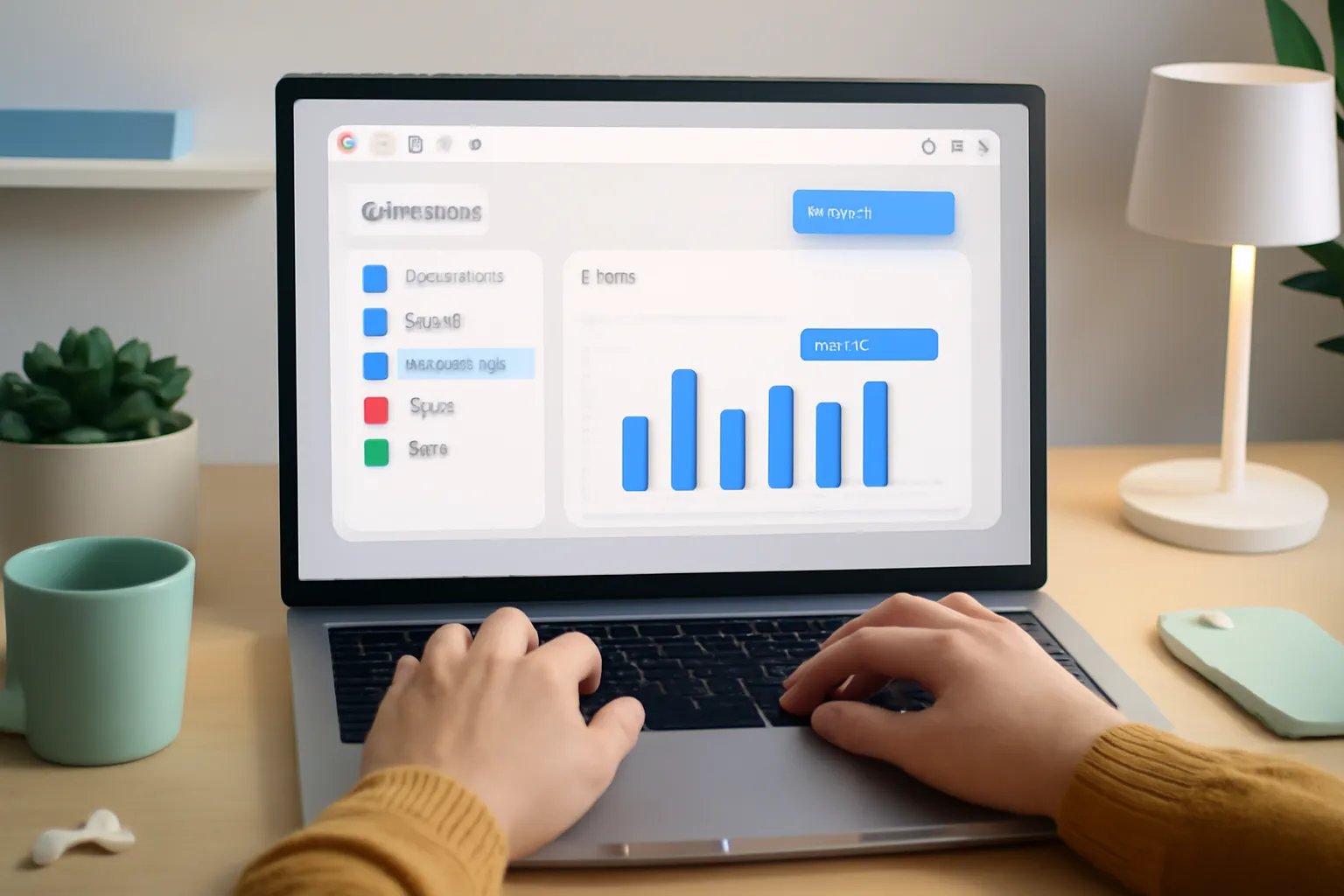
Building a no-code dashboard inside Chrome can be a game-changer for businesses and individuals alike. With the right tools and a bit of know-how, you can create a customized dashboard that provides valuable insights and streamlines your workflow. In this guide, we'll walk you through the process of building a no-code dashboard inside Chrome in just 5 minutes.
To get started, you'll need a few essential tools. First, make sure you have the Cuslr extension installed in your Chrome browser. This extension provides a range of no-code tools and templates to help you build your dashboard quickly and easily.
Step 1: Create a New Dashboard
Creating a new dashboard is a breeze with Cuslr. Simply click the extension icon in your Chrome toolbar and select "Create a new dashboard." From there, choose a template that suits your needs or start from scratch. You can also import data from various sources, such as Google Sheets or APIs, to get started.
Some key considerations when creating a new dashboard include:
- Choosing a clear and concise name for your dashboard
- Selecting a layout that works for your specific use case
- Adding a clear and compelling title for your dashboard
Step 2: Add Widgets and Visualizations
With your dashboard created, it's time to add some visual flair. Cuslr offers a range of widgets and visualizations to help you make your data shine. From charts and graphs to tables and maps, you can choose the perfect visualizations to convey your message. You can also customize the appearance of each widget to match your brand's style.
Some popular widgets to consider include:
- Gauges and meters for tracking key metrics
- Bar and line charts for showing trends and patterns
- Heat maps for visualizing complex data sets
Step 3: Customize Your Dashboard
The final step is to customize your dashboard to make it truly yours. This includes adding a logo, changing the color scheme, and adjusting the layout. You can also add custom CSS to further tailor your dashboard to your needs.
Actionable Tip: Take advantage of Cuslr's built-in customization options to make your dashboard stand out. Experiment with different layouts, colors, and fonts to create a unique look that reflects your brand's personality.
By following these steps, you can create a no-code dashboard inside Chrome in just 5 minutes. With Cuslr, you can quickly and easily build a customized dashboard that provides valuable insights and streamlines your workflow.
Customizing Your No-Code Dashboard
As you've set up your no-code dashboard inside Chrome, it's time to make it truly yours. With Cuslr, you can easily customize the layout and design to suit your needs. This section will guide you through the process of customizing widgets and visualizations, adding interactivity, and designing an effective dashboard.
Customizing Widgets and Visualizations
Customizing widgets and visualizations is a crucial step in making your dashboard user-friendly and informative. With Cuslr, you can:
- Rearrange widgets to prioritize the most important metrics
- Adjust widget sizes to optimize screen real estate
- Utilize different visualization types (e.g., charts, tables, maps) to represent data effectively
To customize widgets, simply click and drag them to the desired location on the dashboard. You can also right-click on a widget to access additional options, such as resizing and deleting.
Adding Interactivity to Your Dashboard
Adding interactivity to your dashboard enhances user engagement and facilitates data exploration. Cuslr allows you to:
- Create buttons and links to drive user actions
- Use conditional formatting to highlight important data
- Implement filters and drill-down capabilities for deeper analysis
For example, you can create a button to refresh the dashboard or a link to a related report. Use conditional formatting to highlight critical metrics or apply filters to narrow down data.
Tips for Effective Dashboard Design
A well-designed dashboard is essential for effective data visualization and analysis. Here are some tips to keep in mind:
- Keep it simple and focused on key metrics
- Use clear and concise labels and titles
- Ensure adequate white space for easy reading
By following these guidelines, you can create a visually appealing and functional dashboard that effectively communicates your data insights. Remember to regularly review and update your dashboard to ensure it remains relevant and accurate.
Publishing and Sharing Your No-Code Dashboard
Once you've built your no-code dashboard, it's time to share it with the world. Publishing and sharing your dashboard is a crucial step in making it accessible to your target audience. With Cuslr's no-code tools, you can easily share your dashboard with others, whether it's for collaboration, feedback, or simply to showcase your work.
To publish your dashboard, you'll need to export it as an HTML file. This will allow you to share it with others, either by uploading it to a website or sharing the link directly. You can also use Cuslr's built-in sharing features to make it easy to share your dashboard with others.
Publishing Your Dashboard to the Web
To publish your dashboard to the web, follow these steps:
- Export your dashboard as an HTML file using Cuslr's export feature
- Upload the file to a website or web hosting service, such as GitHub Pages or Wix
- Share the link to your dashboard with others
When publishing your dashboard, keep in mind the following best practices:
- Use a clear and descriptive title and description to help others understand the purpose of your dashboard
- Consider using a custom domain to make your dashboard more professional and easy to remember
- Make sure to test your dashboard in different browsers and devices to ensure it looks and functions correctly
Sharing Your Dashboard with Others
Sharing your dashboard with others can be a great way to get feedback, collaborate, or simply show off your work. With Cuslr, you can easily share your dashboard with others using the built-in sharing feature. Simply click the "Share" button and enter the email addresses of the people you want to share your dashboard with.
When sharing your dashboard, consider the following:
- Be clear about the purpose of your dashboard and what you're trying to achieve
- Provide context and explanations to help others understand the data and insights presented
- Encourage feedback and suggestions from others to improve your dashboard
Best Practices for Dashboard Maintenance
Maintaining your dashboard is crucial to keeping it up-to-date and relevant. Here are some best practices to follow:
- Regularly update your data sources to ensure your dashboard reflects the latest information
- Review and refine your dashboard design and layout to make it more intuitive and user-friendly
- Consider setting up automated updates to save time and effort in the long run
Actionable Tip: To make your dashboard more maintainable, consider setting up a schedule to regularly review and update your data sources and dashboard design. This will help you stay on top of changes and ensure your dashboard remains accurate and relevant. With Cuslr's no-code tools, you can easily make updates and changes to your dashboard without needing to write code.
If you want to put these ideas into practice, visit Cuslr and learn more. The service is tailored especially for your target audience.
Conclusion and Next Steps
Building a no-code dashboard inside Chrome can be a game-changer for businesses and individuals alike. With the right tools and a bit of creativity, you can create a customized dashboard that meets your specific needs.
By following the steps outlined in this article, you should now have a better understanding of how to build a no-code dashboard inside Chrome. Whether you're a business owner, marketer, or developer, this skill can help you streamline your workflow and make data-driven decisions with ease.
Summary of Key Takeaways
Here are the key takeaways from this article:
- Use a no-code platform like Cuslr to create a customized dashboard without requiring extensive coding knowledge.
- Choose a suitable dashboard template or start from scratch to create a tailored solution.
- Integrate various data sources and tools to create a comprehensive dashboard.
By keeping these key takeaways in mind, you'll be well on your way to creating a no-code dashboard that meets your specific needs.
Cuslr's Final Recommendations
If you're looking for a reliable no-code platform to build your dashboard, we highly recommend considering Cuslr. Their intuitive interface and extensive library of templates make it easy to create a customized dashboard in no time. Additionally, their customer support team is always available to help you with any questions or concerns.
Some of the key features that set Cuslr apart from other no-code platforms include:
- Drag-and-drop interface for easy customization
- Real-time data updates for accurate insights
- Integration with a wide range of data sources and tools
Future Development and Updates
As no-code technology continues to evolve, we can expect to see even more innovative features and tools emerge. At Cuslr, we're committed to staying ahead of the curve and providing our users with the latest and greatest in no-code solutions.
Some potential future developments and updates include:
- Enhanced integration with popular business tools and services
- Improved collaboration features for teams
- Increased focus on artificial intelligence and machine learning capabilities
FAQ
What is a No-Code Dashboard?
A no-code dashboard is a visual interface that displays data and information without requiring extensive coding knowledge. It's a user-friendly way to track and analyze data, perfect for individuals and businesses looking to make data-driven decisions.
Can I build a No-Code Dashboard without coding experience?
Yes, you can build a no-code dashboard without coding experience. Tools like Google Data Studio, Tableau, and Microsoft Power BI offer drag-and-drop interfaces that allow you to create custom dashboards without writing code.
How do I choose the right tools for building a No-Code Dashboard?
When choosing tools for building a no-code dashboard, consider the type of data you want to display, the level of customization you need, and the integration requirements. Popular options include Google Data Studio, Tableau, and Microsoft Power BI.
How do I build a No-Code Dashboard inside Chrome?
To build a no-code dashboard inside Chrome, start by selecting a tool, such as Google Data Studio, and connecting it to your data source. Then, use the tool's drag-and-drop interface to design and customize your dashboard.
Can I customize my No-Code Dashboard to fit my needs?
Yes, most no-code dashboard tools offer customization options, such as changing colors, fonts, and layouts. You can also add interactive elements, like filters and drill-downs, to make your dashboard more engaging and informative.
How do I publish and share my No-Code Dashboard?
To publish and share your no-code dashboard, export it as an embeddable link or image, or share it directly from the tool. You can also schedule updates and share your dashboard with others by sending them the link.
What are the benefits of using a No-Code Dashboard?
Using a no-code dashboard can save you time and effort, as you don't need to write code to create a custom interface. It also allows you to focus on data analysis and decision-making, rather than technical implementation.
About the Author
Written by Cuslr Team, a certified design professional with over 10 years of experience.
댓글을 불러오는 중...