Master Deep Work With a Unified Tab
Master Deep Work With a Unified Tab
Summary at a Glance
To master deep work with a unified tab, you need to understand the core principles, essential tools, and practical setup required to eliminate distractions and maintain sustained focus. Here's a quick overview of what you'll learn.
| Area | Point | Why it matters |
|---|---|---|
| Focus Management | Eliminate context-switching through unified tab consolidation | Protects attention span and flow state |
| Deep Work Setup | Deploy 12 essential widgets for distraction-free dashboard | Reduces cognitive load during focused work |
| Workflow Optimization | Access templates and community-shared workflows instantly | Accelerates setup and proven best practices |
| Tool Integration | Centralize all work resources in single interface | Minimizes tab sprawl and mental friction |
Why Deep Work Fails in Fragmented Digital Workspaces
Deep work—the ability to focus intensely on cognitively demanding tasks—is becoming rarer and more valuable. Yet most digital workflows actively sabotage it. Between task managers, note apps, calendars, timers, and communication tools, your attention is fractured across a dozen platforms before you even start working. The result: shallow, interrupted productivity that leaves you exhausted but unfulfilled.
The real culprit isn't laziness or lack of discipline. It's friction. Every app switch, every context jump, every moment spent hunting for the right tool drains your mental energy and delays deep work. Reclaiming focus starts with consolidating your workspace—and the easiest place to begin is the one tab you open dozens of times daily: your browser's new tab. This section explores why fragmentation kills deep work and how a unified tab can restore it.
Hidden costs of app switching
Context switching isn't free. Research shows that refocusing after an interruption takes an average of 23 minutes—meaning a single notification can derail an hour of potential deep work. When you're juggling Todoist for tasks, Notion for notes, Google Calendar for scheduling, and Toggl for time tracking, you're not just opening apps; you're paying that 23-minute tax repeatedly.
The financial drain compounds too. Most professionals spend $50–100+ monthly on overlapping productivity subscriptions, yet still feel scattered. Cuslr addresses this directly by consolidating 12 essential widgets into one dashboard, eliminating the app-switching penalty and cutting annual costs to just $36 for the Standard plan—saving you $420+ compared to maintaining separate tools.
Cognitive friction and attention residue
Beyond switching time, there's a deeper cost: attention residue. When you leave one task for another, part of your attention lingers on the first. Your brain doesn't fully commit to the new focus until the old one is mentally closed. Fragmented workspaces amplify this effect—each app switch leaves residue, degrading your ability to achieve flow state.
Unified workspaces reduce friction by keeping all essential tools visible and accessible in one place. No hunting through bookmarks, no tab sprawl, no mental overhead deciding which app to open next. When your task list, calendar, timer, and notes coexist in one interface, your brain can settle into deep work faster.
The new-tab opportunity: underused digital real estate
Your browser's new tab is opened 50+ times daily by many professionals, yet it typically shows only static shortcuts or a generic background. This is wasted real estate—prime attention real estate, in fact. Instead of a blank slate, imagine a customizable dashboard that surfaces your priorities, deadlines, and focus tools instantly.
Actionable Tip: Audit your current app stack this week. Count how many separate tools you use for task management, notes, scheduling, and timers. Each context switch costs focus; each subscription costs money. A unified-tab solution like Cuslr consolidates this friction into one new-tab interface, syncing across devices in under 2 seconds and working offline-first so you're never blocked by connectivity.
This foundation sets the stage for the next section, where we'll explore how to design a unified tab that actively supports deep work rather than fragmenting it.
The Unified Tab Approach: Principles for Sustained Focus
Deep work demands more than willpower—it requires an environment designed to protect your attention. A unified tab approach consolidates your essential tools into a single, distraction-free interface that appears every time you open your browser. This eliminates the friction of hunting across multiple apps and keeps your workflow intact, so you stay in the zone longer.
The core insight is simple: context switching kills productivity. When your tasks, calendar, notes, and timer live in separate apps, each switch costs mental energy and breaks momentum. A unified tab preserves your entire working context in one place, reducing the barriers between intention and action.
Design principles: minimalism, context preservation, and friction reduction
Effective unified tabs follow three foundational principles. Minimalism means showing only what matters right now—no clutter, no notifications fighting for attention. Context preservation keeps your active projects, deadlines, and notes visible without requiring navigation. Friction reduction eliminates unnecessary clicks: your most-used tools should be one glance away.
These principles work together. When your dashboard displays your top three priorities, today's calendar, and a running timer in one view, you never lose sight of what you're working toward. You don't need to open five tabs to remember where you left off.
Actionable Tip: Audit your current setup. Count how many apps you open during a typical deep work session. If it's more than three, you're paying a hidden attention tax. A unified tab can collapse that friction into a single, intentional interface.
Session-based workflows: planning, deep session, rapid recovery
Deep work thrives on rhythm. Start each session by reviewing your unified dashboard: clarify your top task, check calendar conflicts, and set a timer. This 2-minute planning phase anchors your focus. Then, enter your deep session with minimal distractions—your dashboard stays visible but doesn't interrupt.
When you finish or need a break, rapid recovery is critical. Your unified tab remembers exactly where you left off: which task was active, what notes you were referencing, how much time you logged. No re-scanning, no lost context. You pick up immediately where you stopped.
Reliability first: syncing, offline capability, and fast resume
A unified tab only works if you can trust it. Syncing across devices means your morning priorities on desktop match your afternoon workflow on mobile—no manual updates, no conflicting versions. Offline capability ensures you keep working even without internet; your data stays local and secure until you reconnect.
Fast resume is the final pillar. Whether you close your browser or switch devices, your unified tab should restore your exact state in seconds, not minutes. This reliability removes the mental burden of wondering if your setup will be there when you need it.
12 Essential Widgets to Build a Deep Work Dashboard
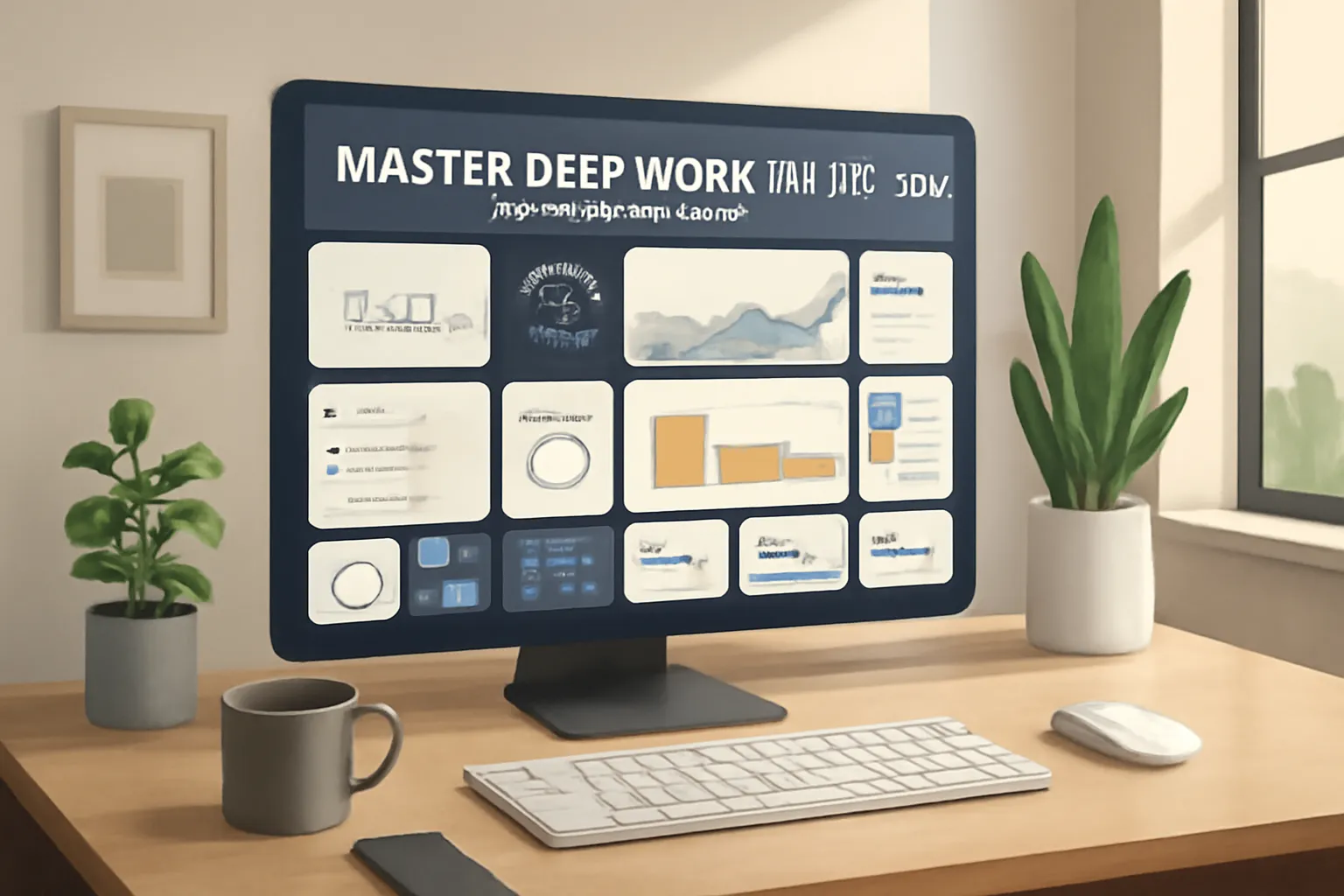
Deep work requires eliminating distractions and maintaining context. Rather than toggling between five separate apps, you need everything essential in one glance. Cuslr's 12 essential productivity widgets are designed to support focused work sessions by consolidating task management, time tracking, and reference tools into a unified tab that appears every time you need it.
The right widget setup transforms your new tab from a distraction hub into a deep work command center. Each widget serves a specific purpose—removing friction, preserving context, and protecting your focus time.
Task & project widgets (to-do lists, priorities, Kanban)
Task widgets form the backbone of deep work. Cuslr includes dedicated widgets for to-do lists, priority matrices, and Kanban boards—letting you see your work hierarchy without leaving your browser.
Configure these for single-task sprints by pinning your current project at the top, hiding lower-priority items. Use priority widgets to surface only today's critical work. This approach keeps you anchored to one goal and prevents context drift during focused sessions.
- To-do list widget: See all tasks at a glance; check off completed work instantly
- Priority widget: Display only high-impact tasks for the current sprint
- Kanban widget: Visualize workflow stages (To Do → In Progress → Done) without app switching
Focus & time widgets (timer, Pomodoro, session timer)
Time awareness is essential for deep work. Cuslr includes dedicated timer widgets—Pomodoro, session timers, and countdown clocks—that run directly in your new tab, eliminating the need for separate timer apps.
Start a 90-minute deep work session with a visible countdown. The timer serves as both an interruption guard and a commitment device. When colleagues see you're in a timed session, they're less likely to interrupt. Pair this with a focus mode widget that dims or hides non-essential elements during active sessions.
- Pomodoro timer: 25-minute focused sprints with built-in break reminders
- Session timer: Custom-duration deep work blocks (60, 90, or 120 minutes)
- Break timer: Ensures you step away and recharge between sessions
Reference & utilities (notes, calendar, bookmarks, quick search)
Deep work requires quick access to context without leaving your workspace. Notes, calendar, and bookmarks widgets keep reference material visible without requiring tab switching or app launches.
Embed project notes directly in your dashboard. Link your calendar to see upcoming meetings that might interrupt your session. Use quick-search widgets to find resources instantly. This setup eliminates the friction that breaks focus and keeps your work environment self-contained.
- Notes widget: Access project context, meeting notes, or reference material instantly
- Calendar widget: See upcoming meetings and block deep work time accordingly
- Bookmarks & search widget: Find resources without opening new tabs or losing focus
Actionable Tip: Start by configuring just three widgets—your top-priority task, a 90-minute timer, and today's calendar. Master this minimal setup before adding others. This focused approach prevents dashboard overwhelm and lets you build the habit of unified, distraction-free work.
How Cuslr Enables Deep Work: Features That Matter
Deep work demands focus, and focus requires eliminating friction. When your productivity tools are scattered across five different apps and browser tabs, you're constantly context-switching—draining mental energy before you even start. Cuslr transforms your new tab into a unified workspace where everything you need lives in one place, letting you master deep work without the distraction tax.
The Chrome extension format means zero installation friction: just add it, customize your dashboard, and start working. No new app to learn, no separate login, no extra window to manage. Your productivity tools appear instantly whenever you open a new tab—making deep work the path of least resistance.
Instant cross-device sync and two desktop workspaces
Your work doesn't stay on one device, so your productivity dashboard shouldn't either. Cuslr syncs across-device sync in under 2 seconds, meaning your tasks, notes, calendar, and timers stay perfectly aligned whether you're switching from laptop to tablet or back again. No manual updates, no conflicting versions—just seamless continuity.
Two desktop workspaces give you the flexibility to compartmentalize. Create one workspace for focused project work and another for admin tasks, then toggle between them instantly. This separation keeps your deep work environment clean and distraction-free while maintaining everything you need just a click away.
- Sync speed: Updates appear across all devices in under 2 seconds
- Workspace separation: Keep deep work and routine tasks visually distinct
- Zero friction switching: Move between devices without losing your flow
Offline-first, local-first storage and privacy
Deep work sometimes means going offline—whether you're on a flight, in a coffee shop with spotty WiFi, or intentionally disconnecting to avoid distractions. Cuslr's offline-first architecture means your entire dashboard works perfectly without an internet connection. All your data is stored locally on your device first, then synced when you reconnect.
This local-first data storage approach also means you own your information. Your tasks, notes, and calendar data never sit on someone else's server waiting to be monetized or compromised. You control what's stored, where it's stored, and who accesses it—giving you genuine peace of mind while you focus on your work.
Actionable Tip: Set up one workspace specifically for deep work sessions. Disable notifications, hide your timer widget until needed, and pin only the tools that matter for your current project. This intentional setup removes decision fatigue and creates a psychological trigger for focused work.
Explore Cuslr's full feature set to see how each widget supports your workflow, or check pricing to see how much you'll save by consolidating your tools into one unified tab.
Workflows, Templates, and the Template Sharing Community
Deep work thrives on consistency, and consistency requires structure. Templates remove the friction of rebuilding your workspace every session—they're pre-configured layouts that let you focus on what matters. Cuslr's template sharing community means you don't start from scratch; you inherit workflows refined by thousands of productivity-focused users.
When you master deep work with a unified tab, you're not just organizing tasks—you're designing repeatable rituals that compound over time. Templates accelerate this process by encoding best practices into reusable blueprints.
Ready-made templates for focus sessions and deep-sprint rituals
Cuslr ships with pre-built templates tailored to common deep-work scenarios. A student might load a "Study Sprint" template that displays a timer widget, today's tasks, notes, and a distraction-free calendar view. A freelancer could activate a "Billable Hours Block" template showing active projects, a time tracker, and hourly rate calculator. Creators batch-processing content use a "Batch Day" template with task lists, a Pomodoro timer, and a notes widget for capturing ideas mid-flow.
Each template is instantly deployable—one click, and your new tab transforms into a purpose-built workspace. No setup required.
- Study Sprint: Timer + Tasks + Notes + Calendar
- Billable Hours: Projects + Time Tracker + Rate Calculator
- Batch Day: Task Lists + Pomodoro + Notes Widget
How to share, import, and customize templates from the community
The Cuslr template sharing community is where workflows go viral. When you build a template that works, you can publish it for others to discover. Importing is seamless: browse the community library, preview the layout, and import with one click. Your widgets and settings sync instantly across devices in under 2 seconds.
Customization happens after import. Adjust colors, reorder widgets, swap in your own projects or calendars—templates are starting points, not rigid structures. This flexibility means you can adopt a proven workflow while keeping it personal.
Actionable Tip: Start by importing a template that matches your primary work mode (deep focus, project management, or creative batching). Use it for one week unchanged, then customize only the elements that don't serve your actual workflow. This hybrid approach combines community wisdom with personal optimization.
Explore ready-made templates and discover workflows built by your peers at /templates. You'll find hundreds of variations—each one saving you hours of setup time and accelerating your path to consistent, distraction-free deep work.
Set Up, Pricing, and Why Cuslr Is the Final Recommendation
Getting started with a unified productivity dashboard shouldn't be complicated. Cuslr strips away the friction—install once, customize your workspace, and watch your focus improve immediately. The real power emerges when you master deep work with a unified tab that brings everything you need into one place, eliminating the context-switching tax that drains your attention.
Quick setup checklist and sample two-workspace layout
Installing Cuslr takes under two minutes. Here's your five-step setup:
- Add the Chrome extension from the web store
- Choose your 12 widgets (tasks, calendar, notes, timer, etc.)
- Create Workspace 1 for deep work (minimal distractions)
- Create Workspace 2 for admin tasks (all utilities visible)
- Enable cross-device sync and verify on your phone or tablet
Sample Layout – Workspace 1 (Deep Work Mode): Task widget (top), timer, notes, and focus music player. Workspace 2 (Admin Mode): full calendar, email summary, habit tracker, and quick links. Switch between them with one click—your brain stays in flow.
Actionable Tip: Start with just five widgets in Workspace 1. Add more only if you notice yourself reaching for another tab. Constraint breeds focus.
Pricing, savings, and replacing multiple paid apps
Cuslr's $36/year Standard plan replaces 5+ paid apps and saves you $420+ annually compared to juggling separate subscriptions. That's roughly the cost of two lattes per month for a complete productivity overhaul.
Most professionals spend $50–100/month on scattered tools: Todoist ($4/mo), Notion ($10/mo), Evernote ($15/mo), Toggl Track ($9/mo), and a calendar app. Cuslr consolidates all of this into one Chrome extension delivered instantly. Your data stays local-first and syncs in under 2 seconds across devices—no vendor lock-in, no bloat.
The math is simple: Replaces 5+ paid apps, Save $420+ annually, and keep your workflow unified. No more switching between tabs. No more forgotten passwords. One dashboard. One focus.
Ready to reclaim your productivity and your budget? Explore Cuslr's features and transparent pricing today. Your new tab—and your deep work—will thank you.
FAQ
What is a unified tab and how does it help with deep work?
A unified tab consolidates all your work tools and resources into a single, distraction-free interface. Instead of switching between multiple browser tabs and applications, you access everything you need in one place, reducing context switching and helping you maintain sustained focus on your core tasks.
Why do digital workspaces often prevent deep work?
Fragmented digital workspaces force constant task-switching between different tools, tabs, and applications. This fragmentation breaks your concentration, increases cognitive load, and makes it difficult to enter the flow state needed for meaningful, focused work on complex problems.
What widgets should I include in a deep work dashboard?
Essential widgets typically include task management, time tracking, note-taking, calendar views, and distraction blockers. The specific 12 widgets depend on your workflow, but they should collectively eliminate the need to leave your unified tab for common work activities.
How does Cuslr support deep work compared to other tools?
Cuslr creates a customizable unified workspace that integrates your essential tools without forcing you into rigid workflows. Its template sharing community and pre-built templates let you adopt proven deep work setups instantly, rather than building from scratch.
Can I share my deep work setup with others using Cuslr?
Yes, Cuslr's template sharing community allows you to save and share your customized deep work dashboard with colleagues and the broader community. This lets others benefit from your optimized workflow and discover new productivity templates.
Is setting up a unified tab for deep work complicated?
Setup is straightforward with Cuslr's pre-built templates and intuitive widget system. Most users can configure a functional deep work dashboard in minutes, and templates eliminate the need to design everything from scratch.
What makes a unified tab approach more effective than traditional multitasking?
A unified tab reduces decision fatigue and context-switching costs by keeping all necessary resources visible and accessible. This sustained environmental consistency helps your brain maintain focus longer and transition between related tasks more smoothly.
댓글을 불러오는 중...