Transform Your New Tab into a Productivity Dashboard (Without Paying for Apps)
Transform Your New Tab into a Productivity Dashboard (Without Paying for Apps)
Summary at a Glance
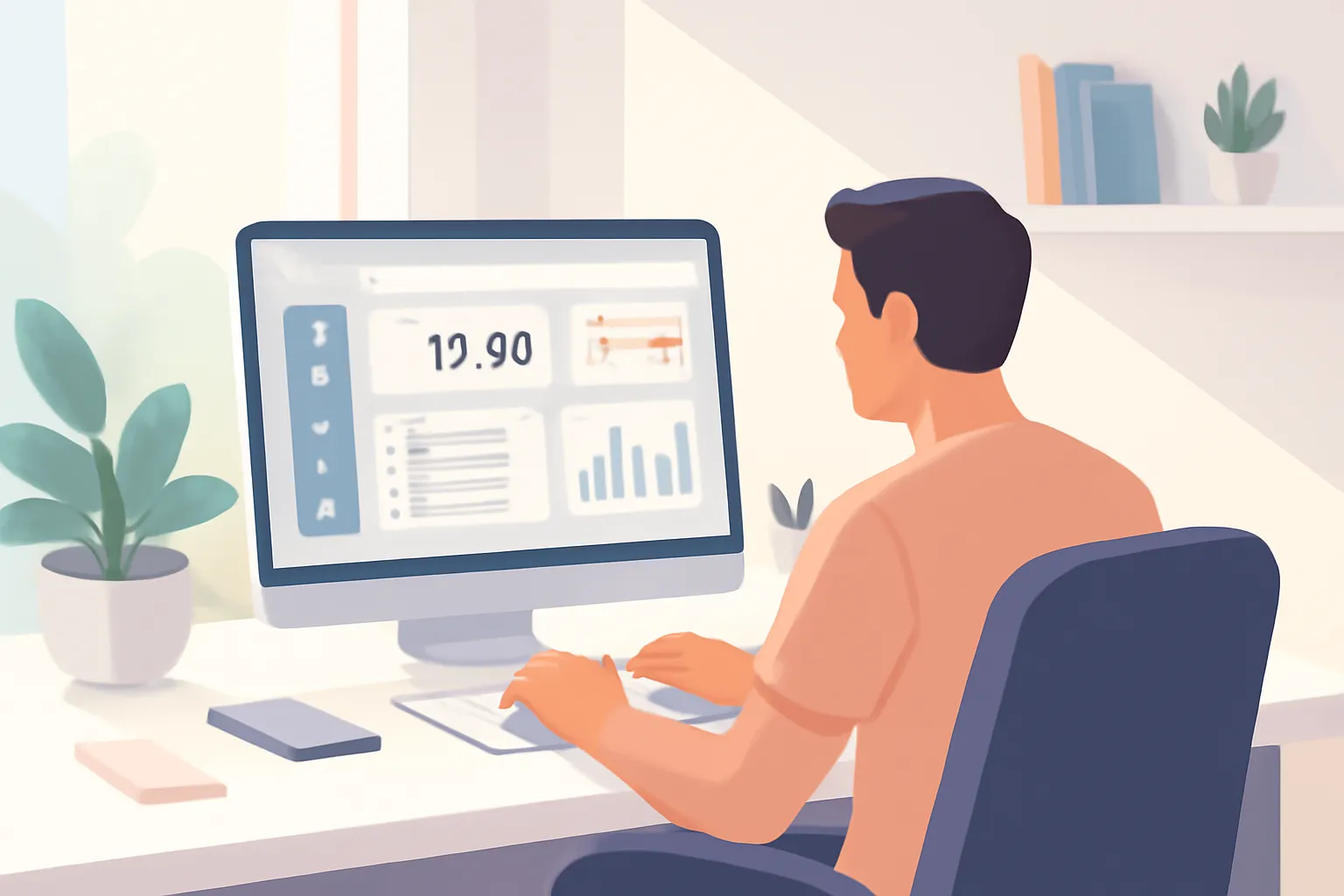
This table summarizes key takeaways from "Transform Your New Tab into a Productivity Dashboard (Without Paying for Apps)", outlining why your new tab matters, essential dashboard elements, a free step-by-step build, Cuslr options, privacy/performance tips, and a 7-day switch plan.
| Area | Point | Why it matters |
|---|---|---|
| Productivity: turn new tab into daily task hub | Shows free step-by-step build to replace paid apps | Save time and money; increase daily focus and productivity |
| Customization: tailor widgets, layout, and shortcuts for workflows | Guides picking essential elements and matching layouts to tasks | Personalized interface reduces friction and accelerates task completion |
| Privacy: control data, permissions, and avoid tracker-laden apps | Explains privacy trade-offs and how to use local storage safely | Protects sensitive information while maintaining dashboard functionality and speed |
| Adoption: practical 7-day plan to switch and test dashboards | Provides day-by-day tasks, checkpoints, and recommended free options | Makes transition manageable, measurable, and encourages sustained use |
Why Your New Tab Is Wasted Real Estate
Your browser's new tab is prime screen real estate, yet most people treat it like a neutral pause between tasks. Defaults prioritize thumbnails, headlines, and search, which invite reactive clicking and dilute focus. That tiny friction multiplies into lost minutes and fragmented work sessions across the day.
Actionable Tip: Start by replacing the default page with a single-purpose start screen or a free extension that surfaces only what you need. Transform Your New Tab into a Productivity Dashboard (Without Paying for Apps) by adding a simple task list, two quick links, and a focused timer—no subscriptions required.
The psychology of new-tab interruptions
Every new-tab moment becomes a micro-decision that either supports focus or invites distraction. Visual clutter and unexpected content increase cognitive load, making it harder to resume planned work and easier to pivot toward low-value browsing. Reducing these decision points helps maintain attention and preserves momentum for deeper tasks.
Common distractions on default new tabs
Default new tabs often surface attention-grabbing content that redirects intent and erodes productive flow. Bright thumbnails, trending headlines, and large site grids work against deliberate task starts by offering attractive detours precisely when you’re trying to begin focused work.
- Autoplay or recommended videos
- Clickable news headlines and trending topics
- Grid of frequently visited sites that encourage aimless browsing
Benefits of a productivity-first new tab
A curated new tab serves as a lightweight launchpad: it reduces context switching, clarifies your next action, and shortens the gap between intention and work. Tools like Cuslr and other minimalist start-page options let you surface to-dos, timers, and one-click links without paying for complex apps, making habit changes low-friction and sustainable.
Adopting a productivity-first start page builds a consistent ritual that primes attention every time you open a browser. Over weeks this small change reduces idle browsing, improves transition speed into deep work, and creates a cleaner, intention-driven routine for solopreneurs and remote teams alike.
Essential Elements of an Effective Productivity Dashboard
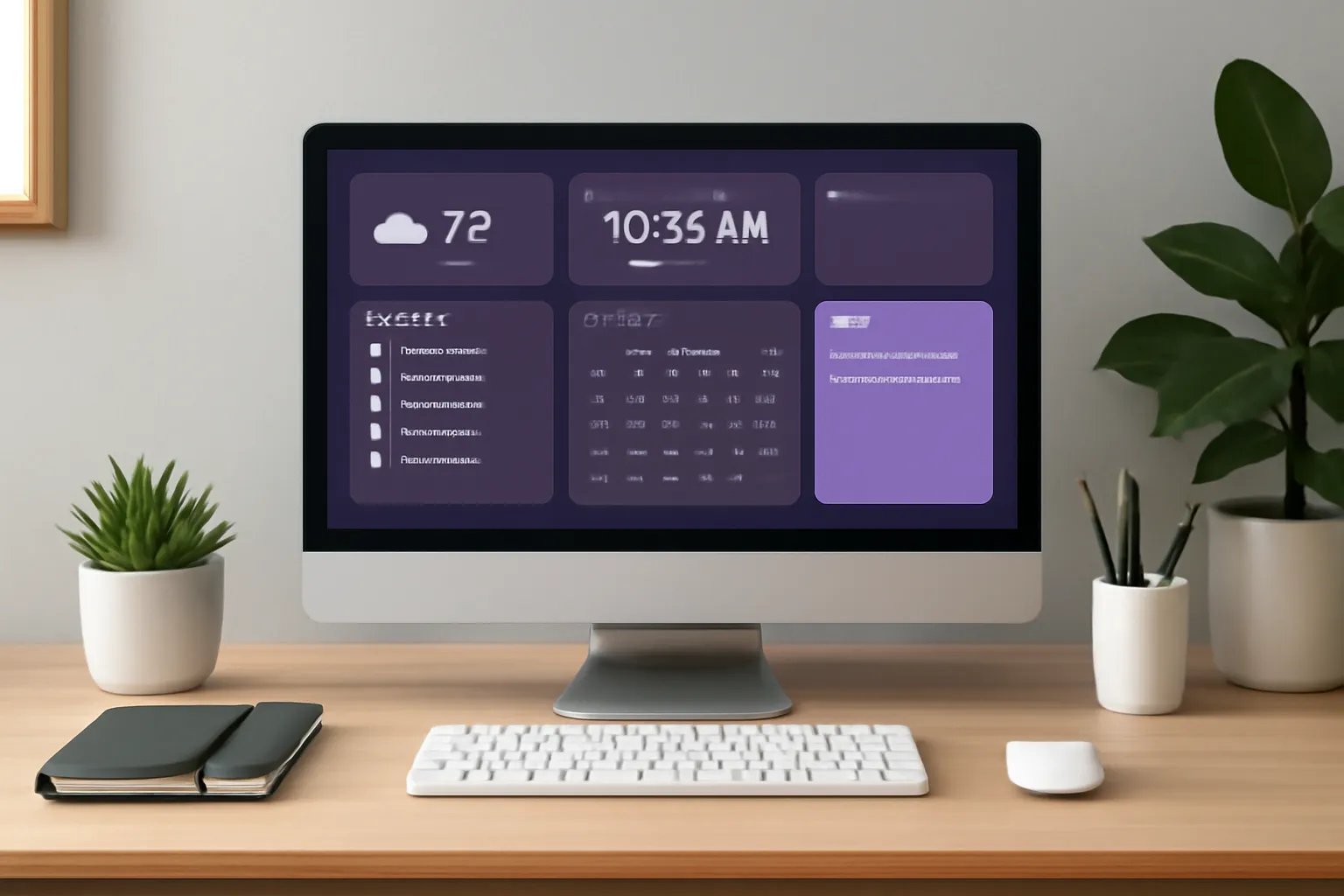
Transform Your New Tab into a Productivity Dashboard (Without Paying for Apps) by focusing on a few core elements: clarity, speed, and easy access to what matters right now. Cuslr encourages using browser-native features (bookmarks, PWAs, extensions) to build this without subscription costs or heavyweight software.
Start simple: a clean layout, a single-row toolbar, and prioritized content blocks. Use the new-tab space to surface actions, not distractions. Lean on the browser’s native sync and PWA behavior so your dashboard stays consistent across devices without paying for an app ecosystem.
Actionable Tip: Pin frequently used web apps as PWAs or add them to bookmarks bar; that converts the new tab into a launchpad that feels and behaves like an integrated dashboard.
Quick-access tools and widgets
Quick-access elements let you jump to tasks or tools in one click. Use the bookmarks bar, pinned tabs, and browser extension shortcuts to surface email, notes, and the task list. Prioritize tools by frequency so the top row always reflects your daily workflow.
Helpful quick items:
- Bookmarks folder for “Today”
- Pinned PWA shortcuts (calendar, notes)
- Extension toolbar for timers and clippers
Task and goal visibility
Show active tasks and top goals prominently to reduce decision friction. A compact task list or a single “Today” bookmark that opens a plain web note gives clear, honest visibility without paid task managers. Browser extensions like simple to-do list add-ons sync locally or to your account for continuity.
Set goals as short, scannable items and surface one priority at the top. Use bookmarks to link to project boards or Google Docs and keep goal summaries in a pinned PWA to maintain focus across sessions.
Contextual information: calendar, weather, and timers
Context keeps your dashboard actionable. Embed or link to your web calendar, add a lightweight weather widget, and include a countdown or pomodoro timer. These elements help you plan the day without leaving the new-tab space and typically work through free web apps or browser extensions.
Free, browser-native options:
- Google Calendar web (pinned as PWA)
- Lightweight weather extensions or simple bookmarklets
- Timer extensions or browser-based countdown pages
How to Build a Free New Tab Dashboard (Step-by-Step)
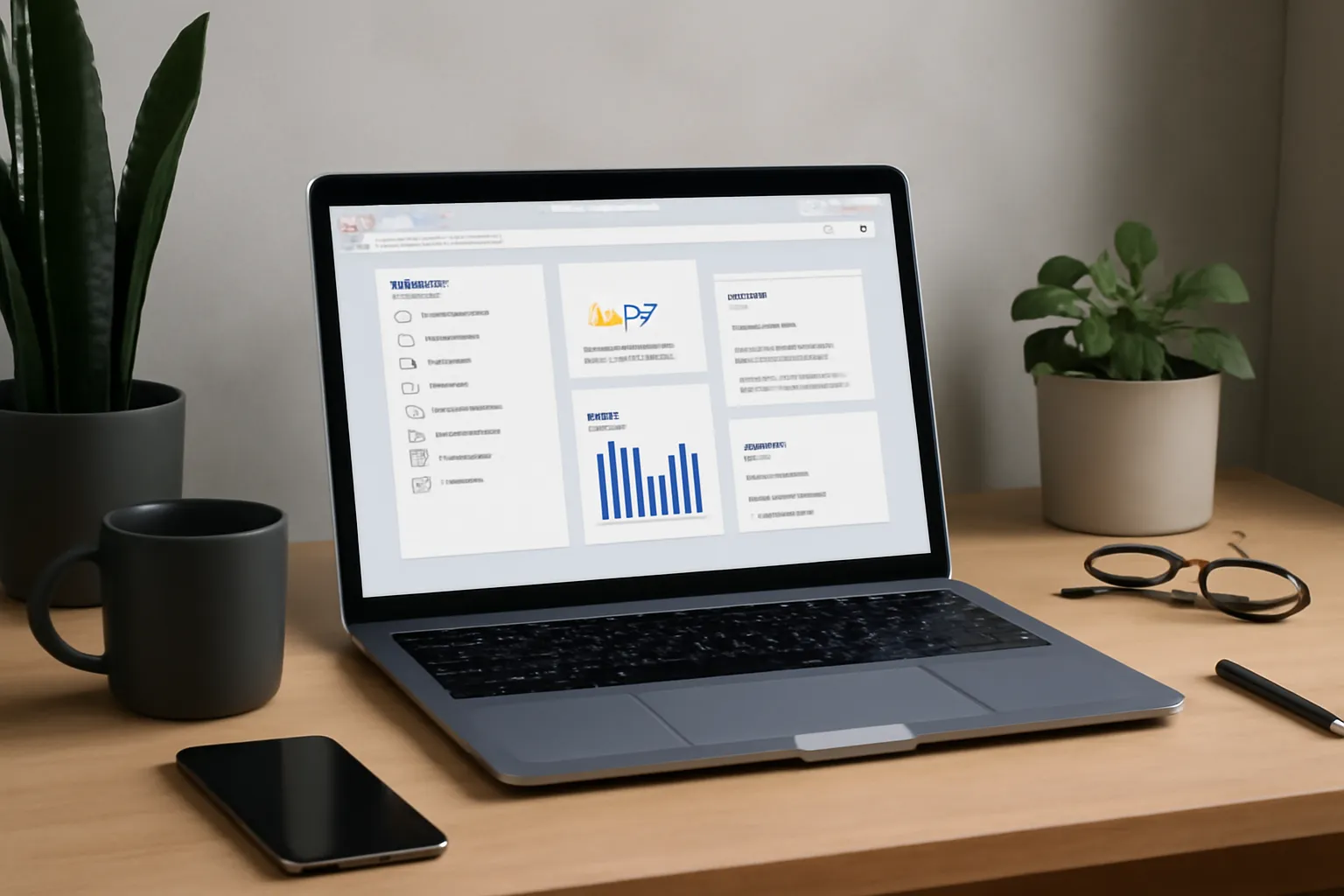
You can transform your new tab into a productivity dashboard without paying for apps by combining a lightweight new-tab redirect with free embeds and web widgets. This section walks through practical, zero-cost choices and quick configs so your next-tab becomes a launchpad for focus and action.
Actionable Tip: Install a free new-tab redirect (e.g., New Tab Redirect) and point it at a single URL you control — a Notion page, a GitHub Pages HTML file, or a simple Google Sites page. That single change makes any dashboard you assemble appear every time you open a tab.
Choose the right extension or bookmarklet
Pick an approach based on your browser and comfort with hosting. For most users, a free extension that redirects new tabs is easiest; alternatives include changing the browser homepage to a hosted page or using a bookmarklet that opens your dashboard.
- New Tab Redirect (Chrome/Edge) — sets a custom URL
- Custom New Tab Page (Firefox) or similar extensions
- Bookmarklet to open a GitHub Pages or Notion URL
Cuslr recommends starting with a redirect extension and a Notion or GitHub Pages URL so you can iterate quickly without code.
Assemble widgets using free web tools and embeds
Create a single page that embeds small, focused widgets: calendar, to-do list, and a focus timer. Use free services that allow public embedding or iframe use; arrange them into columns or stacked sections for clarity.
- Use Notion (free) for a central page and embed Google Calendar
- Add Indify widgets (free) or a Trello public board for task overviews
- Host a simple HTML dashboard on GitHub Pages or Google Sites to include iframes for any embeddable tool
Actionable Tip: Keep widgets to three per view — calendar, task list, and a quick note area — to avoid visual clutter and speed up load time.
Set up shortcuts, hotkeys, and quick searches
Make the dashboard actionable with shortcuts. Configure browser-level extension hotkeys, add custom search engines for workflows, and pin key links on the dashboard for one-click access to frequent pages.
- Set extension hotkeys in Chrome: Extensions > Keyboard shortcuts
- Add a custom search engine (chrome://settings/searchEngines) for commands like "g email" or "p docs"
- Use Shortkeys or Vimium (free) to bind keys to open dashboard sections
These small configs let you open the dashboard, jump to tasks, or run quick searches without breaking flow. Once configured, your new tab behaves like a lightweight command center — free, fast, and tailored to your workflow.
Cuslr's Approach: Ready-Made Productivity New Tabs (Free Options)
Transform Your New Tab into a Productivity Dashboard (Without Paying for Apps) — Cuslr gives you a free, ready-made new-tab replacement that surfaces tasks, quick links, and focus tools the moment you open the browser. It’s built to be fast, privacy-minded, and useful without subscription friction.
Start with a template, tweak a few widgets, and you’ll have a daily dashboard tailored to your work habits. The setup is no-code and reversible, so you can try different layouts until one sticks. Visit Cuslr to preview templates and install in minutes.
What Cuslr offers for free
Cuslr's free tier includes prebuilt new-tab pages with essential productivity widgets and lightweight performance. You get templates for focus, task lists, and quick navigation, plus the ability to swap widgets without unlocking paid tiers. This makes it easy to replace a blank tab with useful, actionable content.
- Prebuilt templates for focus, tasks, and links
- Core widgets: to-do, bookmarks, quick actions
- Simple personalization without a paywall
How to customize Cuslr for your workflow
Customizing Cuslr is a few clicks: choose a template, add or remove widgets, and reorder sections to match your daily flow. You can toggle visual settings like dark mode and set default timers so the new tab fits both your aesthetics and cadence. For detailed controls, see the features page.
Follow these quick steps to adapt a new tab:
- Pick a template that matches your role (creator, manager, student)
- Add high-frequency links and a single prioritized to-do
- Save and set Cuslr as your browser’s new tab
Cuslr also supports lightweight integrations and keyboard-friendly navigation so you spend less time configuring and more time doing. If you need more advanced options later, the features page shows what’s available without forcing an immediate upgrade.
Actionable Tip: Set Cuslr as your browser's new-tab page, choose a single "daily priority" widget, and pin three commonly used links. This low-friction setup turns every new tab into a quick check-in that nudges you toward focused work — all using Cuslr’s free tools.
Privacy, Performance, and Cross-Device Sync
Transform Your New Tab into a Productivity Dashboard (Without Paying for Apps) is a great way to centralize tasks, links, and focus tools — but it raises three practical concerns: where your data lives, whether added widgets slow your browser, and how to keep the same setup across devices. Balance usability with minimal surface for data collection and avoid unnecessary third-party services when possible. Cuslr users often prefer lightweight, local-first setups for daytime workflows.
Actionable Tip: Start by selecting a single extension or a local HTML dashboard you control, then add only one widget at a time. Test page load and memory use after each addition, and keep a simple backup of configuration (export JSON or bookmarks) so you can restore settings quickly if an update breaks behavior.
Keeping data local and secure
Keep sensitive items off public widgets and minimize integrations that require broad permissions. Prefer dashboards that store data in your browser profile or in an encrypted local file rather than sending everything to a cloud API. Limit third-party scripts and review extension permissions before installing — many slowdowns come from background processes and excessive network calls.
For cross-device sync without sacrificing privacy, use trusted browser sync with encryption enabled or a personal encrypted note/file you sync yourself. Simple strategies:
- Browser built-in sync (with passphrase)
- Encrypted file or config in your own cloud (zero-knowledge when possible)
- Manual export/import of dashboard config
Performance trade-offs: each widget can add rendering time, memory use, and network requests. Keep the dashboard lean — favor static widgets (shortcuts, local todo lists) over dynamic feeds that poll servers. When syncing, reduce frequency and limit which items are shared to lower exposure and preserve responsive performance.
If you want to put these ideas into practice, visit Cuslr and learn more. The service is tailored especially for general online users, small and medium businesses, tech-savvy individuals.
Make the Switch: A Practical 7-Day Plan (Recommended: Cuslr)
Switching your browser's new tab to a lightweight productivity dashboard is the fastest habit change with big returns. Over seven days you'll set up quick links, daily focus, and routines so your new tab nudges work forward — think of it as how to Transform Your New Tab into a Productivity Dashboard (Without Paying for Apps).
Actionable Tip: dedicate 15–30 minutes each evening to one setup task. Small, consistent changes beat a single marathon session. Bookmark https://cuslr.com and explore https://cuslr.com/features to see built-in widgets that speed setup and remain free.
Day-by-day checklist
Use this checklist to progress steadily. Focus Day 1 on clarity (what matters today), Day 2–4 on structure (shortcuts, widgets, and widgets layout), Day 5 on habit wiring (start using it), Day 6 on review, Day 7 on lock-in and tweaking. This staggered approach prevents overwhelm and builds reliance.
- Day 1: Define 3 priorities and default new-tab message.
- Day 3: Add 5 key shortcuts and one productivity widget.
- Day 7: Optimize layout and set it as default.
Troubleshooting and tweaks
If the dashboard feels cluttered, remove or hide items for 48 hours, then reintroduce one at a time. Performance hiccups usually mean too many visual widgets or unnecessary animations; switch to a simpler layout. If a link or widget breaks, re-add it and test in an incognito window to rule out extension conflicts.
Quick fixes:
- Reset layout and re-import only essential widgets.
- Disable conflicting extensions or clear cache if loading stalls.
- Use a backup export of settings before major changes.
Final recommendation: for a free, flexible solution that helps you transform your new tab without paying for apps, try Cuslr. It provides a clean set of productivity widgets, quick links, and an easy setup flow that fits this 7-day plan. Visit https://cuslr.com to start and see features at https://cuslr.com/features to match widgets to your workflow.
Why is my new tab wasted real estate?
Because most browsers default to blank pages or algorithmic feeds, your new tab is often filled with distractions instead of tools that support focus. Turning it into a new tab productivity dashboard replaces low-value content with quick access to tasks, priorities, and shortcuts so every new tab serves your workflow.
What essential elements should I include in a productivity dashboard?
Include a clear daily focus or top tasks widget, a minimalist to-do list, and time-saving shortcuts to frequently used apps so the productivity dashboard reduces friction. Add glanceable metrics like calendar events and a short habit tracker to keep priorities visible without cluttering your new tab.
How can I build a free new tab dashboard step-by-step?
Start by choosing a free extension or bookmarklet that replaces your new tab and add widgets for tasks, calendar, and quick links in a simple layout. Try lightweight options, enable sync if available, then tweak layout across several days to make the new tab dashboard match your workflow.
Are there free ready-made new tab dashboards like Cuslr, and how do they compare?
Yes — free ready-made new tab dashboards like Cuslr offer prebuilt layouts, privacy-conscious defaults, and easy customization, saving setup time compared with building from scratch. They typically balance useful widgets and performance, though you should compare privacy settings and sync options to ensure the new tab dashboard meets your needs.
How can I protect privacy and keep performance when using a new tab productivity dashboard?
Choose extensions or dashboards with minimal permissions, offline-first features, and clear privacy policies to keep your new tab productivity dashboard from collecting unnecessary data. Monitor memory and CPU usage, prefer lightweight widgets, and test cross-device sync options that use encryption to maintain both performance and privacy.
What's a practical 7-day plan to switch to a new tab dashboard?
Start by installing a free new tab dashboard and adding essential widgets like a single focus, task list, calendar, and quick links during days 1–2, then simplify or remove anything distracting on days 3–4. On days 5–7 enable sync, test performance and privacy settings across devices, and use the dashboard as your only new-tab habit so the switch sticks (recommended: try Cuslr's free options).
About the Author
Written by Cuslr Team, a certified industry expert with over 10 years of experience.
댓글을 불러오는 중...