Turn New Tabs Into Focused Workspaces
Turn New Tabs Into Focused Workspaces

Summary at a Glance
Here's a quick overview of how to transform your new tab into a focused workspace that boosts productivity and keeps distractions at bay.
| Area | Point | Why it matters |
|---|---|---|
| Focus | Replace distracting new tabs with intentional workspaces | Eliminates context-switching and mental clutter daily |
| Productivity | Customize dashboards for specific roles and workflows | Saves time accessing frequently-used tools instantly |
| Design | Apply principles like minimalism and quick access | Reduces cognitive load and decision fatigue |
| Privacy | Keep workspace data local without cloud dependency | Protects sensitive information while maintaining control |
Why Your New Tab Deserves to Be a Focused Workspace
Every time you open a new tab, you're looking at wasted potential. That blank page—or worse, a cluttered grid of bookmarks—represents a missed opportunity to reclaim focus and streamline your workflow. For remote workers, students, and freelancers, the new tab is prime real estate that should work for you, not against you. Let's explore why turning new tabs into focused workspaces isn't just nice to have—it's essential.
Wasted real estate: the opportunity of the new tab
Your browser's new tab opens dozens of times per day. It's the gateway to your digital work, yet most people leave it empty or filled with random bookmarks. That's like having a desk that resets to chaos every time you sit down.
A focused workspace in your new tab means instant access to your priorities, calendar, tasks, and notes—without hunting through apps or tabs. You're reclaiming dozens of micro-moments daily, turning friction into flow.
Actionable Tip: Audit your current new tab setup. Count how many clicks it takes to find your daily task list, calendar, or top priority. If it's more than one, you're losing focus every single day.
How context switching reduces focus and productivity
Research consistently shows that context switching—jumping between apps, tabs, and tools—destroys deep work. Each switch costs 15–25 minutes of cognitive recovery time, even if you don't realize it.
When your tasks live in Todoist, your calendar in Google Calendar, and your notes in Notion, you're forced to context-switch constantly. Your brain never settles into flow state. A unified workspace eliminates these friction points, keeping you anchored to what matters.
The hidden cost of multiple productivity apps
Most professionals pay for 3–5 separate tools:
- Task manager: $48–60/year
- Note-taking app: $120–180/year
- Calendar/scheduling: $50–100/year
That's $200–340 annually—before adding time-tracking, habit trackers, or other utilities. You can save $420+ annually by consolidating into one focused workspace that syncs across all your devices in under 2 seconds.
Beyond cost, each app means another login, another interface to learn, and another data silo. Cuslr replaces Todoist, Notion, Evernote, and Toggl in one beautiful dashboard. Your new tab becomes your command center—local-first, offline-first, and designed for focus.
Cuslr's Approach: Transforming New Tabs into Productive Dashboards
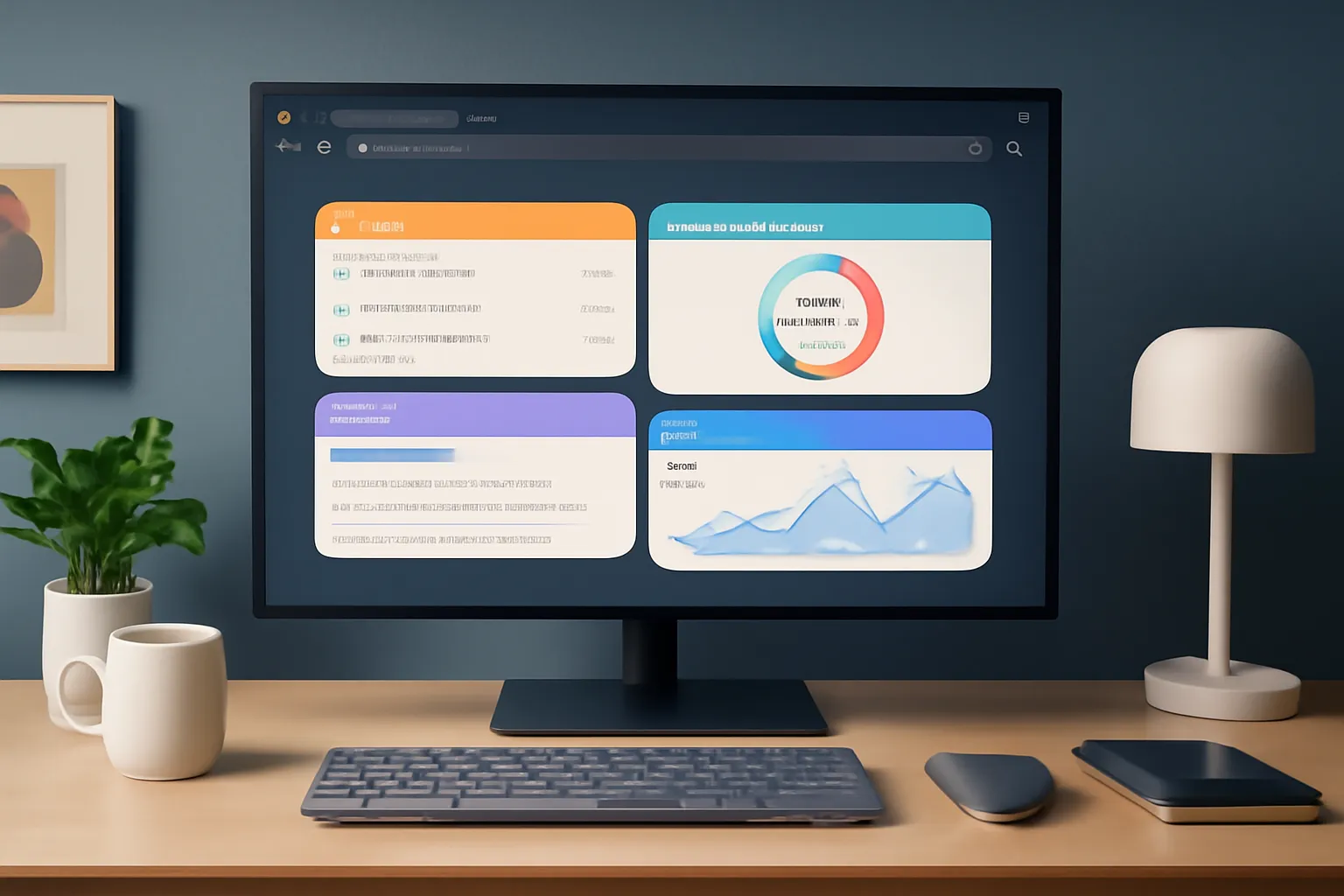
Every time you open a new tab, you're looking at wasted potential. Most browsers show a blank page or generic shortcuts—space that could be your personal command center. Cuslr turns new tabs into focused workspaces by consolidating your most-used productivity tools into one beautiful, accessible dashboard. Instead of juggling Todoist, Notion, Evernote, and Toggl across multiple windows, you get everything you need in one place.
The result? Fewer context switches, faster access to what matters, and a unified workspace that actually works the way your brain does. Let's explore how Cuslr makes this possible.
12 essential productivity widgets: what they are and why they matter
Cuslr includes 12 essential productivity widgets designed to cover your core workflow without bloat. These include task management, calendar integration, note-taking, timers, weather, and utility tools—each optimized for quick access and minimal friction.
Why widgets matter: they let you see actionable information at a glance. Instead of opening five apps to check your day, you scan your dashboard. Task widgets show priorities instantly. Calendar widgets prevent scheduling conflicts. Timer widgets keep you accountable. Together, they replace the need for separate subscriptions while keeping your workspace lean and intentional.
Actionable Tip: Start with your three most-used productivity tools. Map them to Cuslr's widgets first, then gradually add others as you discover gaps in your workflow. This prevents dashboard overwhelm and ensures every widget earns its place.
Cross-device sync in under 2 seconds and two desktop workspaces
Cuslr syncs your entire dashboard across all devices in under 2 seconds. Update a task on your phone, and it appears on your laptop instantly. This speed matters because broken sync breaks trust—and Cuslr's near-instantaneous synchronization means you never wonder if your data is current.
Two desktop workspaces give you flexibility: maintain a "Deep Work" dashboard stripped of distractions, and a "Daily Ops" dashboard with everything visible. Switch between them instantly depending on your mode. This separation prevents context collapse and lets different projects or roles have their own optimized environment.
Local-first, offline-first architecture and end-to-end encryption
Your data lives on your device first, not on a server. Cuslr's local-first architecture means you work offline without losing access to your dashboard, and sync happens when you reconnect. This approach prioritizes your control and speed over cloud dependency.
End-to-end encryption ensures only you can read your tasks, notes, and calendar data. Even Cuslr's servers can't decrypt your information. Privacy isn't a feature—it's foundational. Combined with local-first design, this architecture delivers both security and independence.
Learn more about Cuslr's full feature set and how to customize your dashboard.
Design Principles for a Focused New Tab Workspace

Your new tab is prime real estate—it's the first thing you see when you open a browser window. Yet most people leave it blank or cluttered with random bookmarks. The key to turning new tabs into focused workspaces is intentional design: showing only what matters, hiding distractions, and organizing tools by context. When you apply these principles, you reclaim mental clarity and eliminate the friction that drains productivity throughout your day.
Prioritization, minimalism, and widget hierarchy
A focused workspace isn't about fitting everything on screen—it's about showing the right things at the right time. Start by identifying your three to five core daily tasks: checking your to-do list, reviewing your calendar, tracking time, or jotting quick notes. These become your primary widgets, positioned where your eyes naturally land first.
Design guidance:
- Keep the fold clean: Display only your most-used widgets above the scroll line. Secondary tools (timers, calculators, weather) belong below.
- Use two workspaces for context switching: Cuslr's dual-workspace feature lets you maintain separate dashboards—one for deep work, another for admin tasks. Switch between them instantly without rebuilding your layout.
- Hide, don't delete: Archive widgets you use weekly but not daily. You can unhide them in seconds without losing your design.
Minimalism here means intentionality, not emptiness. Each widget earns its spot by solving a real friction point in your workflow.
Templates, template sharing, and the community gallery
Building a focused workspace from scratch takes time. Templates solve this by giving you battle-tested layouts created by other productivity-focused users. Instead of staring at a blank canvas, you start with a proven structure and customize it to your needs.
Cuslr's community gallery and template sharing feature accelerate this process. Browse templates designed for writers, developers, project managers, or students—then adapt them in minutes. You're not reinventing the wheel; you're standing on the shoulders of people who've already optimized their workflows.
Actionable Tip: Start with a template that matches your role (e.g., "Freelancer's Daily Dashboard" or "Student Focus Mode"), then remove one widget per day until only your essentials remain. This iterative approach prevents decision paralysis and helps you discover what truly matters to your productivity. After a week, you'll have a workspace that feels custom-built for you—because it is.
Step-by-Step Setup: Turn Your New Tab into a Focused Workspace with Cuslr
Getting started with Cuslr takes just minutes. Whether you're migrating from Todoist, Notion, Evernote, or Toggl—or starting fresh—this guide walks you through turning your new tab into a focused, personalized productivity hub that syncs instantly across all your devices.
Install, start the free trial, and pick or import a template
Head to the Chrome Web Store and install the Cuslr extension. Once added to your browser, open a new tab and you'll see your blank canvas. Click "Start Free Trial" to unlock all 12 productivity widgets without any credit card required.
Next, browse our template gallery to find a layout that matches your workflow. Whether you need a minimalist task-focused setup or a comprehensive dashboard combining calendar, notes, and timers, our community-built templates save setup time. You can also import templates shared by other users—no need to build from scratch.
Actionable Tip: If you're replacing multiple apps, start by selecting a template closest to your current workflow. This reduces the learning curve and helps you see immediate value before customizing further.
Customize widgets, arrange two desktop workspaces, and save layouts
Once you've chosen a template, it's time to personalize. Cuslr lets you add, remove, and resize any of the 12 essential widgets—task lists, calendar, notes, timer, weather, and more. Drag-and-drop customization means no technical skills needed.
The real power? Two separate desktop workspaces. Create one for deep work (minimal distractions) and another for daily planning (full dashboard). Switch between them instantly to match your focus mode. Save your layouts so they persist across sessions.
- Add only the widgets you actually use
- Arrange them by priority or time of day
- Name workspaces for quick mental switching
Sync across devices, import data, and use offline-first features
After customizing your first workspace, enable sync. Cuslr syncs across all your devices in under 2 seconds—your phone, tablet, and desktop all stay in perfect harmony. Changes made anywhere appear everywhere.
Ready to migrate? Cuslr supports data import from Todoist, Notion, Evernote, and Toggl. Your existing tasks, notes, and time-tracking data transfer seamlessly. Everything is stored locally-first with end-to-end encryption, so you can work offline without losing a beat.
Next Steps: Choose your plan. The free trial gives you full access—upgrade to $36/year or $4/month when you're ready. Either way, you'll save $420+ annually compared to juggling separate subscriptions. Your focused workspace is ready to go.
Workflow Examples and Templates for Different Roles
Your productivity needs vary wildly depending on what you do. The beauty of turning new tabs into focused workspaces is that you can design a layout that matches your exact workflow—not force yourself into someone else's template. Whether you're juggling client deadlines or managing study sessions, Cuslr's 12 essential widgets let you build a dashboard that actually works for your role.
Remote workers and freelancers: task lists, calendar, and timer workflows
Remote workers thrive on structure and visibility. Your ideal new tab dashboard combines a task list widget for daily priorities, a calendar view for meetings and deadlines, and a timer for focused work blocks. This trio keeps everything in one glance without tab-switching chaos.
Here's a practical setup:
- Task widget (top-left): Today's client deliverables and urgent items
- Calendar widget (top-right): Meetings, calls, and project milestones
- Timer widget (center): Pomodoro sessions or billable time tracking
Many freelancers add a notes widget below to capture quick client feedback or project ideas mid-task. The cross-device sync in under 2 seconds means your priorities stay current whether you're on laptop, tablet, or phone. Cuslr's template gallery includes pre-built "Freelancer Focus" and "Client Manager" layouts you can customize in seconds—no setup friction.
Actionable Tip: Start with these three core widgets and add a fourth (notes or project board) only after a week of use. Overloading your new tab defeats the purpose; focus beats feature-rich.
Students and creators: notes, research boards, and study/creation timers
Students and creators operate differently—you need space to capture ideas, organize research, and sustain deep work sessions. Your dashboard should prioritize a notes widget for lecture captures or brainstorms, a research or project board for organizing sources and drafts, and a dedicated timer for study sprints or creation blocks.
A winning layout looks like:
- Notes widget (top): Quick captures during lectures or creative bursts
- Project board widget (middle): Visual organization of essays, videos, or designs
- Study timer widget (bottom): Focused work intervals with built-in break reminders
The offline-first architecture means you can keep working even if your internet drops during a study session—your notes and progress stay safe locally. Cuslr's community gallery features templates like "Essay Writer" and "Content Creator Sprint" that bundle these widgets with suggested timer intervals and note categories.
Actionable Tip: Use the timer widget's customizable intervals—25 minutes for focused work, 5 for breaks—and sync your study schedule across devices so you stay accountable whether you're at your desk or in the library.
Privacy, Cost Savings, and Maintaining Focus Long-Term
When you consolidate your productivity tools into one dashboard, you're not just simplifying your workflow—you're reclaiming control over your data, your budget, and your mental space. The best new tab replacement isn't just about features; it's about trust, transparency, and tangible returns on your investment.
Privacy-first benefits, end-to-end encryption, and the long-term ROI
Your productivity data is personal. It reveals your habits, goals, deadlines, and vulnerabilities. That's why Cuslr is built on a privacy-first, local-first architecture that keeps your information on your device first, syncing only what you choose to share. End-to-end encryption means even Cuslr's servers can't read your tasks, notes, or calendar entries—only you can.
Unlike scattered apps that harvest behavioral data to fuel ad networks or sell insights to third parties, Cuslr's offline-first design means you work with full autonomy. Your new tab becomes a focused workspace that answers only to you.
Actionable Tip: Before adopting any productivity tool, audit what data it collects. Check privacy policies for phrases like "local storage," "end-to-end encryption," and "no third-party sharing." Cuslr's transparent approach—detailed on our privacy page—sets the standard for trustworthy productivity software.
Cost and Focus ROI Over 12 Months
The math is stark. A typical productivity stack costs $420–500 annually:
- Todoist: $48/year
- Notion: $120/year
- Evernote: $180/year
- Toggl: $108/year
Cuslr replaces all four with 12 essential productivity widgets for just $36/year (or $4/month). That's a $384+ annual saving—enough to fund other parts of your business or life.
But the real ROI is hidden in focus. Every app switch costs 15–25 minutes of cognitive recovery. When you turn your new tab into a focused workspace, you eliminate context switching entirely. Your tasks, calendar, notes, and timers live in one place, syncing across devices in under 2 seconds. Over a year, that reclaimed attention compounds into measurable productivity gains.
Actionable Tip: Calculate your true cost of context switching. If you switch apps 20 times daily and lose 5 minutes per switch, that's 1.7 hours daily wasted. At your hourly rate, that's thousands of dollars annually. Consolidating into Cuslr's unified dashboard directly offsets that loss.
Long-term Focus and Sustainable Workflows
Maintaining focus isn't about willpower—it's about friction. Every extra app, login, or notification channel adds friction and dilutes your attention. Cuslr's minimalist design and cross-device sync (under 2 seconds) mean your workspace stays consistent whether you're on desktop, tablet, or mobile. Two desktop workspaces let you separate work contexts without mental overhead.
The privacy-first, offline-first foundation ensures your focus isn't interrupted by sync delays, privacy concerns, or unexpected feature changes driven by corporate interests. You're building on stable ground.
Ready to experience the difference? Start your free trial of Cuslr today or explore our template gallery to see how others have structured their focused workspaces. Your new tab is waiting.
What is a focused workspace new tab?
A focused workspace new tab is a customized browser dashboard that replaces your default new tab page with productivity tools, shortcuts, and relevant information. Instead of distractions, it displays only what you need for your current work, helping you stay on task and reduce context switching.
How does Cuslr transform new tabs into productive dashboards?
Cuslr converts your new tab into a personalized dashboard by letting you add widgets, shortcuts, and content blocks tailored to your workflow. You can organize tools, bookmarks, and information sources in one place, eliminating the need to navigate multiple tabs and improving focus and efficiency.
What design principles should I follow for a focused new tab workspace?
Effective focused workspaces follow principles like minimalism, clarity, and relevance. Keep only essential elements visible, use clear visual hierarchy, organize by task or priority, and remove anything that doesn't serve your immediate goals. This reduces cognitive load and maintains concentration.
Can I use different new tab templates for different roles or projects?
Yes, Cuslr offers workflow templates designed for different roles like developers, marketers, and managers. You can create multiple workspace configurations and switch between them based on your current project or role, ensuring each workspace contains only relevant tools and information.
How does a focused new tab workspace help with privacy and cost savings?
By consolidating tools and reducing unnecessary browsing, a focused workspace minimizes data exposure to tracking services and reduces cloud service subscriptions. You control what information appears and which services you access, improving privacy while potentially lowering software costs through better tool consolidation.
How do I maintain focus with my new tab workspace long-term?
Maintain focus by regularly reviewing and removing unused elements, updating shortcuts as priorities change, and resisting the urge to add distracting widgets. Periodically audit your workspace to ensure it still aligns with your goals and remove anything that no longer serves your workflow.
What's the first step to setting up a focused new tab workspace?
Start by identifying your most-used tools, websites, and information sources for your primary work. Then install a new tab customization extension like Cuslr, add these essentials to your dashboard, and organize them logically. Test the setup for a few days and refine based on your actual workflow needs.
댓글을 불러오는 중...