Turn Your New Tab Into a Productivity Hub
Turn Your New Tab Into a Productivity Hub

Summary at a Glance
Here's the introductory paragraph for your summary table:
To help you quickly grasp how to transform your new tab into a productivity hub, we've broken down the key takeaways from turning your new tab into a productivity hub into an easy-to-scan format below.
| Area | Point | Why it matters |
|---|---|---|
| New Tab Optimization | Convert wasted browser space into actionable workspace | Reclaim daily minutes spent on unfocused browsing |
| Widget Customization | Access 12 essential productivity tools in one view | Eliminate tab switching and context-switching friction |
| Role-Based Workflows | Pre-built templates for remote workers, students, creators | Start productive immediately without setup time |
| Security & Migration | Safe data transfer with transparent pricing options | Protect information while adopting new productivity system |
Why Your New Tab Is Wasted Space (and Why That Matters)
Every time you open a new browser tab, you're looking at a blank canvas—or worse, a generic shortcut grid that hasn't changed in years. Meanwhile, your actual productivity happens scattered across five different apps, each demanding your attention and draining your wallet. The gap between what your new tab could be and what it is represents a massive opportunity cost: lost focus, wasted money, and fragmented workflows.
This section explores why that empty new tab is costing you more than you realize—and why turning your new tab into a productivity hub isn't just convenient, it's essential for staying competitive and sane.
The cost of context switching
Every time you jump between apps—from your task manager to your calendar to your notes—your brain pays a hidden tax. Research consistently shows that context switching reduces productivity by up to 40%, and it takes an average of 23 minutes to regain full focus after an interruption.
When your tools are scattered across different windows and tabs, you're forced to switch constantly:
- Open Todoist to check tasks
- Switch to Google Calendar for scheduling
- Jump to Slack for team updates
- Back to your notes app for reference material
Each switch fragments your attention and extends the time it takes to complete even simple workflows. A unified new-tab dashboard eliminates these jumps—everything you need appears instantly when you need it most.
Actionable Tip: Track how many times you switch between apps during a typical workday. You'll likely be shocked. This is your baseline for measuring how much focus you'll reclaim by consolidating tools into one accessible space.
Subscription bloat: paying for many single-purpose apps
The average remote worker pays $50–100+ per month for productivity subscriptions. Todoist, Notion, Evernote, Toggl, Google One, Slack—each solves one problem beautifully, but the costs add up fast:
- Task manager: $5–15/month
- Note-taking: $10–15/month
- Calendar sync: $5–10/month
- Time tracking: $9–15/month
- Cloud storage: $10–20/month
That's $420+ annually just to stay organized. Most solopreneurs and small teams use only 20% of each app's features, meaning you're paying for bloat you'll never use.
The browser new-tab as underused real estate
Your new tab is prime digital real estate—it's the first thing you see when you open your browser, often dozens of times per day. Yet most people leave it blank or fill it with static shortcuts that go unused.
Imagine if every new tab was actually a launchpad: your tasks for today, your calendar at a glance, your timer running, your notes accessible instantly. That's what it means to turn your new tab into a productivity hub. Instead of wasted space, it becomes your command center—always visible, always relevant, always working for you.
What an Ideal New-Tab Productivity Hub Should Do

Your browser's new tab is real estate you visit dozens of times daily. An ideal productivity hub transforms that space into a command center—not a distraction. Instead of hunting across five different apps, you should see your tasks, calendar, notes, and timers in one glance, every single time you open a new browser window.
The best new-tab productivity hubs balance power with simplicity. They don't overwhelm you with features you'll never use, but they do cover the essentials that actually move work forward. Let's explore what separates a truly useful hub from the rest.
Core capabilities: tasks, notes, calendar, timers, and utilities
A solid productivity hub needs to handle the fundamentals without forcing you into a learning curve. You should be able to:
- Capture and manage tasks instantly—no modal windows or friction
- View your calendar at a glance to stay aware of commitments
- Jot quick notes without leaving your new tab
- Track time with built-in timers for focus sessions
- Access utilities (weather, to-do lists, habit trackers, bookmarks) without switching apps
The key is integration, not isolation. These tools should talk to each other. Your calendar should inform your task priorities. Your timer should log time against active tasks. Your notes should link to relevant calendar events. Cuslr brings all 12 essential productivity widgets into one dashboard, so context flows naturally instead of requiring manual sync.
Actionable Tip: Before choosing a new-tab hub, audit which apps you actually open daily. If you're bouncing between a task manager, calendar, and notes app more than three times per session, a unified dashboard will save you hours each week—and likely hundreds of dollars annually by replacing multiple paid subscriptions.
Continuity: cross-device sync, offline functionality, and fast access
Productivity doesn't stop at your desk. Your hub needs to work seamlessly whether you're on your laptop, tablet, or switching between devices mid-project. True continuity means:
- Sub-2-second sync across all devices—no lag, no confusion about what's current
- Offline-first architecture so you can work without internet, then sync when reconnected
- Local-first data storage that keeps your information private and accessible, not locked in the cloud
- Instant access from any new tab, anywhere
A hub that requires internet or syncs slowly defeats the purpose. You need to trust that your data is always available, always current, and always yours. Cuslr's offline-first design and cross-device sync under 2 seconds means you can start a task on your laptop, pick it up on your phone, and never lose a beat—even in airplane mode.
The best hubs also let you customize two separate workspaces, so your work environment stays distinct from your personal setup. This separation keeps focus sharp and prevents context bleeding.
How Cuslr Turns Your New Tab Into a Productivity Hub
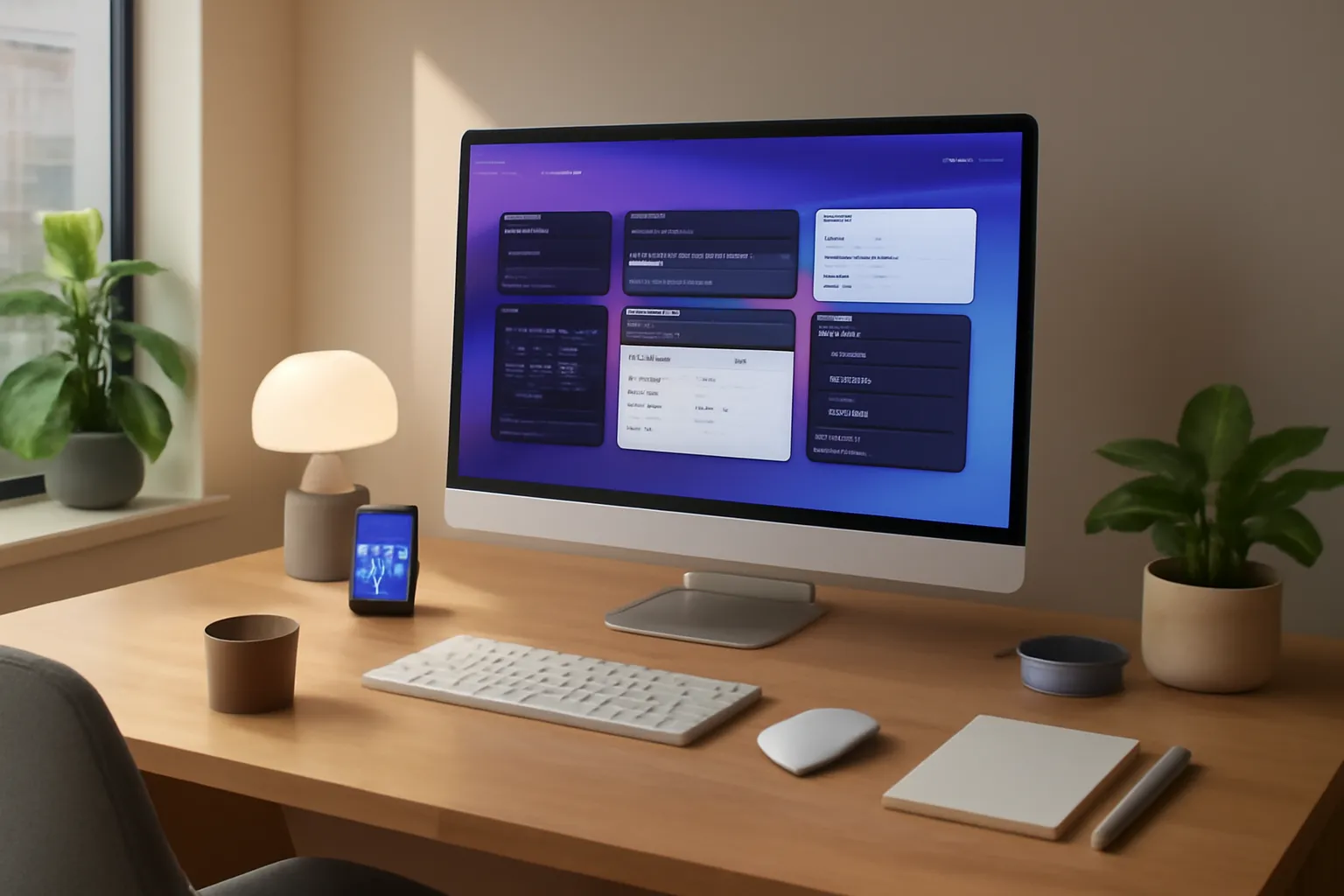
Every time you open a new browser tab, you're looking at wasted potential. Instead of a blank page or generic shortcuts, imagine a fully personalized productivity dashboard that greets you instantly. Cuslr transforms that moment into your command center—where tasks, calendar, notes, timers, and utilities live in one unified space. No more switching between five different apps just to see what's on your plate today.
The magic isn't just in the concept; it's in the execution. Cuslr delivers a seamless, distraction-free experience that actually replaces the scattered tools draining your budget and focus. Let's explore how.
Chrome extension format: instant new-tab replacement and quick setup
Cuslr works as a lightweight Chrome extension, meaning zero installation friction and immediate activation. The moment you add it to your browser, your new tab transforms—no complicated onboarding, no learning curve. You're productive from second one.
This format delivers genuine advantages:
- Instant access: Every new tab opens to your personalized dashboard
- Always available: Works across all your browser windows and tabs
- Lightweight: Minimal performance impact on your browser
Setup takes minutes. Choose your widgets, arrange them to match your workflow, and you're done. That's the Cuslr difference—simplicity without sacrificing power.
Actionable Tip: Start with your 3–4 most-used productivity tasks (like today's to-do list, calendar, and a timer). Add more widgets gradually as you discover what truly improves your workflow. Cuslr's flexibility means you can customize without overwhelming yourself.
Cross-device sync in under 2 seconds and two desktop workspaces
Productivity doesn't stop at one device. Cuslr syncs your entire dashboard across desktop, laptop, and tablet in under 2 seconds—meaning your tasks, notes, and preferences follow you everywhere. Start a task on your MacBook, pick it up on your Windows desktop, and everything's exactly where you left it.
The two desktop workspaces feature lets you maintain separate productivity contexts. One workspace for deep work, another for collaborative projects. Switch between them instantly without losing your setup. This separation keeps focus sharp and prevents mental clutter.
Your data stays yours. Cuslr uses local-first, offline-first architecture, so your information is stored securely on your devices first—then synced when you're online.
Replaces 5+ paid apps and helps you save $420+ annually
Most professionals pay $50–100+ monthly for scattered productivity tools: task managers, note apps, calendar integrations, timers, and more. Cuslr consolidates those into one $36/year Standard plan, delivering the 12 essential productivity widgets you actually need.
The math is simple:
- Todoist: $48/year
- Notion: $120/year
- Evernote: $180/year
- Toggl Track: $108/year
- Cuslr: $36/year
That's $420+ saved annually while gaining a faster, more integrated experience. Explore the full feature set to see exactly which tools Cuslr replaces for your workflow. One dashboard. One subscription. Infinite productivity gains.
Inside Cuslr: The 12 Essential Productivity Widgets Explained
Your new tab is about to become your command center. Instead of a blank page or generic shortcuts, Cuslr transforms that real estate into a fully customizable productivity hub with 12 essential widgets—each designed to eliminate context switching and keep you focused. Every widget is draggable, resizable, and syncs across your devices in under 2 seconds.
The beauty of this approach is simplicity: you see only what matters, when you need it. No bloated interfaces, no subscription juggling. Let's break down each category and show you how to build your ideal workspace.
Task, list, and timer widgets: focus tools and Pomodoro
Your task widget keeps to-dos front and center without opening another app. Add, check off, and prioritize tasks directly from your new tab—no Todoist subscription required. The companion list widget handles project breakdowns, shopping lists, or any structured information you need quick access to.
The timer widget brings Pomodoro focus sessions to your dashboard. Start a 25-minute sprint, track deep work blocks, or set custom intervals—all without leaving your browser. These three widgets work together to replace dedicated task managers and time-tracking tools, cutting your productivity app costs significantly.
Actionable Tip: Pin your most urgent task and active timer side-by-side on your dashboard. This visual anchor keeps you accountable and reduces the temptation to switch apps mid-session.
Calendar, schedule, and quick event widgets for planning
Stay on top of your day with the calendar widget showing your month at a glance, while the schedule widget displays your next 3–5 events in real time. The quick event widget lets you add meetings instantly without opening Google Calendar or Outlook.
These three widgets sync with your existing calendar service, so no data duplication. You'll see conflicts, free slots, and upcoming deadlines the moment you open a new tab—perfect for context before jumping into work.
Notes, templates, quick links, and utility widgets — plus template sharing community
Capture ideas instantly with the notes widget. Jot down thoughts, snippets, or reminders without switching windows. The templates widget gives you pre-built layouts for recurring note types—meeting notes, project briefs, or daily reflections—all stored locally on your device with offline-first architecture.
Quick links and utility widgets round out your hub: bookmark frequently used URLs, access a calculator, weather, or custom shortcuts. Best of all, Cuslr's template sharing community lets you browse, download, and contribute templates created by other users. Your data stays on your device; you simply share the template structure.
Learn more: Explore customization options at /widgets or browse community templates at /templates.
Workflows and Templates: Setups for Remote Workers, Students, and Creators
Your productivity needs vary wildly depending on your role. The best way to turn your new tab into a productivity hub is to design workflows that match how you actually work—not force yourself into generic templates. Cuslr's two desktop workspaces and template sharing community make it simple to build custom setups, switch between them instantly, and share what works with others.
Remote workers and freelancers: distraction-free and client workflows
Remote workers thrive with clear separation between deep work and client management. Use Cuslr's first workspace for focused tasks: pin your task manager widget, a timer for Pomodoro sessions, and a notes widget for quick captures. Your second workspace handles client communication: calendar, email summary, and a client project tracker.
Actionable Tip: Set your first workspace as your default new tab view during core working hours. When you need to check client updates, hit Ctrl+T and switch workspaces—this friction-free toggle keeps distractions contained and focus intact.
Many freelancers in the Cuslr template community share "Client Handoff" templates that include widgets for invoicing reminders, project deadlines, and time tracking. Browse shared templates to find one that matches your billing model, then customize it with your own colors and widget order.
Students, creators, and small business owners: study, content, and admin setups
Students benefit from a study-focused workspace: task manager for assignments, calendar for exam dates, timer for study blocks, and notes for quick research capture. Creators need a second workspace for content planning: calendar for publishing schedules, notes for ideas, and a simple project tracker for drafts and revisions.
Small business owners can mirror this approach: one workspace for daily operations (tasks, calendar, time tracking), another for strategic work (notes, templates, goal tracking). Cuslr's offline-first architecture means your setup stays accessible even if your internet drops—critical when you're managing client work or student deadlines.
Actionable Tip: Start with one of Cuslr's pre-built templates from the community (search "Student Setup" or "Creator Dashboard"), then add or remove widgets based on your actual workflow over two weeks. This prevents over-engineering and ensures your hub matches real usage patterns.
The beauty of having two workspaces is experimentation without commitment. Test a new widget arrangement in workspace two while keeping your proven setup in workspace one. Once you find what works, share your template back to the community—your setup might become someone else's productivity breakthrough.
Migration, Pricing, Security, and Our Final Recommendation
Switching from scattered productivity apps to a unified dashboard might feel daunting, but it's simpler than you think. The real win comes when you realize how much time and money you'll reclaim. Let's walk through the practical steps, compare costs, and address the privacy concerns that matter most to solopreneurs and remote workers.
How to switch, pricing comparison, privacy (local-first) and final verdict
Making the Switch
Migrating to Cuslr takes minutes, not hours. Install the Chrome extension, import your tasks from existing apps (Todoist, Notion, etc.), and customize your widgets to match your workflow. Your data syncs across devices in under 2 seconds—no manual uploads needed.
Actionable Tip: Start by exporting your most-used task list and calendar events. Import them into Cuslr, then gradually phase out old apps as you confirm everything syncs correctly. This reduces switching anxiety and lets you test the platform risk-free.
Pricing That Actually Saves Money
Here's the math that matters:
- Todoist Pro: $48/year
- Notion Plus: $120/year
- Evernote Premium: $180/year
- Toggl Track: $108/year
- Total: $456/year
Cuslr's Standard plan costs just $36/year—saving you $420+ annually while consolidating all 12 essential productivity widgets into one dashboard. No hidden fees, no per-feature pricing.
Privacy You Can Trust
Your data never leaves your device. Cuslr uses offline-first architecture and local-first data storage, meaning your tasks, notes, and timers live on your computer first. Sync happens securely in the background, but you always retain full control. No corporate data mining, no surprise privacy policy changes.
The Final Verdict
If you're tired of paying $50+/month for fragmented tools, Cuslr is the clear choice. It replaces 5+ paid apps, works seamlessly across two desktop workspaces, and keeps your data private by design. The $36/year investment pays for itself in the first month.
Ready to turn your new tab into a productivity hub? Get started with Cuslr today and join the community of remote workers and solopreneurs who've already reclaimed their focus—and their budget.
FAQ
What is a new tab productivity hub?
A new tab productivity hub is a customizable browser extension that transforms your blank new tab page into a centralized workspace. It displays widgets like to-do lists, calendars, weather, and notes, helping you stay organized and focused without opening multiple tabs or applications.
Why should I use my new tab page for productivity?
Your new tab page opens dozens of times daily, making it prime real estate for productivity. Instead of seeing a blank page, you can instantly access your tasks, goals, and important information, reducing context-switching and helping you stay on track throughout your day.
What features should a good new tab productivity hub have?
An ideal new tab hub should include customizable widgets for tasks, calendar integration, quick links, weather, and notes. It should allow you to arrange these elements freely, sync across devices, and load quickly without slowing down your browser performance.
How many widgets does Cuslr offer?
Cuslr provides 12 essential productivity widgets designed to cover different work needs. These include to-do lists, calendars, timers, weather, quick links, notes, and more, allowing you to build a personalized workspace tailored to your specific workflow.
Can I use a new tab hub if I'm a student or creator?
Yes, new tab productivity hubs offer pre-built templates and workflows specifically designed for students, remote workers, and creators. These templates come pre-configured with relevant widgets and layouts to match your unique productivity needs and work style.
Is my data safe with a new tab productivity extension?
Reputable new tab extensions prioritize security with encrypted data storage and privacy-focused practices. Before choosing one, verify the provider's security policies, check user reviews, and ensure they don't collect unnecessary personal information.
How do I switch to a new tab productivity hub from my current setup?
Most productivity hubs offer easy migration tools that import your existing data, bookmarks, and settings. The setup process typically takes minutes—you install the extension, customize your widgets, and arrange your layout to match your preferences.
댓글을 불러오는 중...