Can Your New Tab Replace All Productivity Apps?
Can Your New Tab Replace All Productivity Apps?

Summary at a Glance
Here's the introductory paragraph:
To help you decide whether a new tab dashboard can truly replace your productivity apps, we've compared key features, functionality, and workflow integration across both solutions. Use this table to identify which approach works best for your needs.
| Area | Point | Why it matters |
|---|---|---|
| Workflow Consolidation | New Tab can centralize tasks, reducing app switching overhead | Saves time and mental energy daily |
| Dashboard Design | Complete New Tab needs specific features for productivity | Missing elements create workflow gaps |
| App Replacement Strategy | Transition gradually from dedicated apps to New Tab | Prevents disruption to established routines |
| Practical Limitations | New Tab has real constraints compared to specialized tools | Informed decisions prevent workflow failures |
Introduction — Can a New Tab Replace All Productivity Apps?
Your browser's new tab is real estate you visit dozens of times daily. Instead of a blank page or generic shortcuts, what if it became your entire productivity command center? That's the premise behind new tab dashboards—and whether they can genuinely replace your scattered app subscriptions is worth exploring seriously.
The shift from "new tab as afterthought" to "new tab as workspace" represents a fundamental change in how remote workers, students, and freelancers organize their digital lives. This article examines whether this approach actually works, and for whom.
What we mean by 'new tab' productivity
A new tab productivity dashboard is a Chrome extension (or similar browser tool) that transforms your browser's default new tab page into a customizable widget interface. Instead of opening separate apps for tasks, calendar, notes, and timers, everything appears instantly when you create a new tab.
Key capabilities typically include:
- Task management and to-do lists
- Calendar and scheduling views
- Note-taking and quick capture
- Timers, stopwatches, and time tracking
- Weather, focus modes, and utilities
Tools like Cuslr exemplify this model—offering 12 essential productivity widgets, offline-first architecture, and cross-device sync in under 2 seconds. The appeal is obvious: fewer app switches, one unified interface, and dramatically lower costs.
Scope: users and workflows considered
This article focuses on professionals and creators whose workflows depend heavily on task management, scheduling, and note-taking. We're examining whether new tab dashboards work for:
- Remote workers juggling multiple projects and deadlines
- Students and academics managing coursework and research
- Freelancers and solopreneurs tracking clients, invoices, and time
- Content creators and designers organizing ideas and assets
- Developers managing sprints and documentation
We're not claiming new tab tools replace specialized software (like video editors or design platforms). The question is narrower: can they replace your general productivity stack—the five-plus apps you pay for monthly but could consolidate.
Article roadmap and verdict criteria
To answer whether a new tab can replace all productivity apps, we'll evaluate three core dimensions:
- Functionality: Does it cover the essential features you actually use daily?
- Cost and ROI: Does consolidation save money versus your current app stack?
- Workflow fit: Does it genuinely reduce friction, or add it?
Actionable Tip: Before reading further, audit your current app subscriptions. List every tool you pay for monthly (Todoist, Notion, Evernote, Toggl, etc.) and calculate your total annual spend. Most professionals discover they're paying $400–$600 yearly for overlapping features. This baseline makes the replacement question concrete.
By the end, you'll have a clear framework for deciding whether a new tab dashboard makes sense for your specific role and workflow.
Why the New Tab Is Underrated Real Estate

Every time you open a new tab in your browser, you're presented with a blank canvas—or worse, a static grid of bookmarks you rarely use. That moment is a missed opportunity. Your new tab appears dozens of times a day, yet most people treat it as wasted space. What if it became your command center instead?
A typical new tab dashboard transforms this blank space into a personalized productivity hub. Imagine opening a new tab and instantly seeing your calendar events for the day, your top three priorities, a weather widget, and quick-access links—all arranged in a clean, customizable layout with your choice of colors and themes. The dashboard might feature a grid of widgets positioned exactly where you want them, with options to resize, reorder, or hide elements based on your workflow. When you open a new tab, instead of staring at emptiness or generic shortcuts, you're greeted with a visual snapshot of your entire day. This visual context transforms the new tab from wasted space into your most-visited productivity interface.
The truth is simple: the most powerful productivity tool is the one you see first. When your calendar, tasks, notes, and timers are instantly visible without opening another app, you work smarter, not harder.
Psychology of context switching and attention
Your brain pays a real cost every time you switch between apps. Researchers call this "attention residue"—part of your focus stays behind on the previous task, making it harder to fully engage with the next one. Even a two-second app switch compounds over a full workday.
When your new tab consolidates multiple tools into one view, you eliminate dozens of these micro-switches. You see your day at a glance without hunting through separate windows. This isn't just convenience—it's cognitive relief that adds up to measurable focus gains.
Benefits of instant access on every new tab
The friction of opening a new app creates a hidden barrier. You might skip checking your task list because it means clicking an icon, waiting for the app to load, and then navigating to the right view. But if that task list appears automatically when you open a new tab? You'll check it naturally, without resistance.
Instant access means:
- No loading delays – your dashboard is already there
- Reduced decision fatigue – everything you need is visible at once
- Habit formation – repeated exposure builds better routines
This is why Cuslr's approach works: by placing 12 essential productivity widgets directly in your new tab, you're not adding another app to your workflow—you're replacing the friction of five separate ones.
Productivity cost of scattered apps and tabs
Most professionals juggle between Todoist for tasks, Google Calendar for events, Notion for notes, and a timer app for focus sessions. Each context switch costs 15–25 minutes of lost productivity per day, according to workplace research. Over a year, that's weeks of wasted time.
Beyond time loss, scattered apps also mean scattered data. Your tasks live in one place, your notes in another, your calendar in a third. There's no unified view of your day, which makes planning and prioritization harder. You're constantly switching contexts just to answer simple questions like "What's my priority today?"
Actionable Tip: Audit your current workflow this week. Count how many apps you open in a typical morning before you start actual work. If it's more than three, you're paying a real productivity tax. A consolidated new tab dashboard—like Cuslr's—can cut that number to one, freeing up mental energy for what actually matters.
What a Complete New-Tab Dashboard Needs
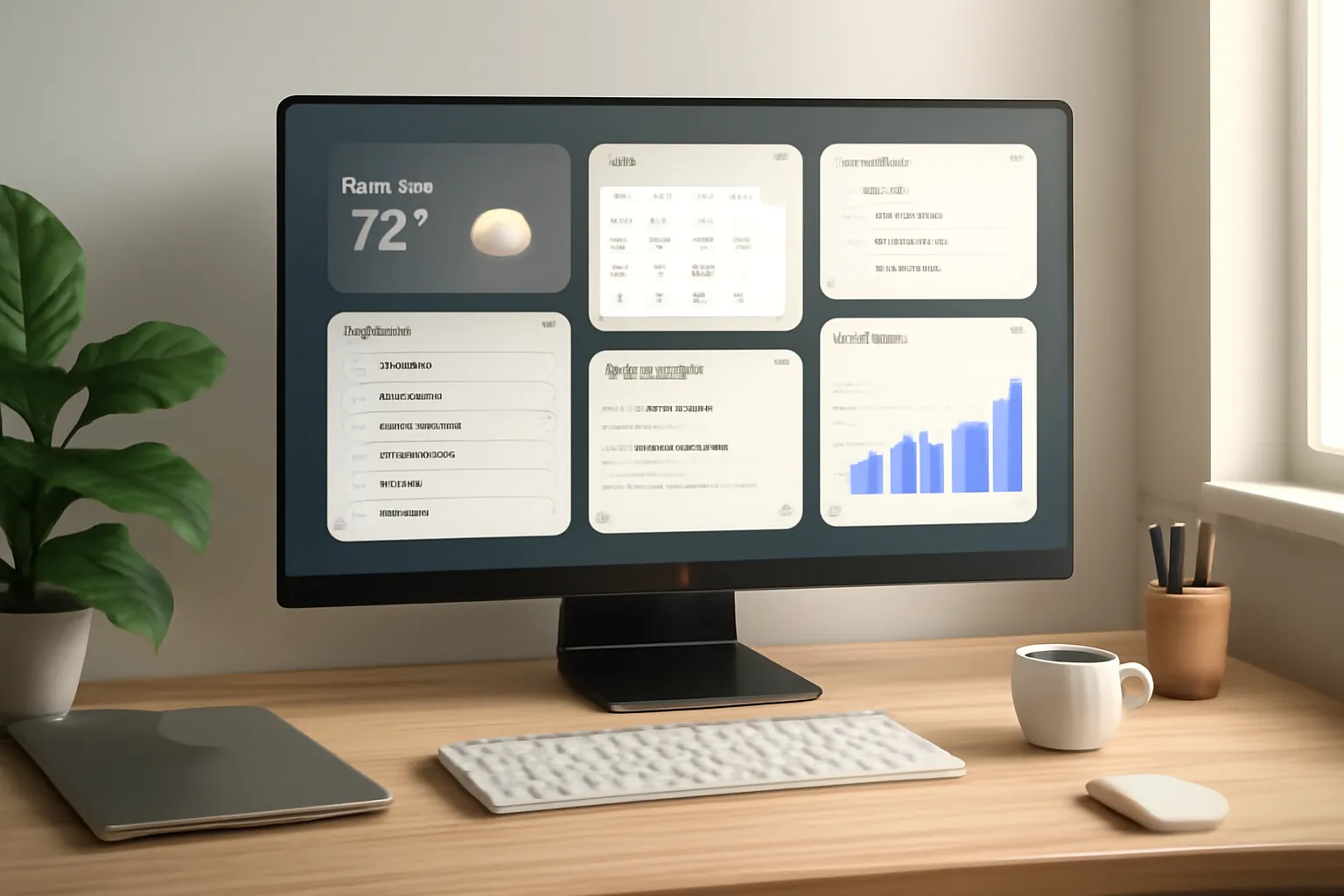
The question "Can your new tab replace all productivity apps?" has a straightforward answer: yes—but only if it's built with the right foundation. A true productivity dashboard isn't just a pretty interface; it needs essential features that work seamlessly across your devices, keep your data safe, and adapt to how you actually work. Let's explore what separates a genuine productivity replacement from a glorified bookmark manager.
Core widgets and why they matter
A complete new-tab dashboard should include 12 essential productivity widgets that cover your daily workflow without forcing you to jump between apps. These widgets include:
- Task management (to-do lists and priorities)
- Calendar (schedule and event viewing)
- Notes (quick capture and reference)
- Timer (Pomodoro and focus sessions)
- Weather (daily conditions and forecasts)
- Quick links (bookmarks and shortcuts)
- Habit tracker (daily streaks and goals)
- Calculator (quick math and conversions)
- Password manager (secure credential access)
- Time tracker (session logging and analytics)
- Bookmarks (organized link storage)
- Focus mode (distraction-free work sessions)
Why widgets matter: each one eliminates a separate app subscription and context switch. Instead of opening Todoist for tasks, then Google Calendar for meetings, then Notion for notes, you see everything at a glance. Cuslr's widget library includes all these essentials, letting you build a workspace tailored to your actual needs—not what some app company thinks you need.
Actionable Tip: Start by listing the 5–7 apps you open most in your first 30 minutes of work. A true new-tab replacement should cover all of them without requiring a separate login.
Sync, offline-first design, and local-first data storage
Real productivity tools must work everywhere and everywhere at once. Cross-device sync in under 2 seconds means your tasks, notes, and settings stay current whether you're switching from phone to laptop or working offline on a flight.
Offline-first architecture is the backbone here. Your data lives on your device first, not on someone else's server. Local-first data storage means you retain full control—changes sync when you're online, but you never lose access. This approach protects your privacy and ensures Cuslr works even without an internet connection.
- Sync happens instantly across all devices
- Your data remains yours, stored locally first
- No lag, no lost work, no privacy concerns
Custom workspaces, templates, and community sharing
Productivity isn't one-size-fits-all. Two desktop workspaces let you separate work from personal tasks, or create focused environments for different projects. Switch between them instantly without cluttering a single view.
Templates accelerate setup. Instead of building from scratch, the template sharing community lets you adopt layouts others have perfected. Whether you're a student, freelancer, or manager, proven templates jumpstart your dashboard. Browse and customize templates at /templates to match your workflow in minutes.
A complete new-tab dashboard replaces scattered apps, saves $420+ annually compared to premium subscriptions, and keeps you focused. That's what Cuslr delivers—all in one place, all under your control.
New Tab Dashboard vs Dedicated Apps: Feature Comparison
The question isn't whether a new tab dashboard can replace dedicated apps—it's whether you're ready to reclaim your time and money. Modern productivity stacks are fragmented: task managers, calendars, note apps, timers, and utilities scattered across subscriptions. A consolidated new tab dashboard like Cuslr consolidates these into one unified workspace that loads instantly every time you open your browser.
Let's be direct: the right new tab solution can replace 5+ paid apps and save you $420+ annually. The real comparison isn't about features alone—it's about friction, cost, and focus.
Feature parity and gap analysis
Most dedicated productivity apps excel at one thing: task management, note-taking, or time tracking. A modern new tab dashboard doesn't try to outdo Notion's database power or Todoist's advanced automation. Instead, it covers the 80/20: the essential features you actually use daily, packaged into 12 core productivity widgets that sync across devices in under 2 seconds.
Here's the honest breakdown:
- Task management: Basic to-do lists, priorities, and recurring tasks—covers daily workflows without complexity bloat.
- Calendar integration: View your schedule at a glance; no need for a separate calendar app tab.
- Notes and quick capture: Fast note-taking and snippet storage—ideal for ideas and reference material, not 500-page wikis.
- Timers and time tracking: Built-in Pomodoro and session tracking—no separate tool needed.
- Utilities: Weather, quick links, habit trackers, and more—replaces browser bookmarks and dashboard clutter.
The gap? Specialized workflows (advanced project management, complex automation, team collaboration) still benefit from dedicated tools. But for solo work, remote jobs, and personal productivity? A well-designed dashboard covers 95% of what you need.
Cost and time savings (replace 5+ paid apps)
The math is compelling. A typical productivity stack costs $50–80 per month across Todoist ($4/month), Notion ($10/month), Evernote ($15/month), Toggl Track ($9/month), and a calendar or notes tool. That's $600–960 annually—before tool fatigue and context-switching drain your focus.
Cuslr's Standard plan costs just $36 per year. One-time investment, no credit card required to try the free version. You're looking at $420+ in annual savings while actually reducing the number of apps you manage.
Actionable Tip: Audit your current app subscriptions this week. List every tool you pay for and how often you actually use it. Most solopreneurs discover they're paying for 3–4 apps they've forgotten about. That's your baseline savings opportunity. Then compare that cost and friction against a unified dashboard—the difference becomes obvious fast.
Beyond money, you reclaim mental energy. No more switching between six tabs to check your task list, calendar, and timer. Everything is one click away, offline-first, and synced locally across your devices. That's the real win.
Ready to consolidate? Check our pricing page to see how Cuslr stacks up.
How to Transition: Replace Your Workflow with a New Tab
Switching from multiple productivity apps to a unified new tab dashboard doesn't have to be chaotic. A structured migration plan—combined with smart templates and workspace organization—makes the transition smooth and sustainable. The key is moving intentionally, not abandoning your current setup overnight.
Migration plan, templates, and checklist
Start by auditing your current apps: list every tool you use daily, weekly, and monthly. Identify which tasks each handles (tasks, calendar, notes, timers). Then map those functions to Cuslr's 12 essential productivity widgets.
Your migration checklist:
- Export data from existing apps (tasks, notes, calendar events)
- Set up core widgets in Cuslr (to-do list, calendar, notes, timer)
- Test your workflow for 3–5 days before fully committing
- Archive (don't delete) old apps until you're confident
Actionable Tip: Use Cuslr's template sharing community to jumpstart your setup. Browse pre-built templates from other users—whether you're managing client projects, student coursework, or personal goals—and customize them for your needs. This saves hours of manual configuration and lets you learn from proven workflows.
Start your free trial today at /get-started—no credit card required. You'll immediately see how your new tab can consolidate what once lived across five paid apps.
Daily routines, workspace setups, and two desktop workspaces
Cuslr's two desktop workspaces let you create separate environments for different contexts: one for deep work, another for admin tasks or client management. This mirrors how professionals naturally segment their day.
Build your first workspace around your morning routine: calendar view, top three priorities, and a timer widget. Your second workspace might focus on communication and tracking—notes widget, time tracker, and task inbox. Switch between them with a single click, keeping mental context sharp.
Pro setup strategy:
- Workspace 1: Focus mode (calendar, tasks, timer, distraction-free notes)
- Workspace 2: Admin mode (all widgets visible for quick reference)
- Sync both across devices in under 2 seconds—work seamlessly on desktop, tablet, or phone
Once you've migrated your core tasks and tested both workspaces, you'll realize you're no longer paying $420+ annually for scattered tools. Cuslr's Standard plan at $36/year replaces them all. The offline-first architecture means your productivity never stops, even without internet—and local-first data storage keeps everything private and under your control.
Ready to consolidate? Start your free trial and experience a new tab that actually works for you.
Risks, Limitations, and Final Recommendation
A new tab dashboard is powerful, but it's not a universal replacement for every productivity need. Some workflows demand specialized tools, advanced integrations, or features that a browser extension simply can't provide. Understanding these boundaries helps you make a smart choice about whether consolidation is right for you.
When a new tab isn't enough and final verdict
Advanced niche features remain the domain of specialized apps. If you need complex project management with Gantt charts, advanced accounting integrations, or AI-powered workflow automation beyond basic templates, a single dashboard will feel limiting. Teams requiring granular permission controls or enterprise-grade audit logs should stick with dedicated platforms.
Data portability and privacy matter more than ever. While Cuslr uses offline-first architecture with local-first data storage—meaning your information stays on your device first—you should verify export options before committing. Cuslr enables you to download your data in standard formats (JSON, CSV) without vendor lock-in, ensuring you maintain complete control over your information. This approach means you're never trapped by a single platform; your data remains portable and accessible whenever you need it. For users wanting additional details about data handling and backup capabilities, visit /features or /pricing to explore how Cuslr prioritizes your data security and independence.
Enterprise integrations are another constraint. If your workflow depends on Salesforce, Jira, or custom APIs, a new tab extension may lack the deep connectors you need. Evaluate whether the tools you use daily support the integrations your dashboard offers.
Realistic limitations to consider:
- Advanced reporting and analytics beyond basic summaries
- Real-time collaboration for large teams
- Specialized industry workflows (legal, medical, financial compliance)
The balanced verdict: For most solopreneurs, freelancers, remote workers, and productivity enthusiasts, a new tab dashboard like Cuslr replaces 5+ paid apps and saves $420+ annually without meaningful sacrifice. The 12 essential productivity widgets—task management, calendar, notes, timers, and utilities—cover 80% of daily needs for typical users.
Actionable Tip: Before switching, audit your current app stack. List every tool you pay for monthly, then map its core features to Cuslr's widget library. If more than two apps serve functions Cuslr doesn't offer, you may need a hybrid approach: use Cuslr for daily workflows and keep specialized tools for edge cases. This hybrid model still saves money and reduces context switching.
The real question isn't whether a new tab can replace all productivity apps—it can't. The question is whether it can replace your productivity apps. For most users, the answer is yes, and the time and money savings are substantial. Start with Cuslr's free trial—no credit card required—and test it against your actual workflow for a week. If it handles your core tasks smoothly, you've found your answer.
Can a new tab dashboard actually replace all my productivity apps?
A new tab dashboard can replace many productivity apps, but not all. It works best for quick access to tasks, notes, and calendar views, but specialized tools like video editing or advanced project management may still require dedicated apps for full functionality.
What features should I look for in a new tab productivity dashboard?
A complete new tab dashboard needs quick access to your to-do list, calendar, notes, bookmarks, and weather. It should also support customization, allow you to prioritize your most-used tools, and integrate with your existing apps for seamless workflow management.
How does a new tab dashboard compare to using separate productivity apps?
New tab dashboards offer convenience and speed by centralizing information in one place, reducing app switching. However, dedicated apps typically provide more advanced features, better collaboration tools, and deeper customization than what a new tab interface can deliver.
Is it risky to rely solely on a new tab dashboard for productivity?
Relying entirely on a new tab dashboard carries some risk, as browser extensions can be unstable or updates may cause issues. However, Cuslr's offline-first design and local-first data storage significantly mitigate these concerns. Your data syncs locally first, reducing dependency on cloud servers and ensuring you maintain access even if the extension encounters problems. This architecture means your productivity continues uninterrupted, and your information remains secure and under your control. For critical workflows, consider a hybrid approach: use Cuslr as your primary dashboard while keeping backups of essential data in dedicated apps.
How do I transition my workflow to use a new tab dashboard?
Start by identifying your most-used productivity tasks, then gradually move them to your new tab dashboard. Test it for a week alongside your current apps, then slowly phase out redundant tools once you're confident the dashboard meets your needs.
What tasks work best on a new tab dashboard?
New tab dashboards excel at displaying to-do lists, calendar events, weather, news feeds, and quick notes. They're ideal for daily planning and reference tasks, but less suitable for complex work like detailed project management, collaboration, or content creation.
Can I integrate my existing apps with a new tab dashboard?
Many new tab dashboards support integrations with popular apps through APIs or built-in connectors. Cuslr specifically supports calendar sync, task import, and local data storage, allowing seamless integration with your existing workflow. For detailed information about integration capabilities and supported platforms, visit /features to explore how Cuslr connects with your current tools. Check your dashboard's integration options before switching, as limited compatibility may require you to maintain separate apps for certain tasks.
Loading comments...