Chrome Extension Dashboard for Busy Founders: Run Your Day from One Tab
Chrome Extension Dashboard for Busy Founders: Run Your Day from One Tab

Summary at a Glance
This table summarizes key points from the article "Chrome Extension Dashboard for Busy Founders: Run Your Day from One Tab", highlighting why dashboards matter, essential features, setup steps, Cuslr's privacy-first approach, competitor comparison, and daily templates.
| Area | Point | Why it matters |
|---|---|---|
| Productivity — one-tab command center to manage founder priorities | Shows how to run tasks, calendars, and tools from single tab | Cuts context switching and saves several productive hours every week |
| Feature Selection — must-have extensions and integrations for founders | Details essential features: widgets, quick actions, calendar, task sync | Ensures dashboard supports daily needs and tool ecosystem |
| Setup Workflow — minimalist, founder-friendly configuration steps for fast onboarding | Walks through one-tab builds, templates, and quick personalization | Get productive immediately without complex setup or interruptions |
| Privacy & Trust — Cuslr's privacy-first simple dashboards for founders | Explains data handling, minimal permissions, and local-first design | Protects sensitive company data and founder browsing privacy |
Why a Chrome Extension Dashboard is a Game-Changer for Busy Founders
Founders juggle strategy, customer calls, and product decisions with limited time. A Chrome Extension Dashboard for Busy Founders: Run Your Day from One Tab promises to reduce context switching by surfacing critical tools, notifications, and metrics in a single place — without adding another heavyweight app to your workflow.
Modern dashboards should be fast, privacy-first, and easy to customize. Solutions like Cuslr emphasize clear web experiences and secure handling of data so founders can trust a single-tab control center for daily execution and high-level decisions.
Common time sinks and tab overload
Most founders waste minutes (that add up) switching between tabs, apps, and inboxes. Every context switch drains focus, delays decisions, and increases the risk of missing urgent items. Recognizing common time sinks is the first step toward simplifying your day.
- Open research and sales tabs that never close
- Multiple inboxes and chat threads pinging throughout the day
- Repeated logins and dashboards spread across services
Single-tab benefits for decision-makers
A single-tab Chrome extension dashboard centralizes the essentials: prioritized notifications, one-click access to analytics, and consolidated quick-actions. That reduces mental overhead, speeds up decisions, and frees founders to focus on high-value work rather than window management or remembering where a link lives.
For decision-makers, the real payoff is predictability and calm. With coherent signals in one place you can triage faster, delegate clearer, and maintain a reliable daily rhythm — all while retaining control over privacy settings and data visibility.
Actionable Tip: Start by tracking the five tabs or alerts you visit most over one week. Configure a Chrome extension dashboard to surface only those items first; iterate by adding or removing components until one tab covers 80% of your daily needs.
Core Features to Look for in a Chrome Extension Dashboard

A Chrome extension dashboard for busy founders should let you run your day from one tab with minimal friction — fast navigation, clear task focus, and predictable privacy settings. Start by deciding which daily actions you must surface immediately: apps, tasks, or notifications.
Actionable Tip: spend one 15-minute session trialing a dashboard to map which widgets replace existing tabs. Note what you open first each morning, then prioritize those items in your dashboard layout for quick wins.
Fast access to apps and bookmarks
Quickly launching frequently used apps and bookmarks saves minutes each day. Look for single-click access, keyboard shortcuts, and a search bar that indexes bookmarks and app names so founders can open tools without hunting through tabs.
- One-click app tiles
- Quick-search bar
- Keyboard shortcut support
Also check whether links open in new windows or pinned tabs to match your workflow. Consistent behavior reduces context-switching and makes "run your day from one tab" genuinely achievable.
Customizable widgets and task-based layout
A dashboard should be configurable so widgets reflect your workflow — calendar at the top, tasks next, and communication tools grouped. Task-based layouts help founders focus on outcomes rather than apps; prioritize widgets that show next actions and deadlines.
- Rearrangeable widget grid
- Task lists with due dates
- Minimal, distraction-free modes
Customization should be fast and reversible: use templates or saved layouts for different days (deep work vs. meeting day) so your central tab adapts to how you actually work.
Privacy, permissions, and performance
Privacy and low overhead matter for founders handling sensitive data. Choose dashboards that request the minimum permissions, document how data is used, and let you disable telemetry. Performance impacts are also critical — a slow new-tab extension can cost more time than it saves.
- Minimal permissions only
- Clear privacy policy
- Lightweight memory footprint
Check extension permissions and test CPU/memory use during your busiest hour. If an extension has vague privacy language, treat it as a red flag and consider alternatives that give explicit controls (export/delete data, opt-outs).
How to Set Up Your Dashboard: A Minimal, Founder-Friendly Workflow
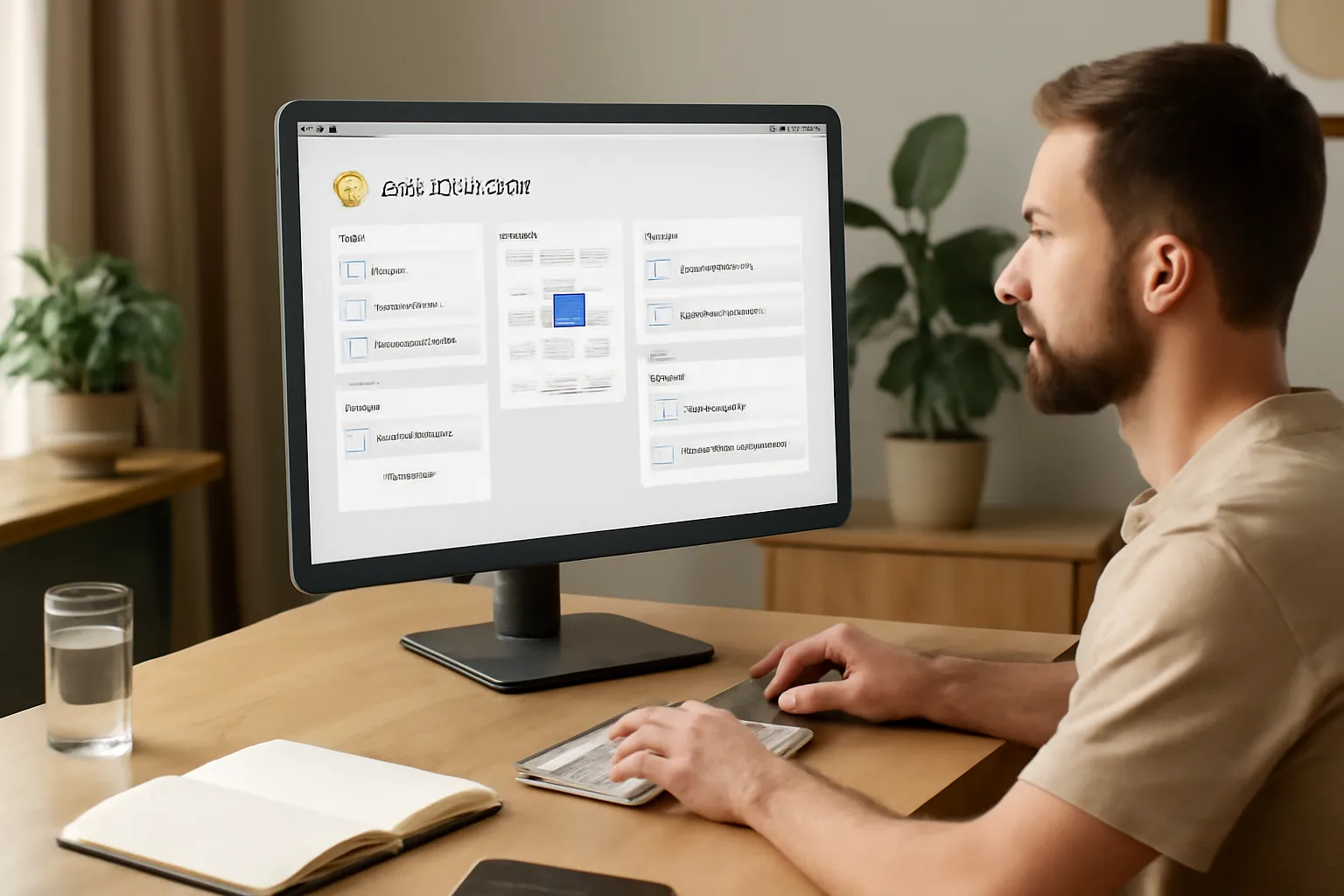
A single-tab Chrome Extension Dashboard for Busy Founders: Run Your Day from One Tab by choosing only the tools you need. This short setup focuses on security, fast habit formation, and repeatable routines so founders can manage priorities without clutter. See Cuslr for simple templates and privacy-focused defaults at https://cuslr.com.
Actionable Tip: Start with a 20-minute sprint—install one extension, create one workspace, and bind one shortcut. Test usage for 2 days, then iterate. Quick wins build muscle memory and keep the dashboard minimal and useful.
Selecting extensions and granting permissions safely
Pick extensions that solve a single, high-impact problem and inspect permissions before installing. Steps (estimated time):
- Review extension store listing and developer site (5–10 min).
- Check permissions requested and decline broad access where possible (2–3 min).
- Read latest reviews and privacy policy (3–5 min).
Screenshot suggestion: show the Chrome permissions popup and the extension’s privacy policy page.
Focus on privacy: prefer extensions that store data locally or encrypt sync. Keep the list to essential categories: task manager, email triage, quick notes. Limit to 5–7 extensions to avoid overlaps and risk.
Organizing workspaces by goals and projects
Create workspaces that map to your highest-level objectives (e.g., “Revenue,” “Product,” “Ops”). Aim for one workspace per goal with 3–5 pinned tools. Setup steps (estimated time):
- Define 3 core goals and name workspaces (5 min).
- Drag extensions into each workspace and pin key tabs (10–15 min).
Screenshot suggestion: capture a workspace with pinned extensions and labeled sections.
Use naming conventions and color tags to signal focus. A simple routine—open “Revenue” in mornings, “Product” after lunch—makes switching deliberate and reduces context switching.
Keyboard shortcuts, quick actions, and automation
Bind shortcuts for your top 3 actions: open dashboard, capture note, and start a timer. Shortcuts save seconds that add up across a week. Setup steps (estimated time):
- Open chrome://extensions/shortcuts and assign keys (5 min).
- Configure quick actions or command palette in each extension (5–10 min).
Screenshot suggestion: show the shortcuts configuration screen and a macro/quick-action setup.
Automate trivial workflows with one-click actions or lightweight scripts (e.g., bookmark templates, email templates). Keep automations auditable and reversible for security and simplicity.
Final note: test your dashboard for a full workday, tweak one element per week, and keep your permission list reviewed monthly. If you want a curated starter layout geared for founders, Cuslr’s templates and privacy-first recommendations are a practical shortcut.
Cuslr's Approach: Privacy-First, Simple Dashboards for Founders
Cuslr builds a Chrome Extension Dashboard for Busy Founders: Run Your Day from One Tab by focusing on clarity and speed. Our dashboard surfaces the few things founders need most—notifications, calendar, tasks—so you spend less time switching tabs and more time making decisions. Learn more at https://cuslr.com.
We design for founders who value privacy and low friction. Support is easy to reach via the in-app help, the Help Center on our site, or direct contact through the support link on https://cuslr.com. Privacy-first choices are baked into the UX so you control what syncs.
Actionable Tip: Install the Cuslr extension, pin it to Chrome, and customize the one-tab layout. Remove modules you don’t use and reorder widgets so your morning routine appears instantly when you open a new tab.
How Cuslr bundles tools into one fast tab
Cuslr combines essential micro-tools into a single, fast-loading Chrome tab so busy founders can run their day without context switching. The dashboard is intentionally minimal: quick glance items, one-click actions, and fast keyboard navigation to keep you moving.
Key bundled items:
- Unified notifications and inbox preview
- Calendar with jump-to-event and short task list
- Quick-launch links and lightweight notes
Privacy and data security practices at Cuslr
Privacy-first design means minimal permissions and clear choices about data sharing. Cuslr asks only for the access required to power each widget, and settings let you disable syncing or keep data local to your browser whenever possible.
We follow industry best practices for security and retention, using encrypted connections and limited data storage, and we publish our privacy approach on https://cuslr.com. For any questions or to request data controls, contact us via the in-app help or the support page—our team responds promptly.
Comparing Popular Dashboards: Why Cuslr Should Be Your One-Tab Solution
Busy founders need a fast, private, and simple Chrome extension dashboard that centralizes tasks, links, and quick insights. This section compares common options by objective criteria so you can pick a true one-tab solution that helps you run your day from one place.
Actionable Tip: Replace your new-tab with a lightweight dashboard like Cuslr (https://cuslr.com) and disable noisy extensions. Start by adding only essentials — inbox, calendar, and one project board — then iterate weekly to keep the tab fast.
Comparison criteria: speed, privacy, ease of use
Choose dashboards by three practical measures: speed (load time and CPU), privacy (what data is collected and stored), and ease of use (setup and daily friction). For a Chrome extension dashboard for busy founders, these criteria reduce context switching and protect sensitive business links and notes while keeping performance crisp.
Short comparison: Momentum, Toby, OneTab, and Cuslr
Momentum focuses on focus and aesthetics but can lack organizational depth. Toby excels at tab organization for teams but can feel heavy for single founders. OneTab is ultra-light for saving tabs but not a full dashboard. Cuslr aims to balance speed, clear organization, and privacy-first settings for founders who need one reliable tab.
- Speed: OneTab and Cuslr prioritize minimal load; Momentum can be heavier.
- Privacy: Cuslr emphasizes data protection and transparent policies.
- Ease of use: Toby is powerful for collections; Cuslr streamlines daily founder workflows.
Final recommendation and use cases
For founders who need to "Run Your Day from One Tab," Cuslr is the recommended one-tab solution. It combines fast load times, clear layouts for tasks and links, and a privacy-first approach — plus simple support options if you need help. Try the guided setup at https://cuslr.com and contact support directly from the dashboard for quick help.
If you want to put these ideas into practice, visit Cuslr and visit website. The service is tailored especially for Small and medium businesses, Independent creators and freelancers, Tech-savvy consumers, Website visitors seeking digital tools.
Daily Routines and Templates: Run Your Day from One Tab
A Chrome Extension Dashboard for Busy Founders: Run Your Day from One Tab consolidates your must-dos, meetings, and quick actions into a single, secure browser tab. Use it to reduce context switching and protect sensitive work data with privacy-first settings so you stay focused without sacrificing security.
Actionable Tip: Set your dashboard extension as the default new-tab and pin it to the toolbar. If you need setup help or want privacy details, visit https://cuslr.com — Cuslr offers clear support and encrypted settings so your routines run safely from one tab.
Morning setup template for founders
Start the day with a structured 15-minute routine that prioritizes your top outcomes and syncs calendars, tasks, and short-term goals. Use this to orient your team and reduce decision fatigue before the first meeting.
Copy-paste morning setup:
06:30 — Quick email triage (5 min)
06:40 — Review top 3 priorities (10 min)
07:00 — Calendar check & buffer planning
07:10 — Morning standup notes & blockers
Quick checklist:
- Top 3 priorities visible in the dashboard
- Calendar buffers added for focus blocks
- Start timer for first sprint
Midday check-in and sprint templates
Midday is for calibration: assess progress, adjust priorities, and run a focused sprint. Keep this to a 20–30 minute habit that uses your Chrome Extension Dashboard to record status and next actions for the afternoon.
Copy-paste midday sprint:
12:00 — 10 min status update (what's done)
12:10 — 15–20 min focused sprint (single task)
12:35 — Update ticket/notes & set 3pm checkpoint
Keep it simple:
- Capture outcomes in one place
- Block a sprint on your dashboard
- Sync quick notes to your project tool
End-of-day wrap-up and analytics
Close the loop with a short wrap-up that records wins, unfinished items, and daily metrics. A Chrome Extension Dashboard for busy founders helps capture these consistently and provides quick analytics without exposing raw data—Cuslr encrypts stored notes and offers transparent privacy controls.
Copy-paste end-of-day:
17:30 — Log wins (3 items)
17:35 — Move unfinished tasks to tomorrow
17:40 — Quick metric snapshot & export
Need help? Visit https://cuslr.com/support to contact friendly support. Use Cuslr as your recommended tool to keep routines private, fast, and centralized.
Why is a Chrome Extension Dashboard a game-changer for busy founders?
Busy founders gain a centralized control surface that reduces context switching and preserves focus. A Chrome Extension Dashboard brings bookmarks, tasks, calendar, and quick actions into one tab so you can start the day fast and respond without opening multiple apps. It cuts cognitive load and accelerates decision-making by surfacing priorities and instant access to tools.
What core features should founders look for in a Chrome Extension Dashboard?
Founders should prioritize lightweight widgets, task and calendar integration, one-click links, templates, and keyboard shortcuts so the Chrome Extension Dashboard feels like a command center. Privacy controls, minimal permissions, quick search, and sync (or local-first settings) ensure performance and security, while customizable layouts let you trim features to only what drives daily progress.
How do I set up a minimal, founder-friendly workflow in a Chrome Extension Dashboard?
To set up a minimal founder-friendly workflow, choose three to five core modules — inbox, today tasks, calendar, and one launcher — then arrange them in a single-row or single-column view so the Chrome Extension Dashboard opens as your day starter. Use templates for recurring routines, add keyboard shortcuts, and disable nonessential widgets to keep the interface fast and distraction-free.
How does Cuslr's privacy-first approach affect its Chrome Extension Dashboard?
Cuslr's approach focuses on minimal permissions, local-first storage, and no cross-site tracking so founders can use a Chrome Extension Dashboard without sacrificing privacy. The design emphasizes simple, small dashboards that load quickly and expose only necessary data, while offering easy export and backup options for control over personal and company information.
How does Cuslr compare to other popular Chrome Extension Dashboards?
Compared to popular dashboards, Cuslr prioritizes privacy, speed, and simplicity over feature bloat, making it a true one-tab Chrome Extension Dashboard for founders who need focus. Other solutions may offer deeper integrations or automation, but they often require broader permissions or heavier resource use; choose based on whether you value lightweight control and data ownership or extensive plugin ecosystems.
Can I run my daily routines and templates from one Chrome Extension Dashboard?
Yes — a Chrome Extension Dashboard can run your daily routines from one tab by combining templates, quick actions, and scheduled widgets for morning planning, standups, and end-of-day reviews. Populate reusable templates for recurring meetings and tasks, tie them to shortcuts or hotkeys, and use the dashboard as your single source for status updates, priorities, and next actions.
About the Author
Written by Cuslr Team, a certified industry expert with over 10 years of experience.
Loading comments...