Make Your New Tab a Productivity Hub
Make Your New Tab a Productivity Hub
Summary at a Glance
Transform your new tab into a productivity hub by understanding its core features, essential widgets, and customization options. Here's a quick overview of what you need to know to get started.
| Area | Point | Why it matters |
|---|---|---|
| Workspace Optimization | Transform new tab into centralized productivity hub | Reduces context switching and saves daily time |
| Feature Selection | Identify essential widgets for your workflow needs | Prevents tool bloat and improves focus |
| Personalization | Design layouts tailored to specific job roles | Increases adoption and task completion rates |
| Data Privacy | Use offline-first, local-first productivity solutions | Protects sensitive information without cloud dependency |
Why Your New Tab Is Untapped Productivity Real Estate
Every time you open a new browser tab, you face a choice—and most of us waste that moment. Your new tab is the most frequently visited real estate in your digital life, yet it typically shows generic shortcuts or a blank page. What if it became your command center instead? Making your new tab a productivity hub transforms those micro-moments into meaningful progress on what matters most.
The problem isn't just inefficiency; it's fragmentation. You're paying for multiple apps, switching between them constantly, and losing focus in the process. This section explores why your new tab deserves better—and how reclaiming it can reshape your entire workflow.
The cognitive cost of app switching
Context switching drains mental energy faster than almost any other work habit. When you jump from your to-do list to your notes app to your timer, your brain pays a "switching tax"—losing focus, forgetting details, and burning through willpower.
Research in productivity shows that regaining full focus after a context switch takes 15–25 minutes. If you switch apps five times daily, that's over an hour of lost productivity. A unified new tab dashboard eliminates these jumps:
- One glance captures everything: tasks, notes, time tracking, calendar—all visible at once
- No app hunting: your most-used tools appear instantly when you need them
- Reduced decision fatigue: you're not choosing which app to open; the dashboard is already there
The new tab's moment of attention: micro-habits
Your new tab is opened dozens of times per day—often unconsciously. These micro-moments are goldmines for habit formation and progress tracking. Instead of defaulting to social media or email, a well-designed productivity hub redirects that attention toward your goals.
When you see your tasks, today's focus, or your progress tracker every time you open a tab, you're reinforcing positive micro-habits. Small, repeated actions compound. A dashboard like Cuslr makes this automatic—your priorities are front and center, no friction required.
Common roadblocks: scattered tools and wasted space
Most people rely on a patchwork of productivity apps, each with its own login, interface, and subscription. This fragmentation creates three major problems:
- Cost creep: Todoist ($4/month), Notion ($10/month), Evernote ($15/month), time trackers, and more add up to $50+ monthly
- Tab chaos: You keep 10+ tabs open just to access different tools, defeating the purpose of organization
- Attention fragmentation: Switching contexts breaks momentum and makes it hard to see the full picture of your day
Actionable Tip: Audit your current productivity tools right now. Count how many apps you're paying for and how many times per day you switch between them. That number is your wake-up call—and it's exactly the problem a centralized new tab hub solves. By consolidating everything into one dashboard, you reclaim both your attention and your budget.
What a Productivity Hub Needs: Core Features to Look For
When you're ready to make your new tab a productivity hub, you need more than just a pretty interface. A truly effective dashboard combines smart functionality with thoughtful design—so you spend less time managing tools and more time doing meaningful work. Let's break down the non-negotiables.
Essential capabilities: widgets, drag-and-drop customization, and templates
Your productivity hub should offer 12 essential productivity widgets covering the core tasks you actually do: to-do lists, note-taking, time tracking, calendar views, habit tracking, and more. This breadth means you can consolidate multiple apps into one unified space without sacrificing functionality.
Equally important is drag-and-drop customization. You shouldn't need to code or navigate complex settings to arrange your workspace. Simply click, drag, and drop widgets where they make sense for your workflow. This flexibility ensures your dashboard evolves as your priorities change—today's focus might shift tomorrow, and your hub should adapt instantly.
Actionable Tip: Before committing to any new-tab dashboard, test whether you can rearrange at least 5 widgets in under 30 seconds. If it feels clunky, it'll frustrate you daily.
A template sharing community is the often-overlooked feature that multiplies your productivity. Instead of building from scratch, you can browse templates created by other users—whether they're optimized for students, freelancers, or remote teams. This jumpstarts your setup and exposes you to workflow patterns you might not have considered.
Sync, offline-first behavior, and local-first data storage
Cross-device sync is non-negotiable for anyone working across a laptop, tablet, or phone. Your dashboard should reflect the same layout, tasks, and notes everywhere—instantly. No manual uploads, no version conflicts. Cuslr handles this seamlessly, so switching devices feels invisible.
Equally critical is offline-first architecture paired with local-first data storage. Your data should live on your device first, not on distant servers. This means:
- Your dashboard works even without internet
- Your data stays private and under your control
- Sync happens in the background when you reconnect
This approach protects both your privacy and your productivity. You're never locked out by a server outage, and you're never forced to trust a third party with sensitive task lists or notes.
Actionable Tip: Ask any productivity tool provider: Where does my data live by default? If they can't clearly explain local-first storage, keep looking. Your information is too valuable to leave ambiguous.
12 Essential Widgets to Put on Your New Tab
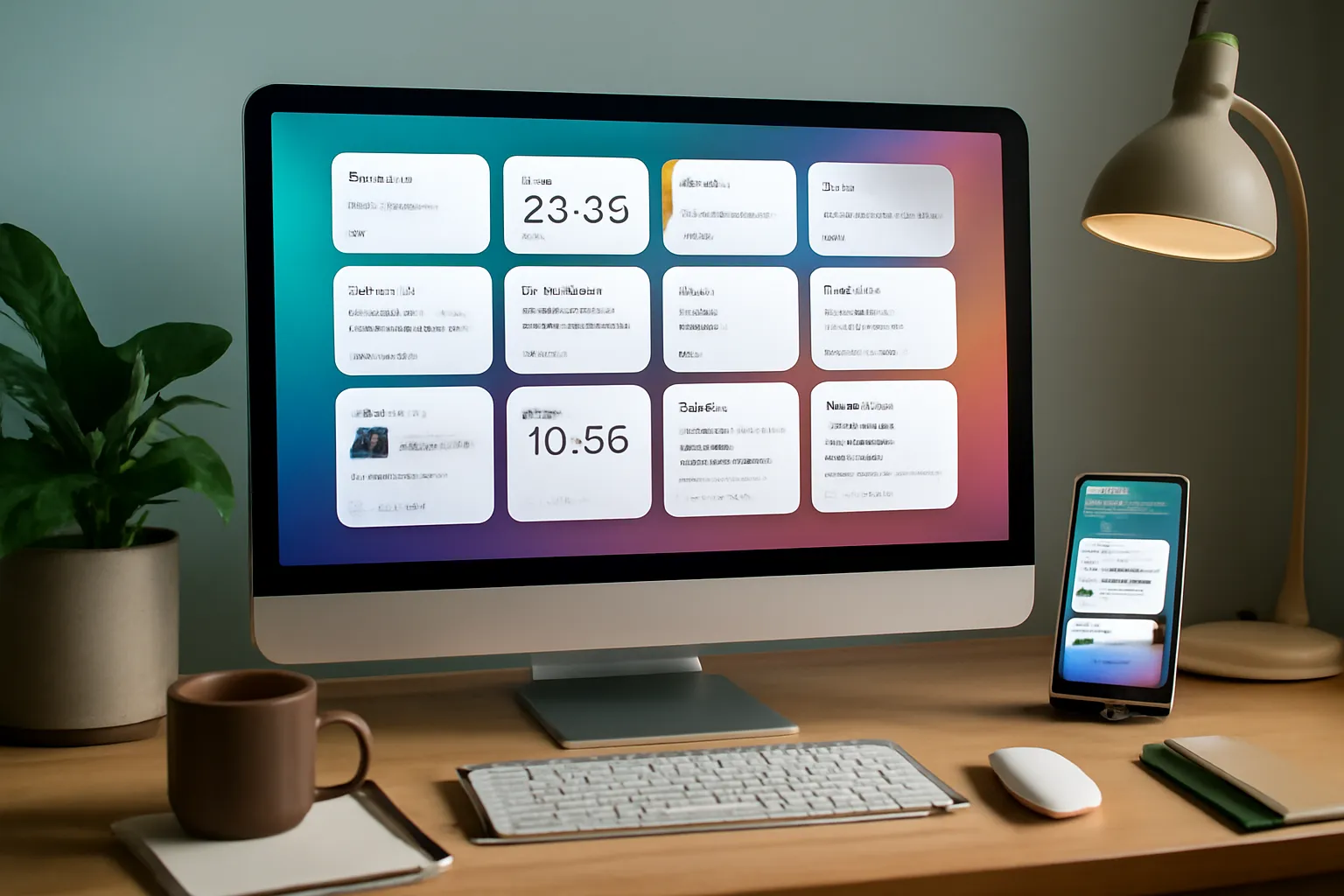
Your new tab is prime real estate—wasted on static shortcuts or blank pages. By transforming it into a productivity hub with 12 essential widgets, you eliminate constant app-switching and keep everything you need visible at a glance. The key is choosing widgets that align with your workflow, then organizing them with drag-and-drop customization across two dedicated workspaces.
Time & schedule: clock, calendar, and focused timers
A clock widget keeps you grounded in the present moment, while a calendar widget surfaces your day's commitments without opening a separate app. Pair these with a focused timer—Pomodoro or custom intervals—and you've created a time-awareness station right on your new tab.
These three widgets work together to eliminate context switching. You see your schedule, current time, and active focus session in one glance, reducing the urge to jump between tabs or apps. Actionable Tip: Pin your calendar widget to your primary workspace and your timer to a secondary one, so you can toggle between planning mode and deep-work mode without losing your layout.
Tasks, notes, and quick capture
A task widget lets you see your to-do list instantly; a notes widget captures fleeting ideas without opening Notion or Evernote. Add a quick-capture widget and you've got a complete capture-and-organize system on your new tab.
These three reduce friction in your workflow. Instead of hunting for your task manager or notes app, you jot down ideas and add tasks as they arise—all from your new tab. This keeps your brain clear and your workflow uninterrupted. Tools like Cuslr let you drag these widgets into your preferred layout, so your capture system feels natural and always accessible.
Reference: bookmarks, reading list, and embedded tools
A bookmarks widget surfaces your most-used links without cluttering your browser bar. A reading list widget holds articles and resources you want to revisit. Embedded tool widgets—like a calculator, weather, or quick search—round out your reference layer.
These widgets turn your new tab into a command center for information retrieval. You spend less time digging through folders or searching for that one bookmark, and more time doing focused work. With two desktop workspaces, you can dedicate one to your active tasks and another to reference materials, keeping both accessible without visual overwhelm.
Key benefit: A unified dashboard with 12 essential widgets—customizable and synced across devices—replaces the need for multiple paid apps while keeping you in flow. That's the power of making your new tab a true productivity hub.
Designing Workflows and Layouts for Different Roles
Your productivity setup should match how you actually work—not force you into a generic template. The best way to make your new tab a productivity hub is to design it around your specific role and daily tasks. When your dashboard reflects your workflow, you eliminate context switching and stay focused on what matters. Cuslr's drag-and-drop customization and template sharing community make it easy to build (or borrow) layouts tailored to your profession.
Remote workers & freelancers: project-centric workspace
Remote workers juggle multiple client projects, deadlines, and communication channels. Your new tab should surface active projects, time tracking, and quick access to client notes—all without opening separate apps.
A project-centric layout typically includes:
- Task board widget (prioritized by client or deadline)
- Time tracker for billable hours
- Calendar showing project milestones
Actionable Tip: Set up one workspace per major client or project type. Use Cuslr's two desktop workspaces to toggle between "Active Projects" and "Admin Tasks," cutting the mental load of switching between contexts. Many freelancers in the template sharing community publish their client-management layouts—start there instead of building from scratch.
Students & content creators: study and research layout
Students and creators need quick access to research materials, writing drafts, and study schedules without bouncing between Notion, Google Docs, and calendar apps. A research-focused dashboard keeps everything visible at a glance.
Typical widgets for this role:
- Study timer or Pomodoro widget
- Reading list or bookmarks
- Writing progress tracker
This layout replaces the need for separate note apps and task managers, saving $100–150/year compared to Notion Premium + Todoist. Your new tab becomes your single entry point to all active research and writing projects.
Developers & designers: quick tools and terminals
Developers and designers need instant access to code snippets, design assets, documentation links, and quick-launch tools. Every second counts when you're in flow state.
Essential widgets for technical roles:
- Snippet library or code reference
- Color palette or design asset organizer
- Quick command launcher or terminal shortcut
Actionable Tip: Use Cuslr's offline-first architecture to store frequently-used code snippets and design tokens locally. Sync them across your laptop and desktop workspaces so your setup is identical whether you're at your desk or working remotely. This eliminates the friction of hunting for tools across multiple browser tabs or apps.
The Cost Advantage: Each of these role-specific layouts would typically require 2–3 paid subscriptions (Todoist + Notion + Toggl, for example). Cuslr's $36/year Standard plan replaces all three, saving you $420+ annually while keeping everything in one place. Explore the template sharing community to find pre-built layouts for your role and customize from there.
Cuslr's Approach: Offline-first, Local-first, and Cost-effective
Most productivity tools force you into the cloud-first trap: your data lives on someone else's servers, you're locked into subscriptions, and you pay premium prices for features you'll never use. Cuslr flips this model entirely. By making your new tab a productivity hub with offline-first and local-first architecture, you regain control of your workflow, your data, and your budget.
The result? A dashboard that works whether you're online or offline, syncs seamlessly across devices, and costs a fraction of what you'd spend on competing apps. Let's break down how this approach transforms productivity.
How offline-first and local-first storage protect your flow and privacy
Your data lives on your device first—not on distant servers. This means:
- Zero dependency on internet: Your tasks, notes, and widgets load instantly, even offline. Sync happens automatically when you reconnect.
- Privacy by design: You own your data. No third-party tracking, no surprise policy changes, no vendor lock-in.
- Faster performance: Local-first storage eliminates lag. Your new tab opens instantly with all your widgets ready to use.
Actionable Tip: Before adopting any productivity tool, ask yourself: Where does my data live? If the answer is "the cloud, always," you're trading speed and privacy for convenience. Cuslr's local-first approach gives you both—your data stays on your device and syncs intelligently across your desktop workspaces and other devices only when needed.
This architecture also means you're never caught off-guard by server outages or sudden feature removals. Your productivity hub remains yours, always accessible.
Pricing and savings: $36/year Standard plan and save $420+/year vs competing apps
The math is simple. Todoist costs $48/year, Notion runs $120/year, Evernote $180/year, and Toggl $108/year. Add them up: you're spending $456+ annually on separate tools that fragment your workflow.
Cuslr's Standard plan costs just $36/year—and includes all 12 essential productivity widgets, cross-device sync, two desktop workspaces, and template sharing access. That's a $420+ annual saving compared to piecing together competing apps.
No hidden fees. No upsells. No context switching between five different interfaces.
- Replace multiple apps: Tasks, notes, timers, calendar, habits—all in one dashboard.
- Transparent pricing: One plan, one price, full features for solopreneurs and small teams.
- Drag-and-drop customization: Build your perfect workspace without paying extra for "pro" versions.
Ready to see what's included? Check out our features page to explore the 12 widgets and learn how Cuslr transforms your new tab into a unified productivity hub that actually saves you money and time.
Getting Started with Cuslr: Setup, Tips, and Best Practices
Setting up Cuslr takes just a few minutes, and you'll immediately notice how much cleaner your browser feels. Instead of juggling multiple apps and losing focus to context switching, you'll have everything you need right there on your new tab. Let's walk through the essentials so you can start building your ideal productivity hub.
The beauty of Cuslr is that it's designed for instant adoption—no steep learning curve, no overwhelming setup process. Whether you're a minimalist or someone who loves customization, the platform adapts to your workflow.
Step-by-step setup, sample templates, and advanced tips
Installation & First Steps
Start by installing the Cuslr Chrome extension from the official store. Once activated, your new tab instantly transforms into a blank canvas. You'll see the widget library on the right side—this is where all 12 essential productivity widgets live (tasks, notes, calendar, timer, bookmarks, weather, and more).
Arranging Your Widgets
Drag and drop widgets onto your dashboard in any order you prefer. Most users start with:
- A task manager widget at the top for daily priorities
- A notes widget for quick capture
- A calendar for scheduling visibility
Don't overthink it—you can rearrange anytime. Cuslr's drag-and-drop customization means your dashboard evolves with your needs.
Using Two Desktop Workspaces
One of Cuslr's standout features is the ability to create two separate desktop workspaces. Use one for deep work (minimal distractions, focused widgets) and another for admin tasks (email, calendar, notes). Switch between them instantly without losing your layout. This separation dramatically reduces cognitive load.
Enabling Cross-Device Sync
In settings, toggle cross-device sync to ensure your dashboard, preferences, and data stay synchronized across your laptop, desktop, and tablet. Cuslr's offline-first architecture means you'll never lose work, even if your connection drops—everything syncs when you're back online.
Leveraging Templates
Head to our templates community to browse pre-built dashboard layouts. Whether you're a freelancer, student, or remote worker, you'll find templates that match your workflow. Import one, customize it, and you're ready to go. Many users save hours by starting with a proven template rather than building from scratch.
Actionable Tip: Start with just 4–5 widgets your first week. Once you're comfortable, gradually add more. This prevents overwhelm and helps you discover which tools genuinely improve your productivity. Cuslr's minimalist design philosophy means less is often more—focus on what moves the needle for you.
For a deeper dive into onboarding, visit our getting started guide. The fastest way to make your new tab a productivity hub is to stop treating it as wasted space and start using Cuslr as your command center. You'll reclaim focus, eliminate app-switching friction, and save hundreds annually in subscription fees.
What is a new tab productivity hub?
A new tab productivity hub is a customized browser page that replaces your default new tab with useful widgets and tools. Instead of a blank page, you see your calendar, to-do lists, notes, and other productivity features instantly when opening a new tab.
Why should I use my new tab for productivity?
Your new tab is real estate you visit dozens of times daily. Converting it into a productivity hub gives you immediate access to important information and tasks without extra clicks, helping you stay organized and focused throughout your day.
What features should a productivity hub have?
A good productivity hub includes task management, calendar integration, note-taking, weather, time tracking, and quick links. Look for customizable widgets, offline functionality, and the ability to organize them into layouts that match your specific workflow.
Can I design different new tab layouts for different jobs or roles?
Yes, many productivity hubs allow you to create multiple layouts tailored to different roles. You can switch between a developer layout with code snippets and a manager layout with team calendars, adapting your hub to your current needs.
Is it safe to store information on a new tab productivity hub?
The safest options use offline-first, local-first approaches where your data stays on your device rather than syncing to external servers. This keeps your information private while still providing quick access to your productivity tools.
How do I set up a new tab productivity hub?
Start by choosing a productivity hub tool, then customize widgets based on your priorities. Add your calendar, tasks, and frequently used links, arrange them logically, and test different layouts to find what works best for your workflow.
What are the best widgets to include on a productivity hub?
Essential widgets include a to-do list, calendar, clock, notes, weather, quick links, and habit tracker. Choose widgets that address your biggest productivity pain points and remove ones you don't use regularly to keep your hub clean and focused.
Loading comments...