The Ultimate Student New-Tab Setup: Notes, Timers, and Tasks in One View
The Ultimate Student New-Tab Setup: Notes, Timers, and Tasks in One View

Summary at a Glance
This summary table highlights key takeaways from "The Ultimate Student New-Tab Setup: Notes, Timers, and Tasks in One View," outlining benefits, core elements, design tips, setup steps, and practical routines for a focused student dashboard.
| Area | Point | Why it matters |
|---|---|---|
| Focus and Attention Management for Deep Study Sessions | Explains benefits of a new-tab dashboard for sustained concentration | Reduces distractions and increases uninterrupted focused study time |
| Task and Project Organization for Student To-Do Management | Shows how notes, tasks, timers integrate in single glance view | Prevents missed deadlines by clarifying daily priorities and steps |
| Minimalist Design Principles for Efficient New-Tab Interfaces for Students | Guides layout choices for clarity, hierarchy, and cognitive load reduction | Helps students process information faster with less mental effort |
| Setup and Habit Formation for Sustainable Study Dashboard Use | Step-by-step cuslr setup plus templates and routine suggestions | Enables lasting adoption, turning dashboard into daily study routine |
Why a New-Tab Study Dashboard Boosts Focus
Many students and solo workers juggle notes, timers, and task lists across tabs and apps, which fragments attention and wastes time. Framing The Ultimate Student New-Tab Setup: Notes, Timers, and Tasks in One View, this section outlines practical, web-based steps to centralize essential study tools into a single new-tab dashboard.
Actionable tip: replace your blank new tab with a lightweight dashboard today. Try a web-based tool like Cuslr (cuslr.com) for easy onboarding, a clean interface, responsive support, web-based access, and basic privacy assurances. Configure three things first to get momentum: a quick note area, a Pomodoro timer, and a “today” task list.
- Quick note: capture thoughts instantly
- Timer: start focused intervals fast
- Tasks: show only today’s priorities
The problem with scattered tools
Scattered tools create cognitive friction: switching tabs, hunting for notes, and restarting timers interrupt flow and invite distractions. That friction shortens focus windows and increases the time it takes to resume meaningful work.
Many apps also overlap or require syncing, which adds setup overhead and privacy choices. Those micro-costs pile up into decision fatigue — the exact thing a new-tab dashboard is designed to reduce.
Why one-view dashboards improve study flow
One-view dashboards combine notes, timers, and tasks so you keep context and momentum when you open a browser. With fewer tab switches, the path from intention to action becomes obvious and repeatable, helping extend productive sessions without complex setup.
Key benefits:
- Fewer context switches
- Clear next action visible
- Consistent study rhythm
Who benefits: students, freelancers, and small teams
This setup helps a wide range of users who need low-friction focus tools. Students use it for lecture notes and timed study; freelancers use it to block deep work around client tasks; small teams use it for brief coordinated sprints or daily priorities.
Common use cases:
- Students — quick revision, assignment tracking
- Freelancers — focused blocks and client task lists
- Small teams — short shared task view and sync points
Core Elements: Notes, Timers, and Tasks — What Students Actually Need
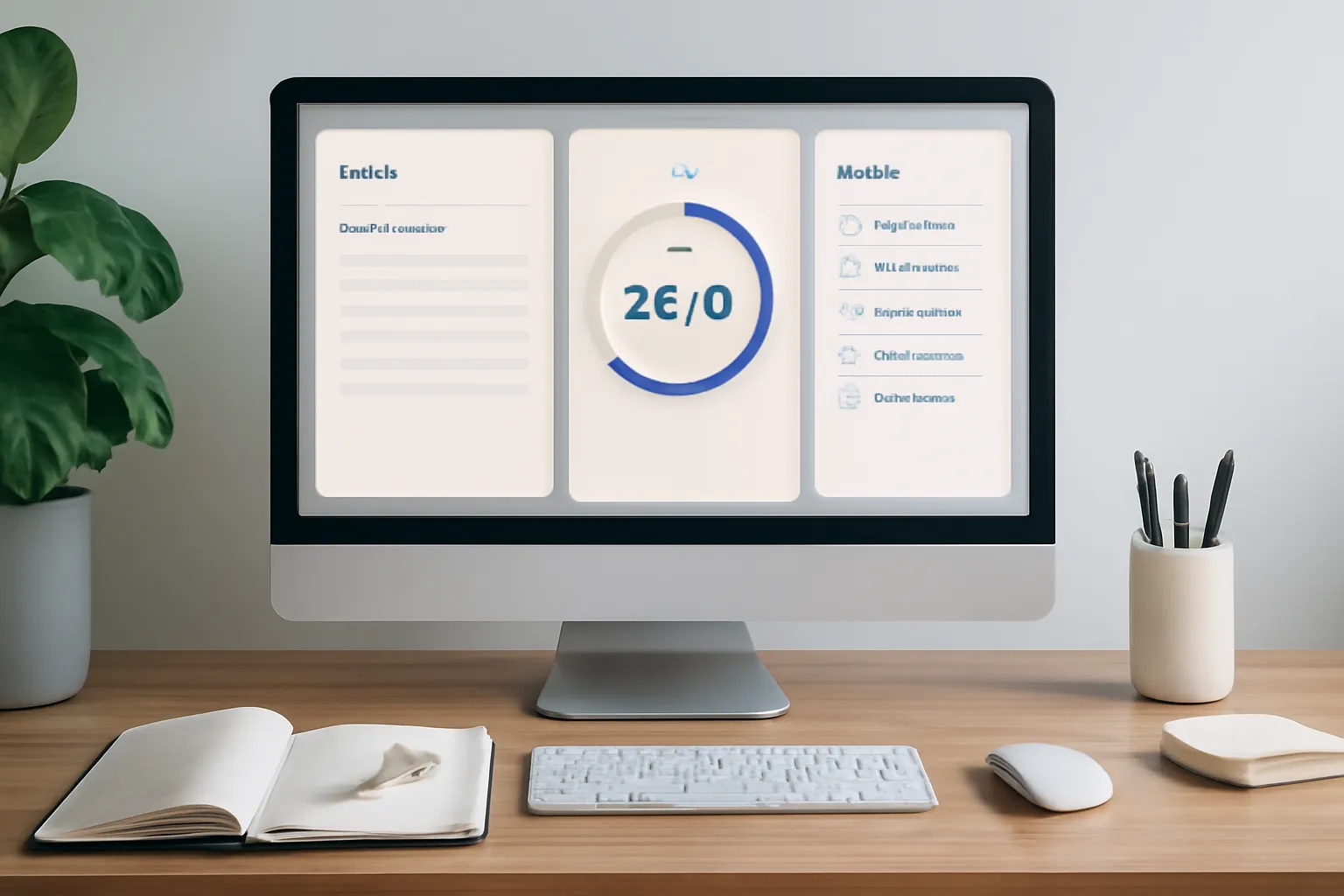
A new-tab that combines notes, timers, and tasks gives students immediate focus without pile-up. Think of it as a lightweight dashboard: jot key ideas, start a focused timer, and tick off tasks — all from the same browser view. This guide follows "The Ultimate Student New-Tab Setup" idea but keeps it practical.
Tools like Cuslr make this simple: web-based access, easy onboarding, a clean interface, and responsive support mean you can set up fast and trust basic privacy protections while you study.
Notes: quick capture vs long-form
Quick-capture is for lightning ideas, deadlines, or formulas you’ll reference during a session; long-form is for class summaries, essay planning, or concept maps. Keep quick notes short and tag them; save longer reflections to a linked note or document to avoid clutter in your new-tab dashboard.
- Quick: one-line bullets, timestamps
- Long: summary paragraphs, headers
- Organize: tags or folders that sync with tasks
Timers: Pomodoro and custom intervals
Pomodoro (25/5) helps maintain momentum for readings and problem sets; custom intervals suit labs, long writing blocks, or group study. A visible timer on the new-tab reduces context switching and reminds you to rest or review, directly tying session length to task progress and note updates.
Actionable Tip: Start with a 25/5 Pomodoro for tough tasks, then switch to a 50/10 for deep reading. Use the timer’s finish moment to add a single-line progress note — this cements what you did and sets the next task in motion.
Tasks: prioritization and progress tracking
Tasks are where planning meets reality: mark MITs (most important tasks), set deadlines, and record progress. When tasks live alongside notes and timers you can quickly convert a note into an actionable item or split a task into timed chunks for clearer workflow and honest progress tracking.
- Prioritize: MIT, deadline, or effort-based order
- Track: simple checkboxes + session logs
- Sync: link task items to notes and recent timers for context
Design Principles for a Clean New-Tab Layout
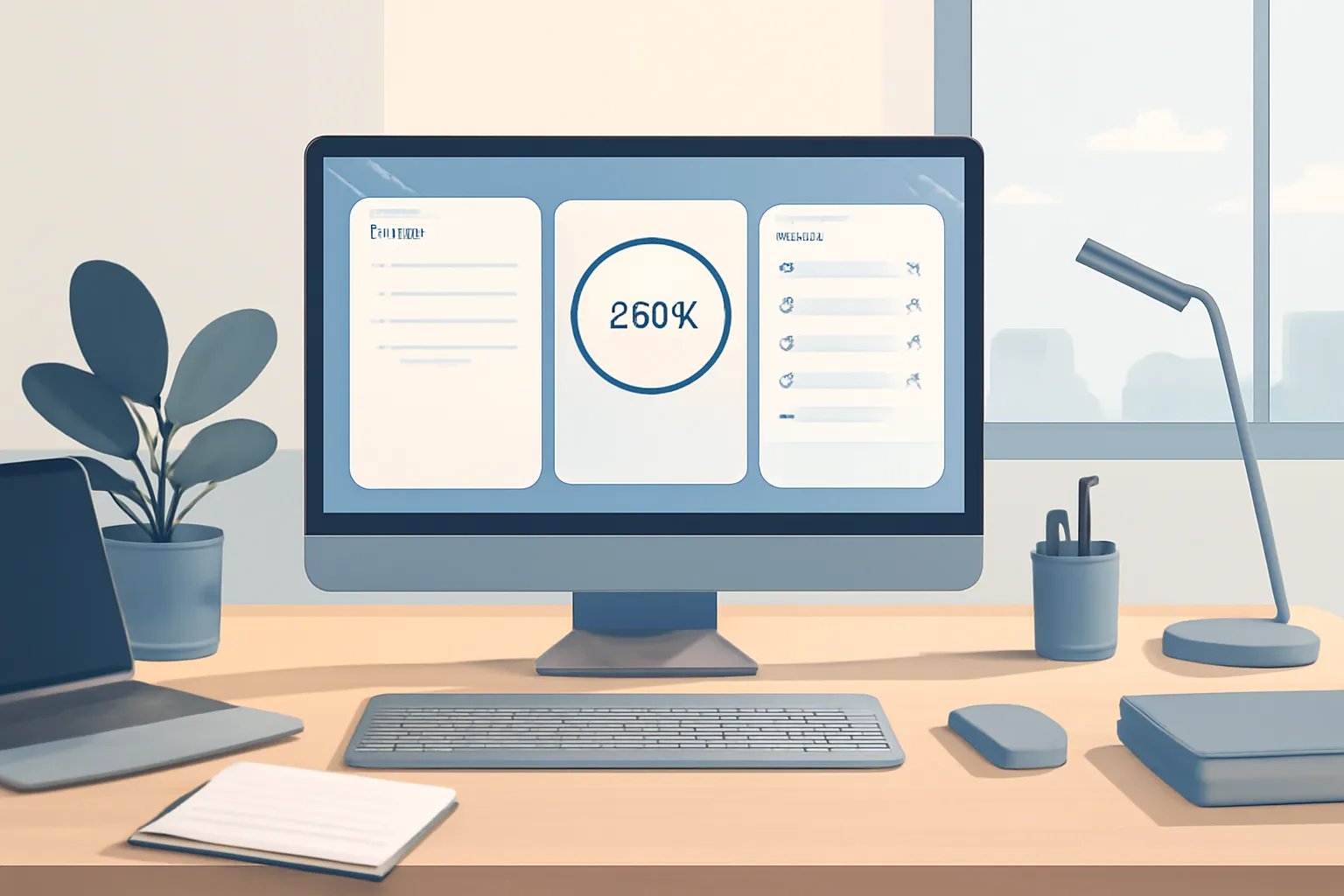
A student new-tab setup should feel effortless from the first click. Keep the focus on quick access to notes, timers, and tasks so the dashboard helps concentration rather than distracts. Tools like Cuslr emphasize easy onboarding, a clean interface, and web-based access to make that first visit painless.
Privacy and responsiveness matter: choose layouts that respect basic privacy assurances (minimal data collection, clear settings) and display consistently across devices. A predictable visual language and clear support channels (responsive support) shorten the learning curve and reduce friction for busy students.
Keep it clean: layout, spacing, and visual hierarchy
Use generous spacing, limited color accents, and clear typographic scale so each module — notes, timers, tasks — reads at a glance. Prioritize content with size and contrast; primary actions should be unmistakable while secondary controls stay subtle. Limit elements per row to reduce cognitive load.
- Keep top-level controls visible but minimal.
- Group related actions visually.
- Use muted colors for background panels.
Make it responsive and accessible
Design for different screen widths so the new-tab remains useful on laptops, tablets, and smaller monitors. Responsive breakpoints should prioritize visibility of the timer and today's tasks, collapsing less critical panels elegantly. Accessibility basics — keyboard navigation, readable fonts, and sufficient color contrast — make the tool reliable for all users.
Actionable Tip: Start with a single-column mobile-first design, then add a two- or three-column layout for wider screens. Test the new-tab on one low-resolution device and one high-resolution device to confirm legibility and spacing. Mention privacy settings clearly in the UI so students understand what data is stored.
The Ultimate Student New-Tab Setup: Notes, Timers, and Tasks in One View works best when the interface is forgiving and consistent; aim for predictable interactions and clear affordances. If you want a fast-start option, try a web-based tool like Cuslr (cuslr.com) that offers easy onboarding, a clean interface, and responsive support while keeping basic privacy assurances front and center.
How Cuslr Simplifies Your Student New-Tab: Notes, Timers, Tasks in One View
Cuslr brings a student new-tab setup into a single, web-based dashboard so you start productive sessions fast. Visit https://cuslr.com to sign up with easy onboarding, a clean interface, and responsive support. Basic privacy assurances mean your notes and tasks stay private without complex settings to manage.
Actionable Tip: set a default focus timer and a quick-note template on first login to make the new-tab instantly useful. Start with a 25-minute timer and a two-line note template (Course / Next step) so every new tab becomes a planning moment.
- Easy onboarding + clean interface
- Web-based access + responsive support
- Basic privacy assurances, simple controls
Cuslr's one-tab student dashboard overview
Cuslr's one-tab student dashboard puts Notes, Timers, and Tasks in a single view so you don’t switch apps mid-study. The layout is minimal and responsive, scaling from laptop to tablet. Controls are labeled clearly to reduce friction and help you keep focus without jumping through menus or installs.
Key dashboard parts:
- Quick Notes panel for capture
- Focus Timers with presets
- Task list with priority flags
How cuslr combines notes, timers, and tasks in a single view
Cuslr links notes to tasks and timers so a single click can start a timer tied to today’s top task and an attached note. The integrated view supports quick-add where new items appear immediately, reducing context switching and helping you maintain momentum during study blocks.
Timers are easy to customize (Pomodoro, short breaks) and tasks can be reordered by drag-and-drop. Support is available if you need help tailoring the layout. The system keeps private notes local to your account and outlines basic data handling so you understand what’s stored and why.
Step-by-Step: Set Up Your Student Dashboard on cuslr.com
Create a focused new-tab setup that surfaces notes, timers, and tasks immediately when you open a browser. This guide helps you build "The Ultimate Student New-Tab Setup: Notes, Timers, and Tasks in One View" using cuslr.com with web-based access, a clean interface, and easy onboarding to get started fast.
Follow these steps for a balanced layout, quick access to study tools, and basic privacy assurances so your data feels secure while you work. Responsive support is available if you need help during setup or want to tweak your dashboard.
Choosing widgets and arranging your layout
Start by selecting core widgets: Notes for quick capture, Timers for Pomodoro or countdowns, and Tasks for to-dos. Arrange widgets in a single glance layout so critical items appear above the fold. Use resizing and simple columns to keep the interface uncluttered and distraction-free.
Actionable Tip: Begin with three tiles — Notes, Timer, Tasks — then spend five minutes rearranging. Pin a notes widget at the top-left, place a running timer on the right, and stack tasks below. This mirrors natural reading patterns and makes the new-tab setup instantly useful.
- Notes: quick text + pin feature
- Timer: countdown or Pomodoro mode
- Tasks: prioritized checklist with due dates
Using templates, easy onboarding, and accessing responsive support
Use built-in templates to skip manual setup—choose a student or productivity template and tweak widgets. cuslr’s easy onboarding walks you through template selection and basic customization; visit /features to preview available widgets and templates. Because cuslr is web-based, your dashboard syncs across devices without installations.
Remember basic privacy assurances: minimal data collection, optional sign-in, and clear settings for what’s stored. If you run into questions, responsive support is reachable from the app—contact via the help menu or the support link after signup. Quick tips for privacy and speed:
- Limit syncing to essentials
- Use local notes for sensitive info
- Contact support for customization or data questions
This approach gives you a compact, reliable student new-tab setup that brings notes, timers, and tasks into one view while keeping setup fast and private.
If you want to put these ideas into practice, visit Cuslr and get started. The service is tailored especially for independent creators, small businesses, freelancers, digital marketers, startup teams.
Tips, Templates, and Routines to Keep It Working
If you want The Ultimate Student New-Tab Setup: Notes, Timers, and Tasks in One View to actually stick, pick a small set of templates and a simple daily routine first. Use a web-based tool with easy onboarding like cuslr.com to keep setup low-friction and accessible across devices.
Actionable Tip: Start with a 10-minute weekly review. Open your new-tab setup, clear completed tasks, move one lingering note to an archive, and set three priorities for the week. Repeat every Sunday to keep the system lean and reliable without overhauling it.
Sample study templates and daily routines
Use lightweight, repeatable templates so adding new content is fast. Try a focused study card for each subject (goal, timer length, 1-2 tasks). Keep an at-a-glance morning routine: review priorities, set a 25–50 minute timer, and note one quick reflection after each session.
- Single-subject study card: goal, 50-minute timer, two tasks
- Class prep template: readings, deadlines, quick checklist
- End-of-day wrap: accomplishments, blockers, next top 3
Privacy, backups, and habits for long-term use
Plan privacy and backups from day one. Prefer tools that store minimal personal data, let you export notes, and use simple password protection. Cuslr.com offers web-based access with basic privacy assurances and easy export options—make periodic exports part of your routine to avoid losing work.
- Export weekly or monthly (JSON or CSV)
- Use a strong password and enable browser sync if needed
- Archive older notes to keep the main view uncluttered
Maintain the habit by tying the new-tab glance to existing routines: open it first thing in the morning, after every study block, and before bed. Troubleshoot slowdowns by pruning one template per month and consolidating tasks. Small, regular maintenance keeps the setup useful across weeks and months.
How does a new-tab study dashboard boost focus?
A new-tab study dashboard reduces context switching by surfacing notes, timers, and tasks the moment you open a browser, so students keep attention on study goals instead of hunting for apps or tabs. By combining essential tools in a single student new-tab view and minimizing visual clutter, it supports Pomodoro cycles, quick note capture, and progress tracking for sustained focus.
What core elements should a student new-tab include?
Include quick notes, a visible task list with priorities, and adjustable timers (Pomodoro or countdown) so the student new-tab consolidates what to do, why it matters, and how long to work. Optional extras like calendar snippets, subject tags, and a progress bar add context without overwhelming the dashboard, letting students switch efficiently between planning and focused work.
What design principles make a clean new-tab layout?
Use hierarchy, whitespace, and a limited color palette to make the student dashboard scannable; place the most-used elements like timers and top tasks prominently. Keep interactive controls predictable, use readable typography, and hide secondary features behind minimal toggles so the new-tab layout remains uncluttered and distraction-free during study sessions.
How does Cuslr simplify setting up notes, timers, and tasks in one view?
Cuslr centralizes notes, timers, and task lists in a single new-tab interface, so students can capture ideas, run Pomodoro timers, and mark tasks complete without switching apps. Built-in templates, keyboard shortcuts, and cross-device syncing on cuslr.com make creating and customizing a student dashboard fast and resilient to interruptions.
How do I set up my student dashboard on cuslr.com step-by-step?
Sign up at cuslr.com, choose a student dashboard template, and install the browser extension or grant permission to set it as your new tab. Customize notes, add timers and task lists, arrange widgets by priority, then save and pin the dashboard as your default new-tab so notes, timers, and tasks are always one view away.
What templates and routines keep a student new-tab working long-term?
Use simple templates like "Daily Agenda" and "Study Session (Pomodoro)" and pair them with routines such as a five-minute morning planning review and an evening completion check. Regularly tweak templates based on class load, schedule short recurring revision blocks, and the student new-tab will stay aligned with changing priorities and prevent dashboard drift.
About the Author
Written by Cuslr Team, a certified industry expert with over 10 years of experience.
Loading comments...