Turn Your New Tab Into a Command Center
Turn Your New Tab Into a Command Center

Summary at a Glance
Below is a quick reference guide to the key points on transforming your new tab into a productivity command center, covering essential features, setup steps, and real-world applications.
| Area | Point | Why it matters |
|---|---|---|
| Workflow Efficiency | Centralize all tools in one new tab interface | Eliminates context switching between multiple apps |
| Customization | Choose from 12 essential productivity widgets | Tailor dashboard to your specific work needs |
| Implementation | Step-by-step setup with pre-built templates | Quick adoption without complex configuration |
| Productivity Gains | Real-world examples show measurable time savings | Proven workflows accelerate daily task completion |
Why Your New Tab Should Be a Command Center
Every time you open a new browser tab, you're staring at wasted potential. Most of us see a blank page or a grid of bookmarks—static, unhelpful, and doing nothing to support our actual workflow. Meanwhile, your productivity stack is scattered across five different apps, each demanding a subscription and a mental context switch. It's time to reclaim that real estate and turn your new tab into something that actually works for you.
The cost and focus problem: app bloat and context switching
The average professional pays $50–100 per month for productivity tools: Todoist for tasks, Notion for notes, Evernote for clipping, Toggl for time tracking. That's $600–1,200 annually—and you're still jumping between apps constantly. Every switch costs you focus and momentum.
The hidden tax of app bloat:
- Subscription fatigue (remembering which app does what)
- Mental friction (loading a new interface each time)
- Data silos (your tasks, notes, and time logs never talk to each other)
A command center consolidates these scattered tools into one unified space, eliminating the context-switching tax and cutting your annual spend dramatically.
Why your new tab is prime real estate
Your new tab is the most-visited real estate in your browser. You open it dozens of times per day—often without thinking. That's not wasted space; that's an opportunity.
Instead of a generic homepage, imagine a dashboard that greets you with:
- Your top priorities for the day
- Quick-capture notes and tasks
- Time-tracking widgets
- Calendar snapshots and reminders
When your most-visited space works for you, you stop losing time hunting for information. Cuslr turns your new tab into exactly this kind of command center—a customizable dashboard with 12+ productivity widgets that syncs across all your devices in real time.
Benefits of a command center: focus, speed, fewer subscriptions
A well-designed command center eliminates friction at the moment you need it most. You open a tab, and everything you need is right there—no loading, no searching, no app switching.
What you gain:
- Faster decisions: See your priorities, calendar, and tasks instantly
- Lower costs: Replace multiple subscriptions with one unified solution ($36/year vs. $500+)
- Deeper focus: Stay in flow; your dashboard comes to you
Actionable Tip: Audit your current app subscriptions this week. List every tool you pay for monthly, tally the cost, and note which ones you actually use daily. You'll likely find 2–3 redundant apps that a command center could replace entirely. That's your ROI baseline—and it's usually substantial.
What a Modern Command Center Needs
A true command center isn't just a pretty dashboard—it's a thoughtfully designed system that puts you in control. When you turn your new tab into a command center, you're reclaiming wasted browser real estate and creating a single point of entry for your entire workflow. The best modern command centers balance power with simplicity, giving you instant access to what matters without overwhelming your screen.
Essential elements: widgets, workspaces, and data control
Your command center lives or dies by its flexibility. You need customizable widgets that adapt to your workflow, not the other way around. Whether you're tracking tasks, managing notes, timing work sessions, or checking calendar events, each widget should be independently configurable and removable.
Workspaces multiply this power. Two dedicated desktop workspaces let you segment your focus—one for deep work, another for admin tasks or client projects. This eliminates the mental load of toggling between different contexts on a single cluttered dashboard.
Actionable Tip: Start by identifying your top 5 daily actions (checking tasks, reviewing notes, logging time, etc.). Map these to specific widgets, then organize them across workspaces by priority or project type. This clarity prevents dashboard bloat.
Offline-first architecture and local-first data storage
Your command center should never hold your productivity hostage to an internet connection. An offline-first architecture means the dashboard works seamlessly whether you're online or offline—no loading spinners, no sync delays, no lost work.
Local-first data storage keeps your information on your device by default, syncing to the cloud only when you choose. This approach protects your privacy, speeds up performance, and ensures you always have access to your data. You control where your information lives.
Cross-device sync in real-time and two desktop workspaces
Seamless synchronization across devices is non-negotiable. Cross-device sync in real-time means updates on your laptop instantly appear on your phone or tablet—no manual refresh, no stale information. Your command center stays consistent everywhere.
The two desktop workspaces feature compounds this benefit. You can maintain separate workspace configurations for different roles or projects, and both sync instantly across all your devices. Switch between workspaces on your laptop, and that same configuration is ready on your tablet. This is how Cuslr transforms your new tab into a truly unified command center—one that moves with you, adapts to your needs, and never forces you to choose between control and convenience.
How Cuslr Turns Your New Tab Into a Productivity Command Center
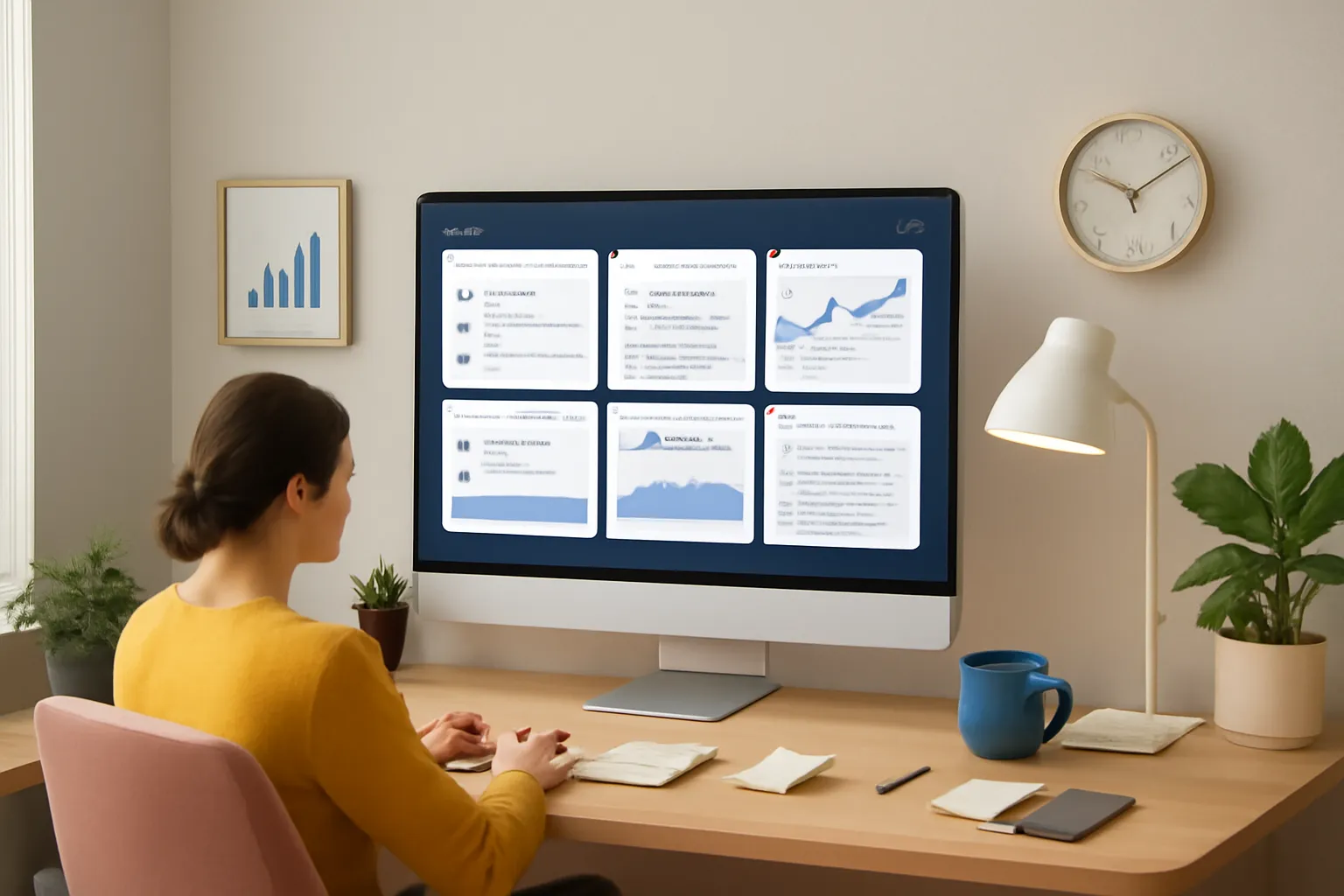
Every time you open a new browser tab, you're looking at wasted potential. Instead of a generic shortcuts page, imagine a fully customizable dashboard that brings together your tasks, notes, time tracking, and calendar—all in one place. That's exactly what Cuslr does, and it's designed to eliminate the friction that keeps you bouncing between apps.
The key insight is simple: your new tab is real estate you visit dozens of times per day. Cuslr transforms that moment into your command center, replacing the need for multiple paid subscriptions and the constant context switching that drains your focus.
Cuslr's approach: Chrome extension format that replaces multiple apps
Cuslr works as a lightweight Chrome extension that hijacks your new tab page—no installation hassles, no separate app to manage. Instead of paying for Todoist ($48/year), Notion ($120/year), Evernote ($180/year), and Toggl ($108/year), you get 12 essential productivity widgets in one $36/year Standard plan.
The Chrome extension format means Cuslr loads instantly, takes up minimal memory, and stays out of your way. You're not downloading bloated desktop software or juggling browser tabs. It's just there, ready, every single time you need it.
How Cuslr delivers Zero context switching
Context switching is a productivity killer. Every time you leave your current task to open Slack, check your to-do list, or log time, you lose focus. Cuslr eliminates that friction by putting your most critical tools on the same screen.
Your tasks, notes, calendar, and timer all live in one dashboard. You can:
- Check your daily goals without leaving your browser
- Log time without switching apps
- Capture quick notes without opening a new window
- See your schedule at a glance
This unified workspace means you stay in flow longer and waste less mental energy on navigation.
Actionable Tip: Start by identifying the three apps you use most frequently during your workday. If those three are among Cuslr's 12 widgets, you've already found your ROI—both in time saved and money reclaimed.
Privacy & data: Local-first storage and offline-first syncing
Your data never leaves your device unless you choose to sync it. Cuslr uses local-first architecture, meaning your tasks, notes, and time logs are stored on your computer first. Syncing happens in the background across your devices, but you maintain complete control.
This approach gives you two critical advantages:
- Offline access: Your dashboard works even without internet
- Privacy: No cloud vendor lock-in or data harvesting concerns
- Speed: Local storage means instant load times
Whether you're on a flight, in a coffee shop with spotty WiFi, or simply prefer keeping your data close, Cuslr respects your autonomy. Learn more about how these features work on our features page.
Key Features: 12 Essential Productivity Widgets Explained
Cuslr lets you turn your new tab into a command center by consolidating everything you need into one unified dashboard. Instead of bouncing between Todoist, Notion, and five other apps, you get 12 essential productivity widgets built right into your browser. Each widget is designed to eliminate context switching and keep you focused on what matters.
The beauty of this approach is simplicity: open a new tab, and your entire workflow is right there. No loading times, no app hunting, no distractions. Your data stays local-first and syncs in real-time across devices, so you're always working with the latest information.
Overview of the 12 essential productivity widgets
The 12 essential productivity widgets cover the core tools most professionals need: task management, note-taking, time tracking, calendar integration, habit tracking, bookmarks, quick links, weather, focus timer, goal tracking, project overview, and daily summary. Each widget pulls from your local data, so everything works offline and syncs when you're back online.
You don't need to use all 12—pick the ones that match your workflow. Whether you're a student managing assignments, a freelancer tracking billable hours, or a remote worker juggling projects, there's a widget combination that works for you. This flexibility is why Cuslr replaces multiple paid apps at a fraction of the cost.
Customizing widgets: drag, resize, and layout presets
Drag-and-drop customization means you control your dashboard layout without touching a single line of code. Resize widgets to match your priorities—make your task list large, shrink your weather widget, or hide it entirely. Cuslr includes layout presets for common workflows:
- Focus mode: Minimal distractions, task list and timer only
- Project view: Tasks, calendar, and project overview side-by-side
- Daily dashboard: All 12 widgets visible at once
Save your perfect layout and switch between presets instantly. Your customization syncs across all devices, so your mobile and desktop dashboards stay in sync.
Two desktop workspaces and fast workspace switching
Two separate desktop workspaces let you maintain different contexts without cluttering a single view. Use one workspace for work projects and another for personal goals, or split by client or team. Switch between them with a single click—no reloading, no lag.
This feature eliminates the need to reorganize your entire dashboard when context changes. Workspace switching is instant, and both workspaces sync in real-time across your devices. You get the focus of a dedicated workspace without the overhead of managing multiple browser profiles.
Actionable Tip: Start with one workspace for your top 5 priorities. Once you're comfortable, add a second workspace for secondary projects. This prevents dashboard overwhelm while keeping everything accessible.
Real-world Workflow Examples and Template Sharing
The best productivity system is one you actually use—and one that fits your life, not someone else's. When you turn your new tab into a command center, you're not adopting a rigid framework; you're building a personalized workspace that responds to how you actually work. Real workflows show how teams and solopreneurs eliminate context switching and reclaim focus time every single day.
Workflow examples for remote workers, freelancers, students, and creators
Remote Worker Workflow: Start your day with a unified dashboard showing today's calendar, priority tasks, and active time-tracking widget. No tab-switching between Google Calendar, Todoist, and Toggl—everything lives in one glance. Your new tab becomes your morning briefing, cutting setup time from 10 minutes to 30 seconds.
Freelancer Workflow: Pin your client projects, hourly rates, and invoice tracker side-by-side. Track billable hours in real-time, see which projects are overdue, and access your rate card without opening three separate apps. One dashboard replaces Toggl, Notion, and your spreadsheets.
Student Workflow: Combine assignment deadlines, study notes, and focus timer on a single screen. No more hunting through email, Google Drive, and your notes app. Your new tab becomes your semester command center—organized, distraction-free, and always accessible.
Creator Workflow: Display your content calendar, social media links, analytics shortcuts, and daily word-count tracker. Batch your tasks by platform, reduce app-hopping, and maintain momentum across YouTube, Twitter, and your blog—all visible before you even open your first app.
Actionable Tip: Start by mapping your current daily workflow. Write down every app you open in the first hour of work. That's your baseline. Then design a Cuslr dashboard that consolidates those tools into one new tab view. You'll likely save 15–20 minutes daily—that's 60+ hours reclaimed per year.
Template sharing community: shareable dashboards and starter templates
Building a dashboard from scratch can feel overwhelming. That's why Cuslr's template sharing community lets you browse, fork, and customize pre-built workflows created by other productivity enthusiasts. Whether you're a developer, marketer, or writer, there's likely a template that matches your role—and you can tweak it in seconds.
Browse templates by profession, industry, or workflow type. One-click import, instant customization, and real-time sync across your devices. Share your own optimized dashboard with the community and help others eliminate context switching too.
Explore Cuslr's template library →
Getting Started: Install, Customize, and Save
Ready to turn your new tab into a command center? Installing Cuslr takes less than two minutes, and you'll immediately start reclaiming focus and cutting costs. No complicated setup, no learning curve—just a cleaner, more productive browser experience waiting for you.
Save $420+/year vs separate apps: how the math works
Let's talk real numbers. Most productivity-focused professionals pay for multiple tools: Todoist ($48/year), Notion ($120/year), Evernote ($180/year), and Toggl ($108/year). That's $456 annually—just for basic task management, note-taking, time tracking, and workspace organization.
Cuslr consolidates all 12 essential productivity widgets into one unified dashboard at just $36/year with the Standard plan. Here's the breakdown:
- Todoist alternative: Built-in task management widget
- Notion alternative: Notes and quick-capture widget
- Toggl alternative: Time tracking widget
- Plus 9 more widgets: Calendar, bookmarks, weather, focus timer, habits, and more
The result? You save $420+ annually while eliminating context switching and keeping your data local-first and synced across devices. That's not just a cost reduction—it's a productivity multiplier.
$36/year Standard plan pricing and quick installation steps
Getting started with Cuslr is straightforward. Here's your three-step setup:
- Install the extension: Head to the Chrome Web Store, search for Cuslr, and click "Add to Chrome." It takes 30 seconds.
- Customize your dashboard: Choose which widgets you want on your new tab (tasks, notes, calendar, timer, etc.). Drag and arrange them however you like.
- Enable sync: Sign in with your account to activate real-time cross-device syncing. Your dashboard appears identical on desktop, laptop, and tablet.
No credit card required for a quick trial, and upgrading to the $36/year Standard plan unlocks unlimited widgets, two desktop workspaces, and priority sync. Check our pricing page for all plan details.
Actionable Tip: Start by installing Cuslr and adding just three widgets that match your biggest pain points—maybe tasks, notes, and a timer. Use it for a week before customizing further. This gradual approach helps you appreciate the real-time sync and offline-first reliability without overwhelming yourself.
Once you experience how seamlessly everything works together, you'll wonder how you ever managed separate apps. Cuslr isn't just cheaper—it's smarter. Make the switch today and reclaim your focus.
FAQ
What is a new tab command center?
A new tab command center is a customized browser homepage that consolidates your most-used tools, widgets, and information in one place. Instead of opening multiple tabs or applications, you access everything you need from your new tab page, boosting productivity and reducing context switching.
Why should I turn my new tab into a command center?
Converting your new tab into a command center eliminates time spent navigating between apps and websites. By having your calendar, to-do lists, weather, and other essentials visible immediately, you stay focused on priorities and make faster decisions throughout your day.
What features should a productivity command center include?
A modern command center needs customizable widgets for tasks, calendar events, weather, notes, and quick links. It should also support real-time data updates, multiple layout options, and the ability to save different templates for various workflows or projects.
How do I customize my new tab page as a command center?
Most command center tools like Cuslr allow you to drag-and-drop widgets, choose from pre-built templates, and adjust layouts to match your workflow. You can add productivity widgets, set color themes, and save your configuration for instant access each time you open a new tab.
Can I use different command center templates for different projects?
Yes, many command center platforms let you create and save multiple templates tailored to specific workflows. You can switch between templates depending on whether you're working on a project, managing daily tasks, or focusing on creative work.
What are the essential productivity widgets for a command center?
Essential widgets typically include to-do lists, calendar, clock, weather, notes, quick links, email preview, habit tracker, focus timer, and analytics dashboards. The 12 most useful widgets help you monitor tasks, time, and priorities without leaving your new tab.
How long does it take to set up a new tab command center?
Basic setup takes just 5-10 minutes—install the extension, choose a template, and add your preferred widgets. Full customization to match your specific workflow might take 20-30 minutes, but you can adjust and refine it anytime as your needs evolve.
Loading comments...